
TABLE OF CONTENTS
Via the IVR editor, you have the ability to inform customers of the queue size/number of people in the queue using Text-to-speech (TTS).
When a customer is on an inbound call, this feature can help by informing them of their position. This could be triggered based on the number of people in the queue and dependant on that number, you could perhaps give them the option to use the virtual queue instead of having to wait on the phone (see example IVR at the bottom of this guide)
Click on the images for a more detailed view.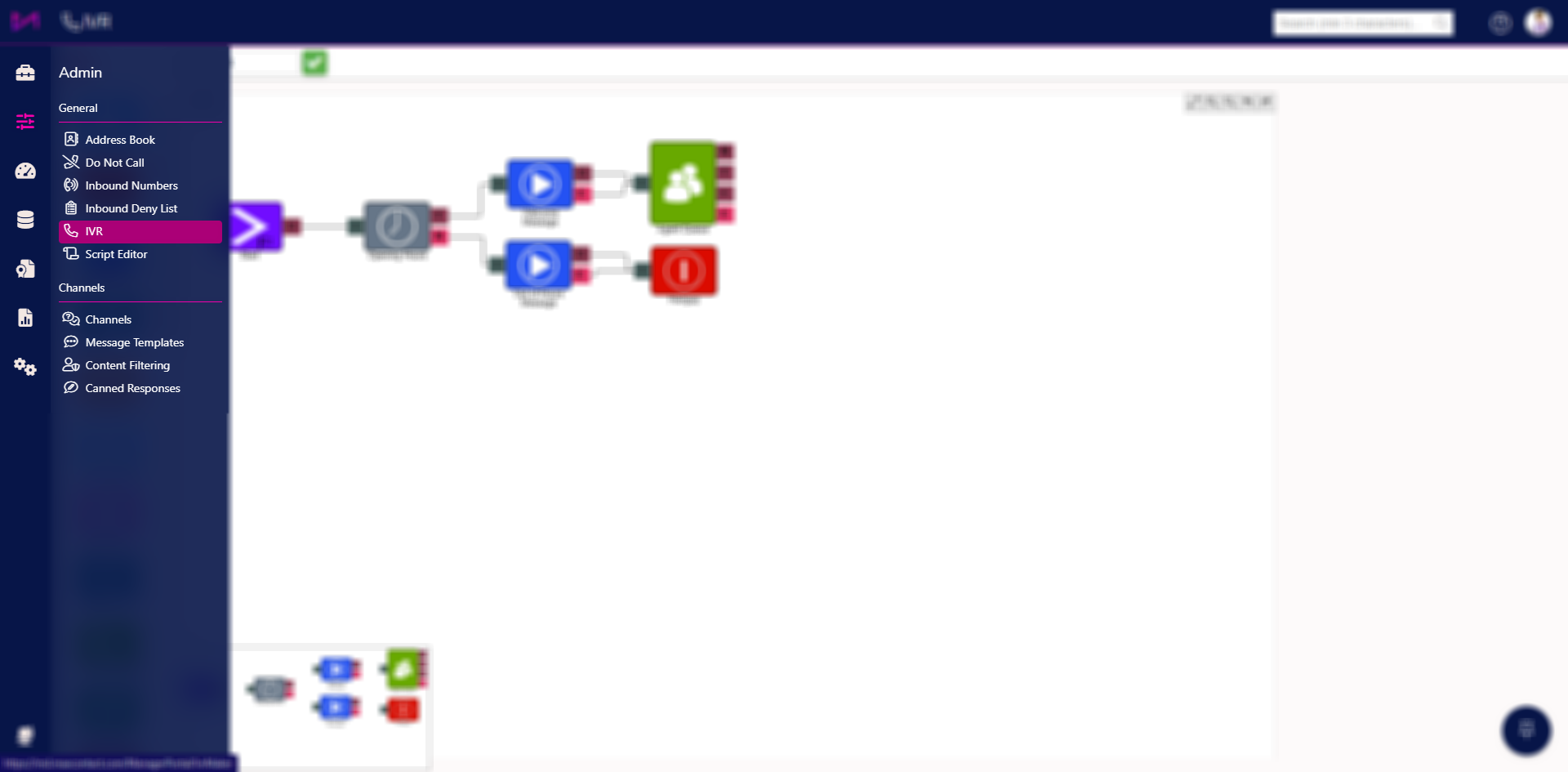
Fig 1. The main menu location of the IVR editor.
How to configure
To add this option to your IVR you need 2 elements, the 'Get stats' element and the TTS element. These can be selected from the left hand menu of elements and dragged into place on your page.
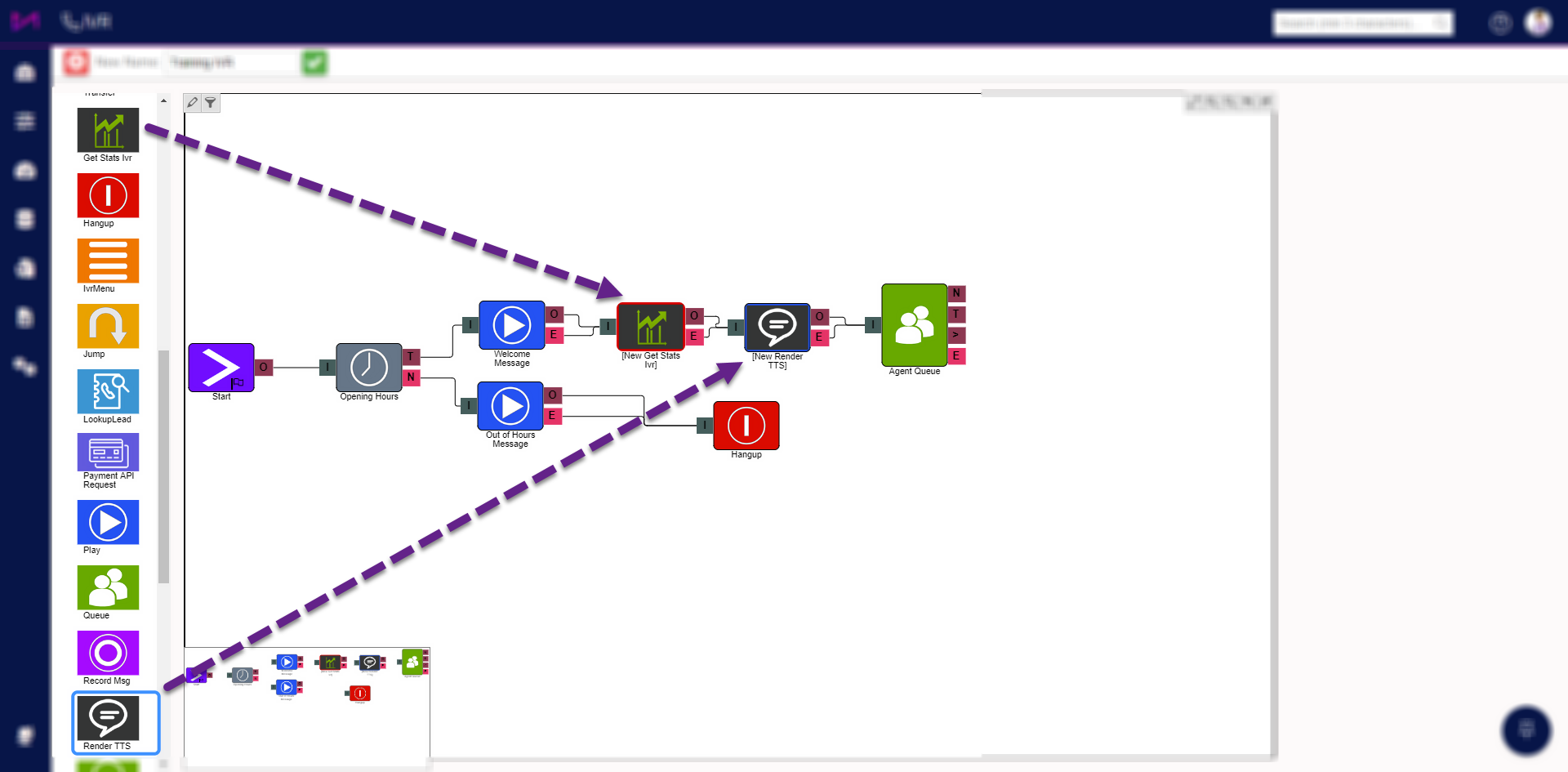
Fig 2. Selecting and dragging the elements into the main page.
Once the elements are on the page, you can connect them to your existing IVR. You need to then configure them to read out the queue size.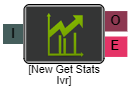 When selecting the 'get stats' element, the setting on the right hand side need to show the following;
| Stat type | Queue |
| Entity type | Name of the queue the customer is in |
| Stat selection | In queue |
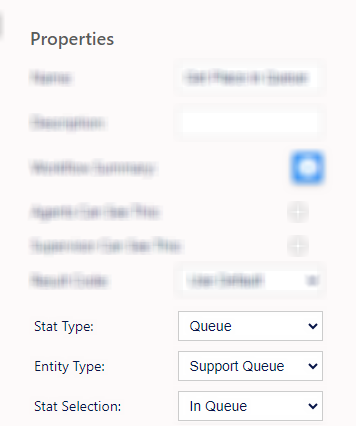
Fig 3. With the 'get stats' element selected, the properties on the right are visible and can be edited.
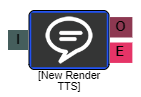 The TTS element text needs to include the fillpoint {{element_name.stats}} with the 'element name being the 'get stats' elements name (editable in the properties of the element).
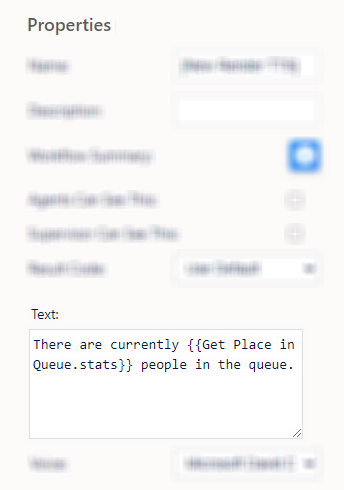
Fig 4. The TTS element text including the fillpoint with the 'get stats' element name.
Once you have this setup, your IVR will read out the queue size/number of people in the queue.
Using this option with a virtual queue
To setup the ability for a customer to choose to navigate elsewhere, such as to a virtual queue, you need to include a 'compare' element.
The compare element would take them to a separate message if the figure is over or under the number specified in the queue. "There are 10 people in the queue" from the TTS element then "Would you like to leave your number in the queue rather than wait? Press option 1 to to leave your number for a callback or stay connected to be placed in the queue." This could then 'jump' to a virtual queue IVR.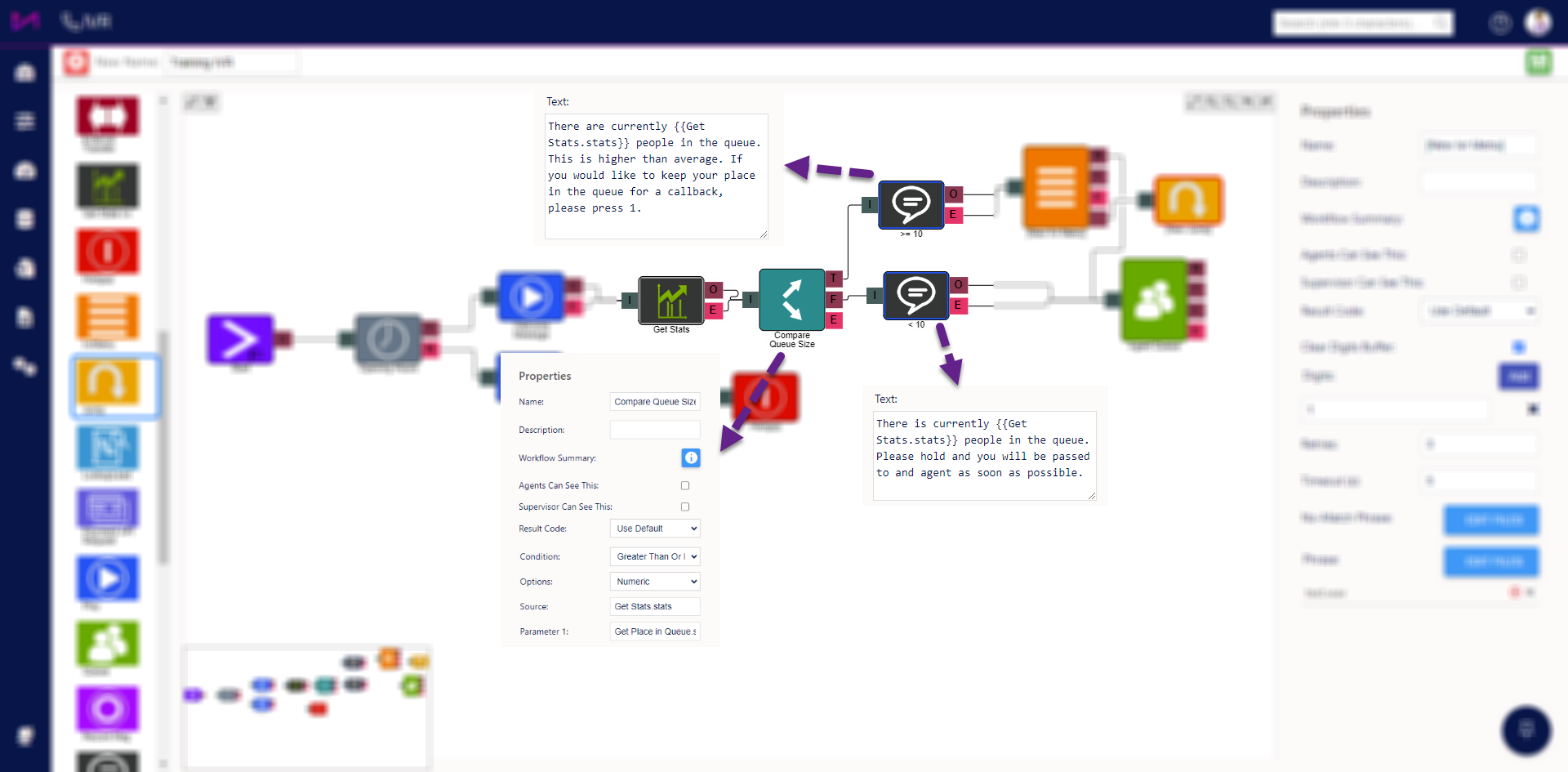
Fig 5. An IVR configured to play a different message depending on the volume of the queue.
When a customer is informed the queue size is above 10 people, you could then give them an option to add their number to the virtual queue where they will be automatically called back when their number reaches first place in the queue. You will notice how each relevant element is setup, using the correct names.
For more on the virtual queue, see this guide.
For more on the compare element, see this guide.