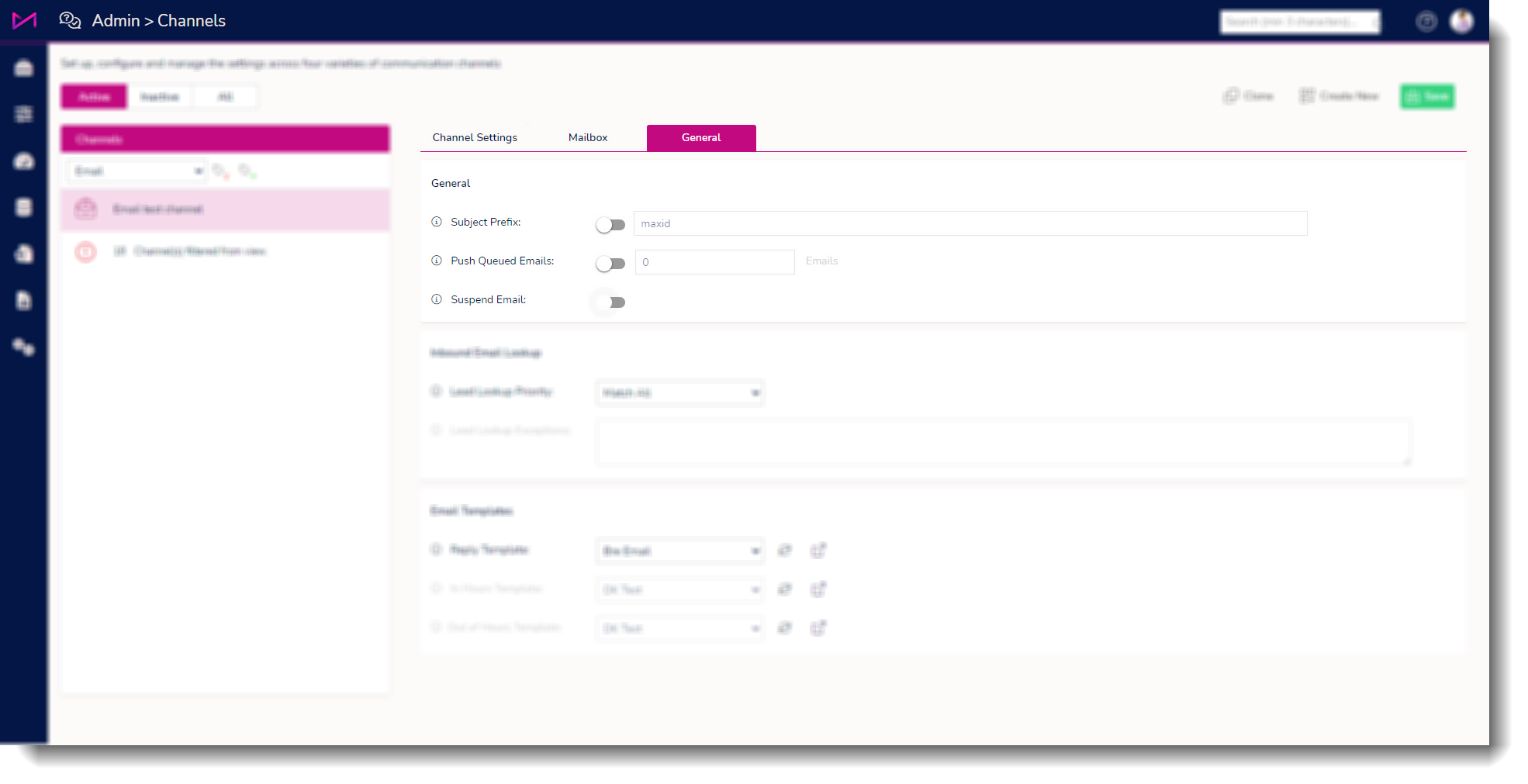
Toggle to temporarily suspend emails being pulled from the configured mailbox. This will only suspend new emails being pulled in and not impact the ability to handle and send emails via this channel. This will remain in force until you toggle to un-suspend (A pause icon in the left-hand channel list indicates any email channels that are currently suspended).
Suspend email examples
The user has been doing Initial testing and doesn't want to fully deactivate the channel until they go live (as this causes other admin changes to have to be made).The user has been having issues with their mailbox and wants to stop emails being scraped in for a period of time (as this causes other admin changes to have to be made).
The user wants to never scrape emails In (as they are using the mailbox as a "no reply" mailbox).
Channels
On the channels page, select the desired channel then head to the General tab.
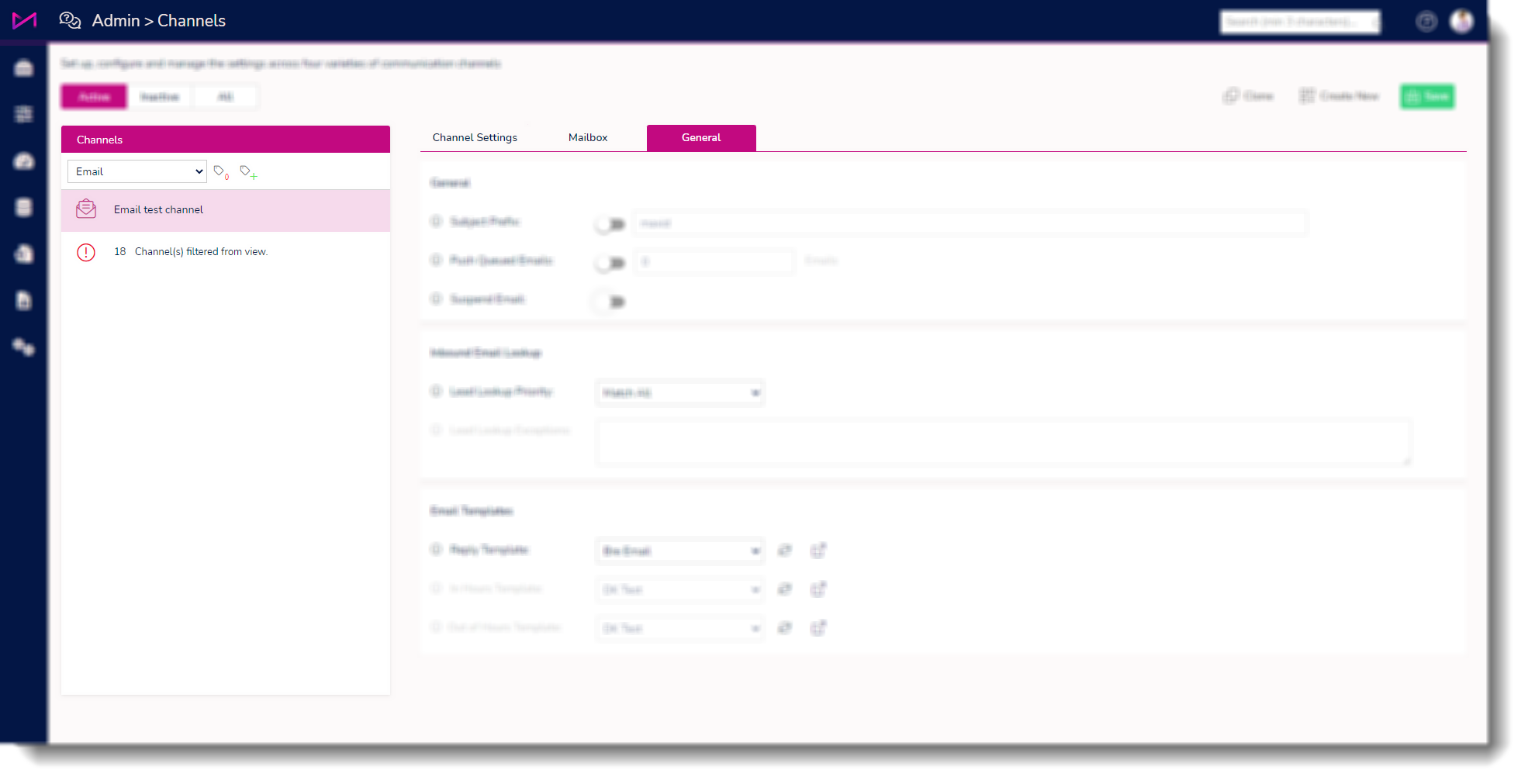
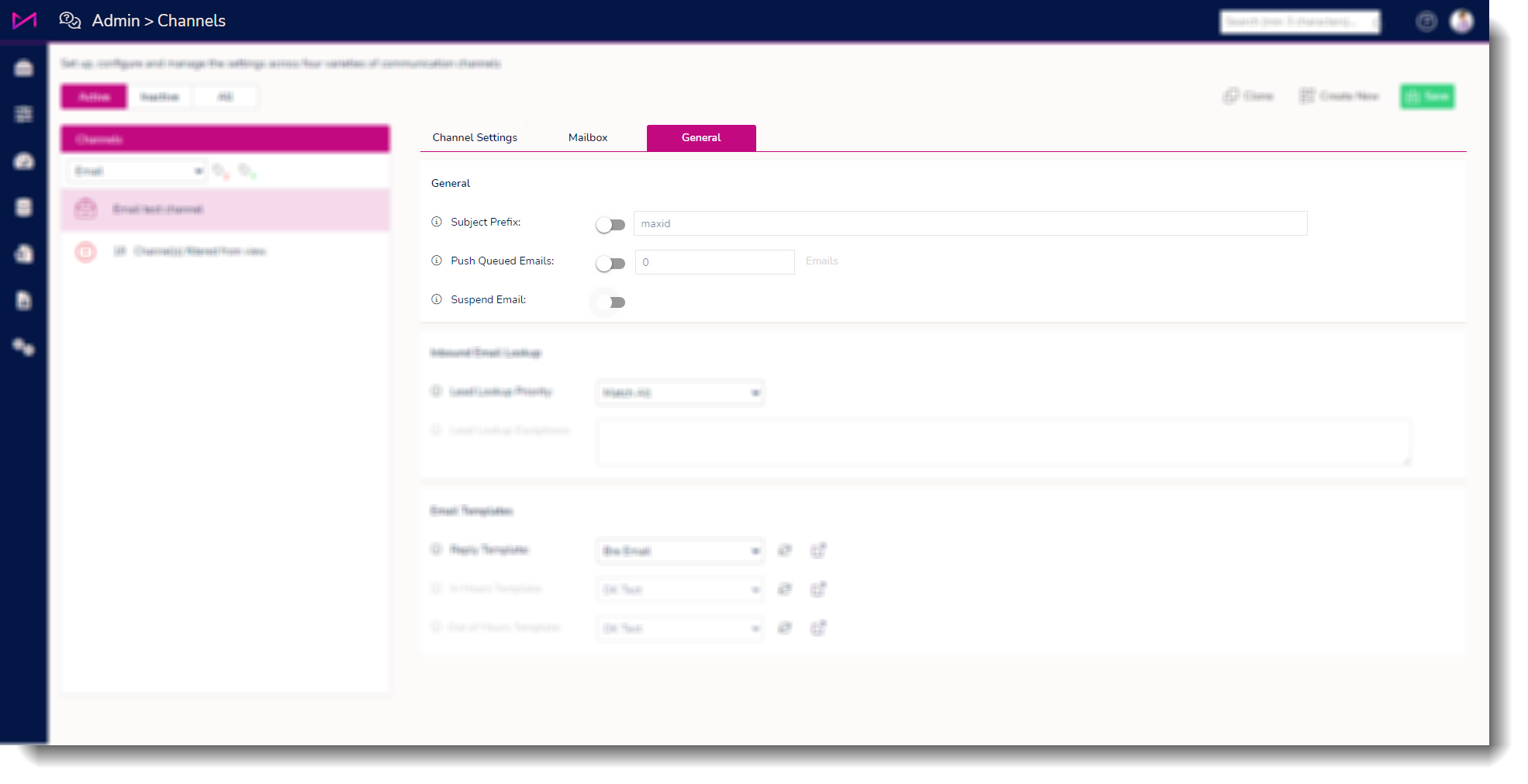
The suspend email toggle appears on the General card.
Toggle this on and the user will be presented with a dialogue box.
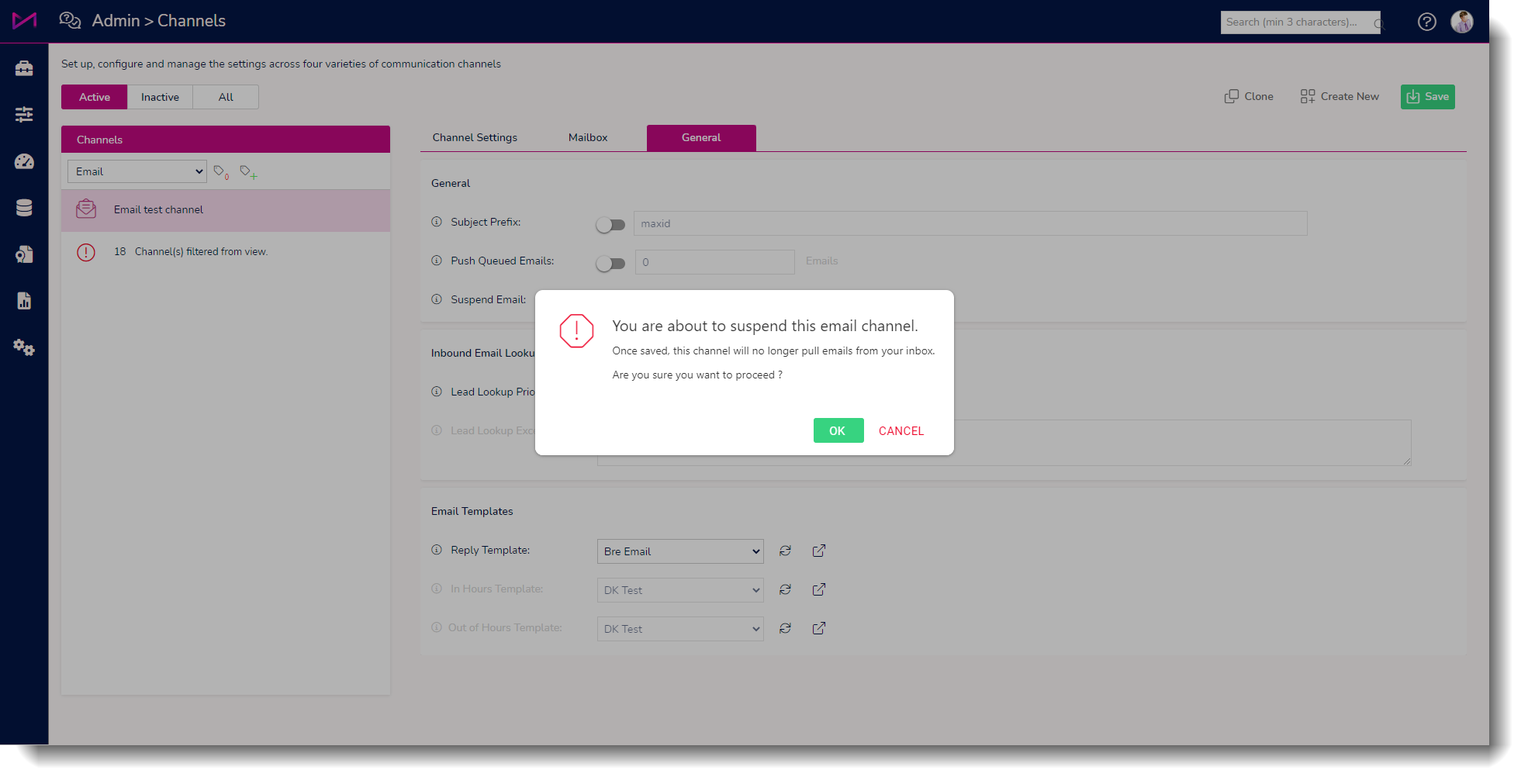
Select OK to confirm and the toggle will be on. Users MUST hit save to action the change on the system. Navigating away before saving (either within the page or to another page) will result in the toggle moving back to the off position.
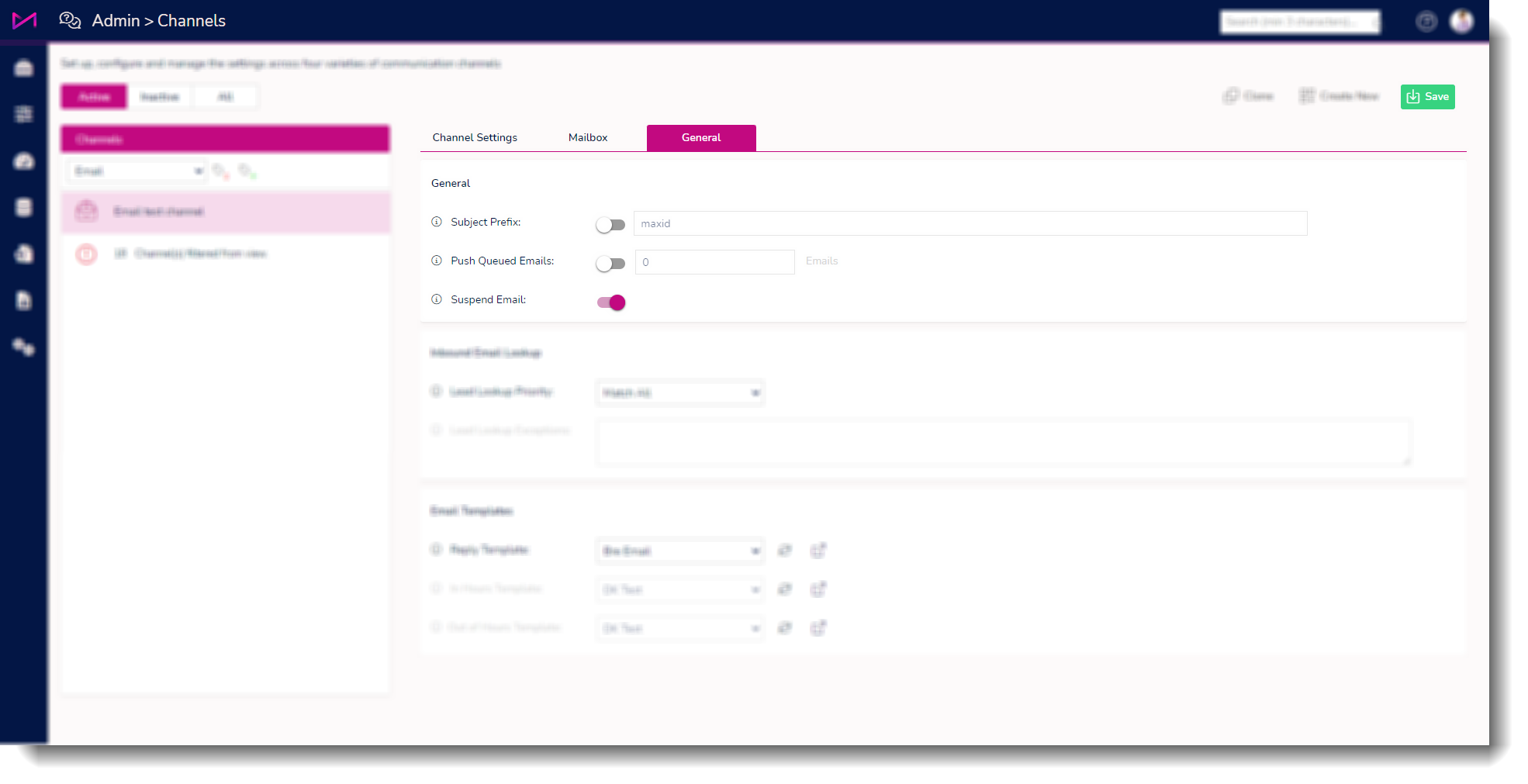
Once saved, users will see a pause icon in the channel list on the left denoting it will no longer pull emails from your mailbox. As mentioned above, users can still send and handle existing emails in the system with this turned off.
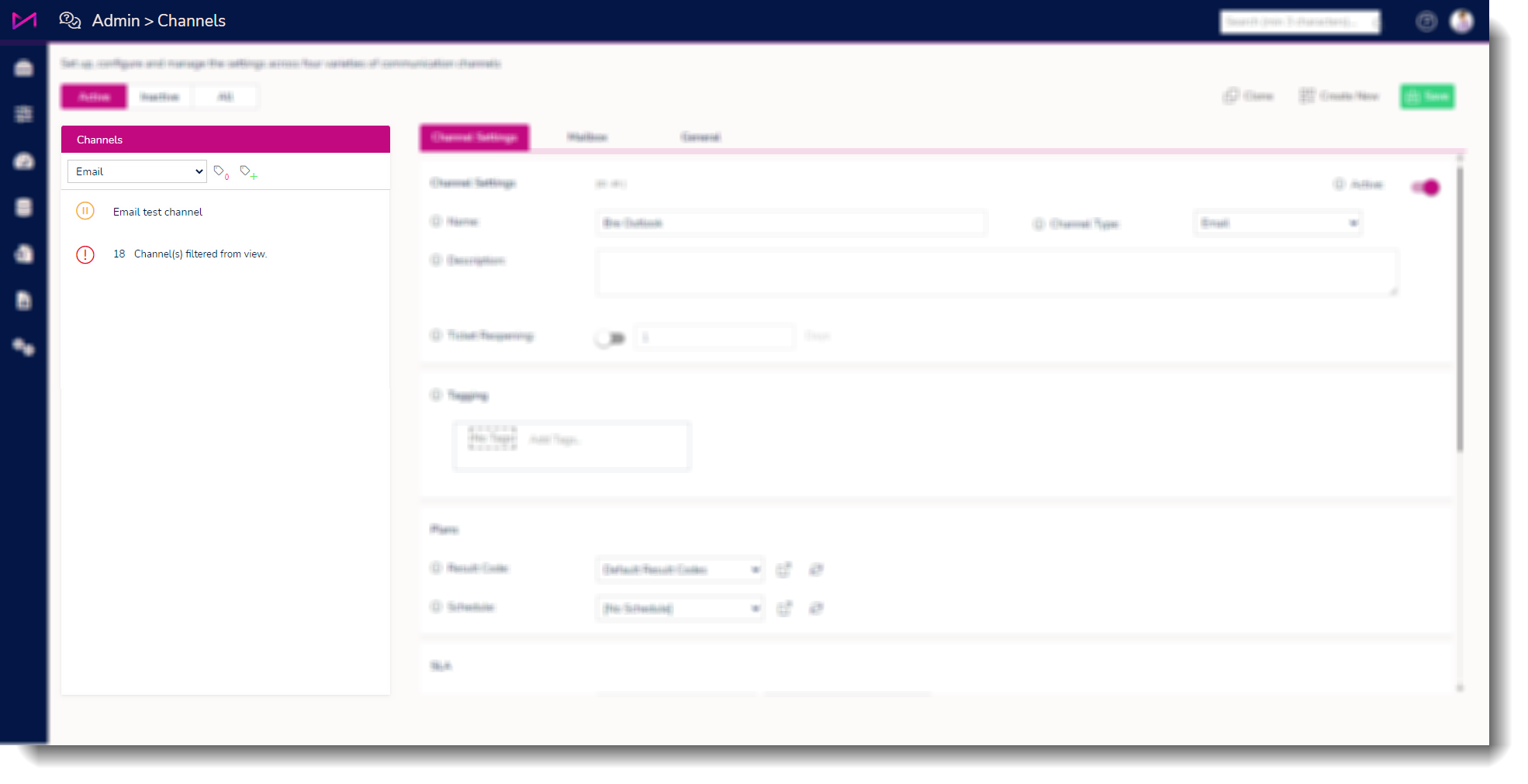
To un-suspend emails (allow the system to pull emails in again) navigate and select the toggle. This will warn you of your action.
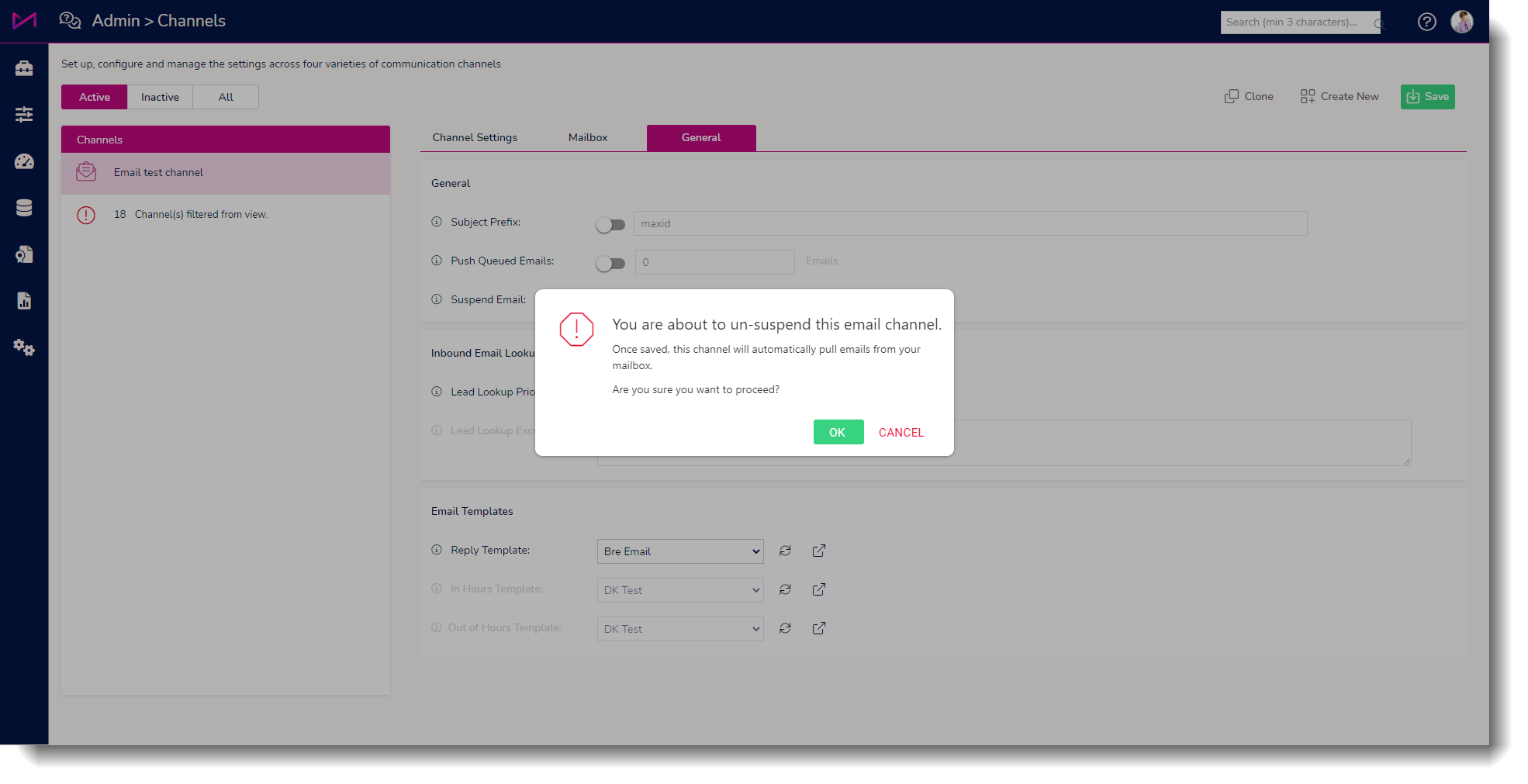
Once you toggle it off, be sure to hit save and the emails will begin to be pulled in once more. Note, it will pull ALL unread emails from the mailbox not just ones received after toggling back on.