

Scoring
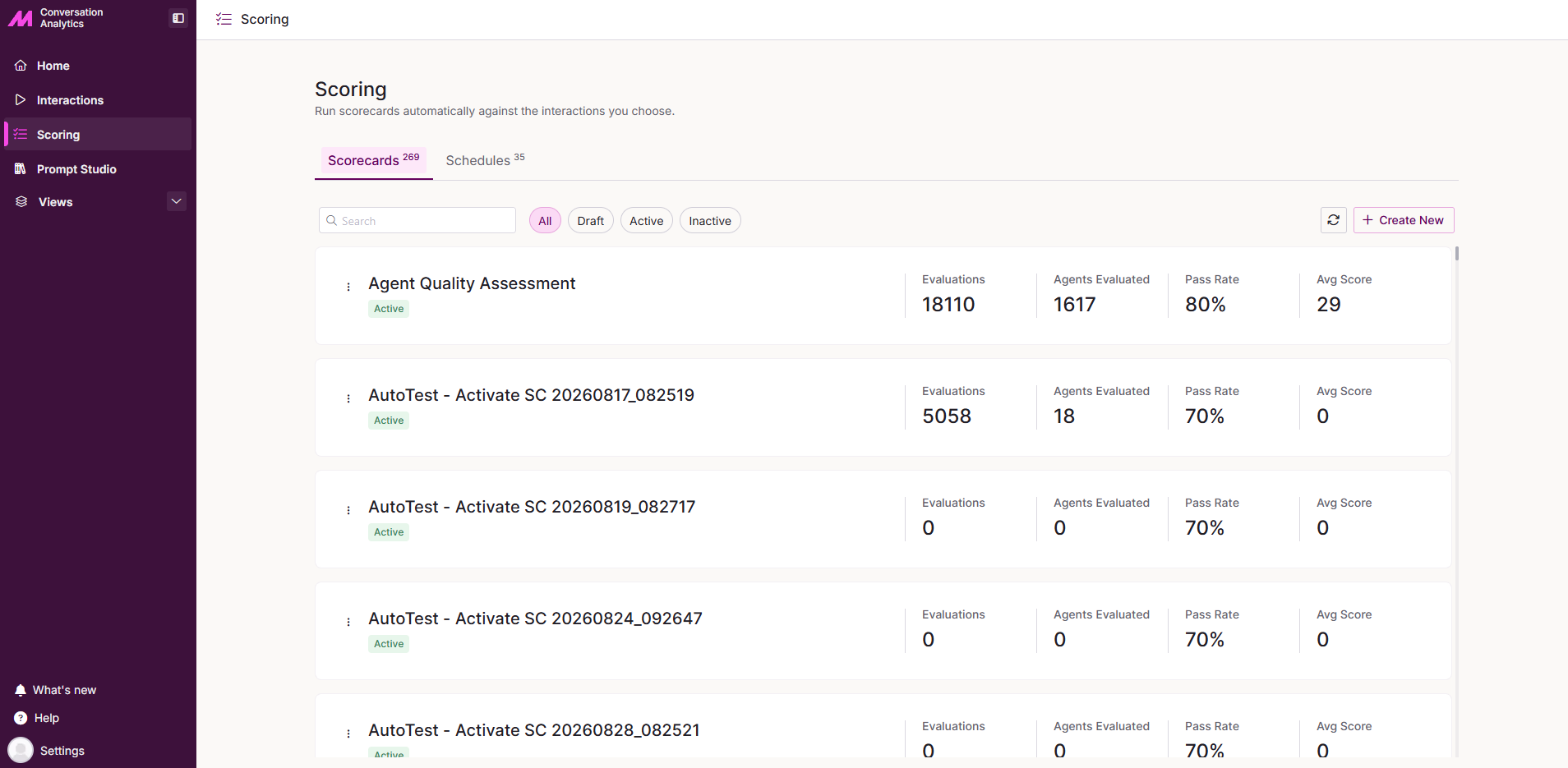
Scoring is where you create, manage, and apply scorecards within Conversation Analytics. Scorecards allow QA reviewers to score interactions against a structured set of questions, with each question answered by AI based on the call transcript. Every score is linked directly to what was said, giving reviewers clear, evidence-backed results to work from.
The page is split into two tabs: Scorecards and Schedules.
Scorecards Tab
The Scorecards tab is where you create and manage the scorecards used to evaluate interactions. This article covers creating, managing, and applying scorecards within Conversation Analytics.
Creating and Editing Scorecards
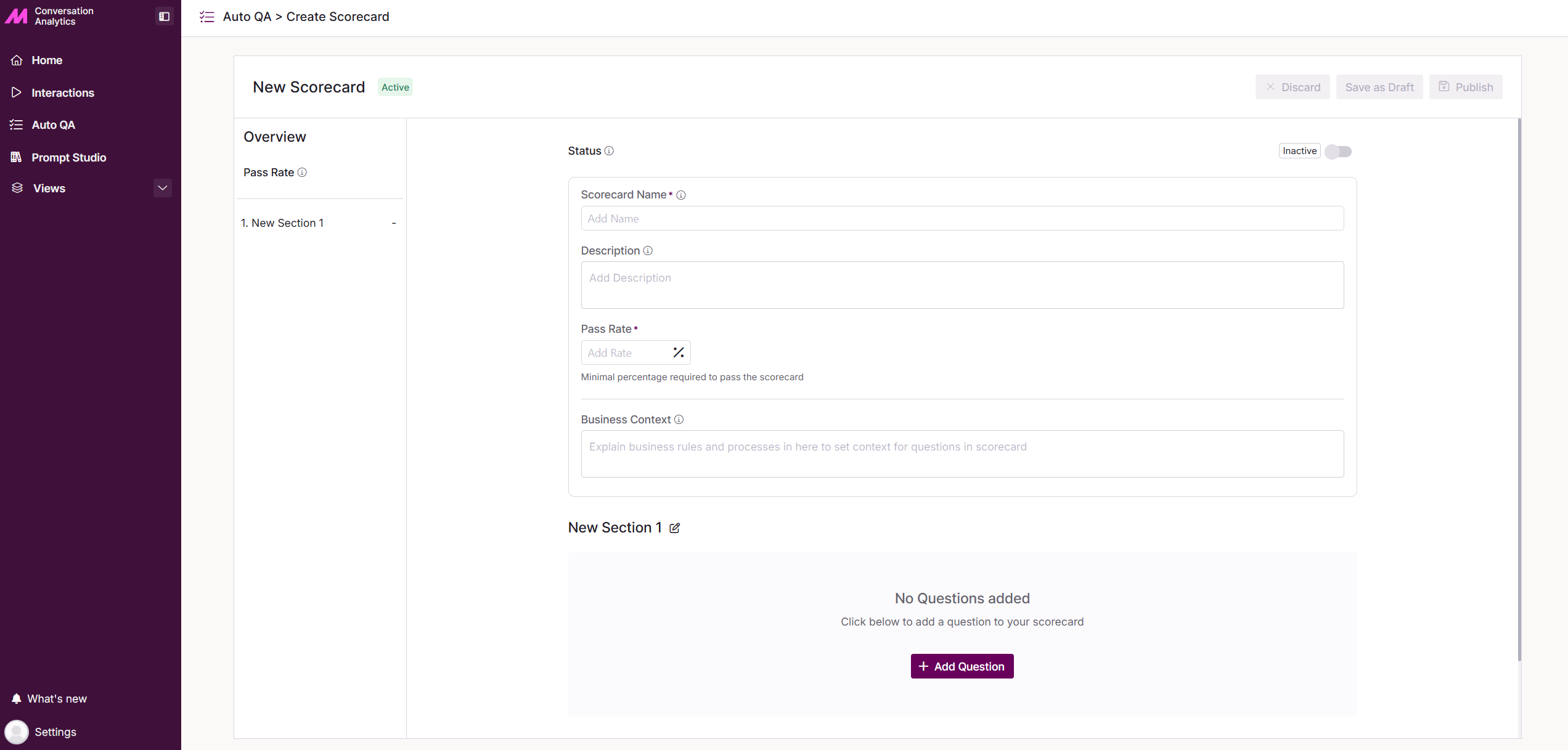
When you select to create a new scorecard or edit an existing one, you'll be taken to the Scorecard Builder. Here you can build scorecards tailored to your requirements, which can then be applied to transcribed calls within Conversation Analytics.
Scorecard Details
Scorecard Status. Set the scorecard as active or inactive. Inactive scorecards will not be available to apply to interactions.
Scorecard Name. A required field, visible to users within Management Hub. Must be between 1 and 200 characters.
Description. An optional field to help with managing scorecards and understanding their purpose. Visible to users within Management Hub. Can be up to 500 characters.
Pass Rate. The minimum percentage required to be classed as a pass, based on the scorecard questions.
Business Context. The context provided here is used by the AI to evaluate calls and grade them against the scorecard. This is effectively the prompt the AI will use when assessing each interaction, so providing clear and accurate context will directly affect the quality of the scoring.
Sections and Question Types
Sections. Sections allow you to group and split questions within your scorecard into logical categories, making it easier to structure and review results.
Question Types. The following question types are available when building a scorecard.
| Question Type | Description |
|---|---|
| Yes or No | A definitive yes or no question. Set the score to be applied if the answer is yes. For the 'Score for Yes' this accepts only integer values between 1 and 100. |
| Rating | An adjustable scale of 1 to 10. Used to rate how well an agent performed a particular behaviour. Set a minimum score required to pass the question. |
| Observations | Generates and collates comments, opinions, and observations on the transcribed call. Observations do not contribute to the overall score. |
Within each question type, you'll also find the following options.
Evaluation Criteria. Automatically generated from the question and business context provided. This is used by the AI to evaluate and score the question. You can review and edit this as required.
Auto Fail. When enabled, if this question fails, the entire scorecard will be marked as failed, regardless of the overall score.
Applying a Scorecard to a Transcribed Call
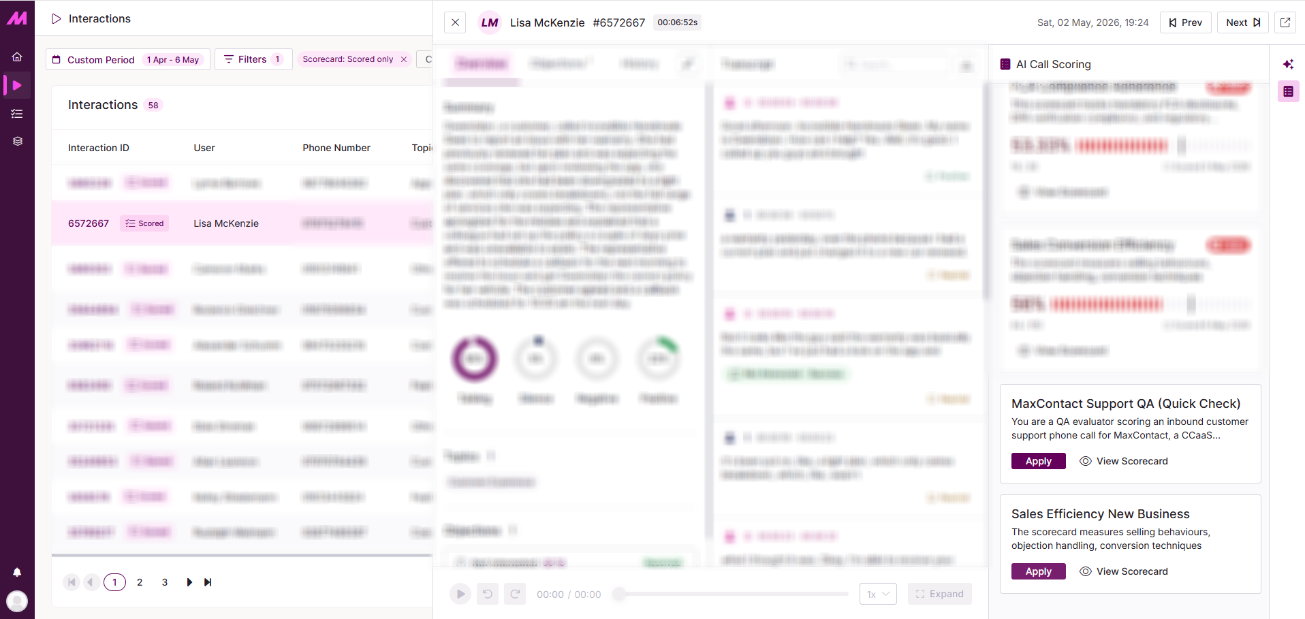
Within the Interactions tab, locate the call you wish to score. Interactions that have already been scored are indicated by a Scored label next to the Interaction ID. Hovering over this label will display an overall summary and the scoring result.
Select an interaction to open the side panel. On the right-hand side, switch from the AI Assistant tab to the Scorecards tab. Select the scorecard you wish to run against the transcribed call and apply it.
This may take a moment, as the AI analyses the transcript against the scorecard and scores each question accordingly to produce the final result. Once the evaluation is complete, the full scorecard will be displayed, showing the overall score, pass or fail result, and a detailed breakdown against each question.
Schedules Tab
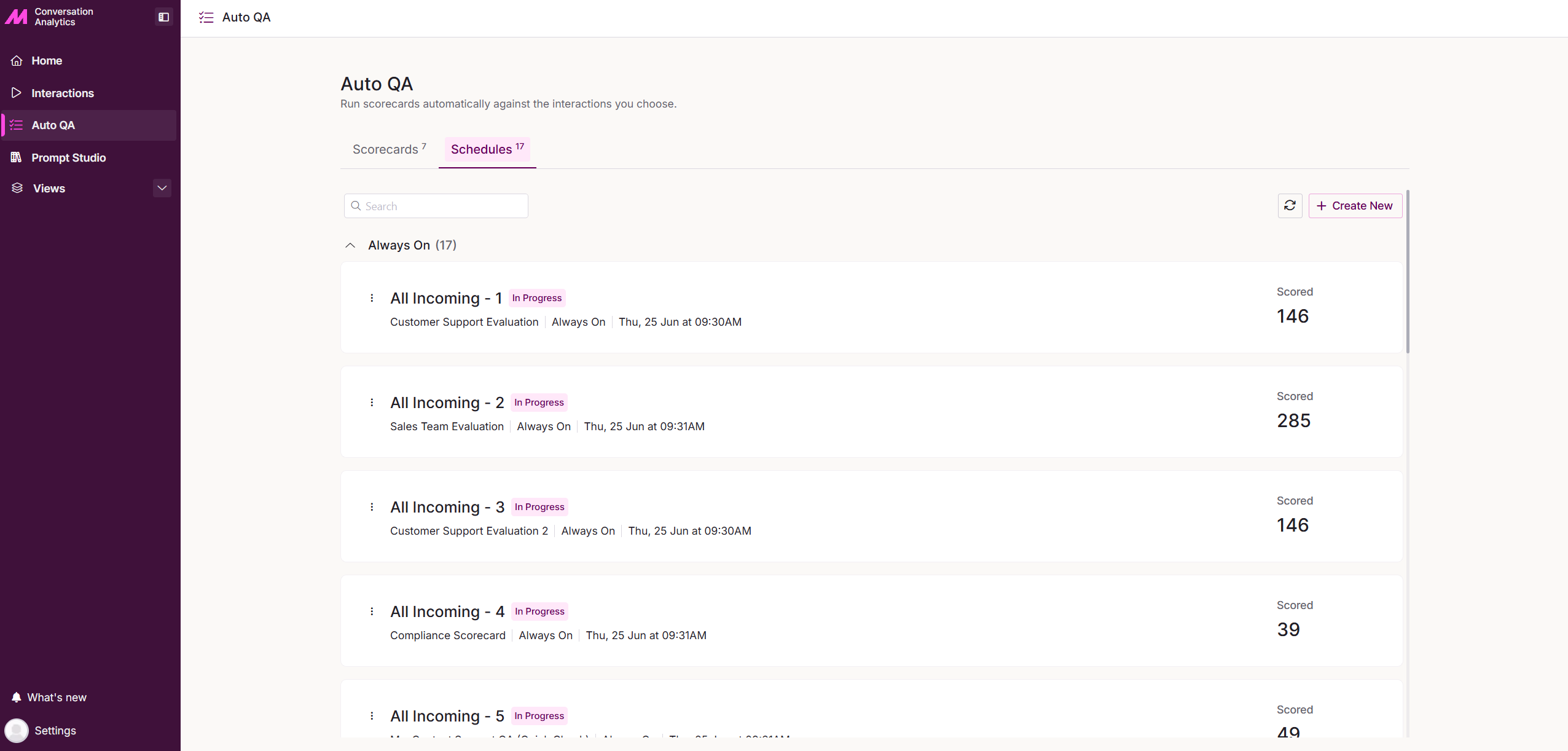
The Schedules tab is where you set up scorecards to run automatically against transcribed interactions. Once a schedule is active, matching interactions are scored as soon as they become available, without any manual intervention required.
Along the top of the tab you'll find a search bar to locate existing schedules, a Refresh button to reload the data, and a Create New button to set up a new schedule. Below this, your schedules are listed, each showing the schedule name, its current status, and the total number of scored interactions.
Schedule statuses are as follows.
| Status | Description |
|---|---|
| Active | The schedule is running and scoring matching interactions. |
| In Progress | The schedule is currently processing interactions. |
| Paused | The schedule has been paused and is not currently scoring interactions. |
| Completed | The schedule has finished running, based on the configured scoring period. |
| Draft | The schedule has been saved but not yet activated. |
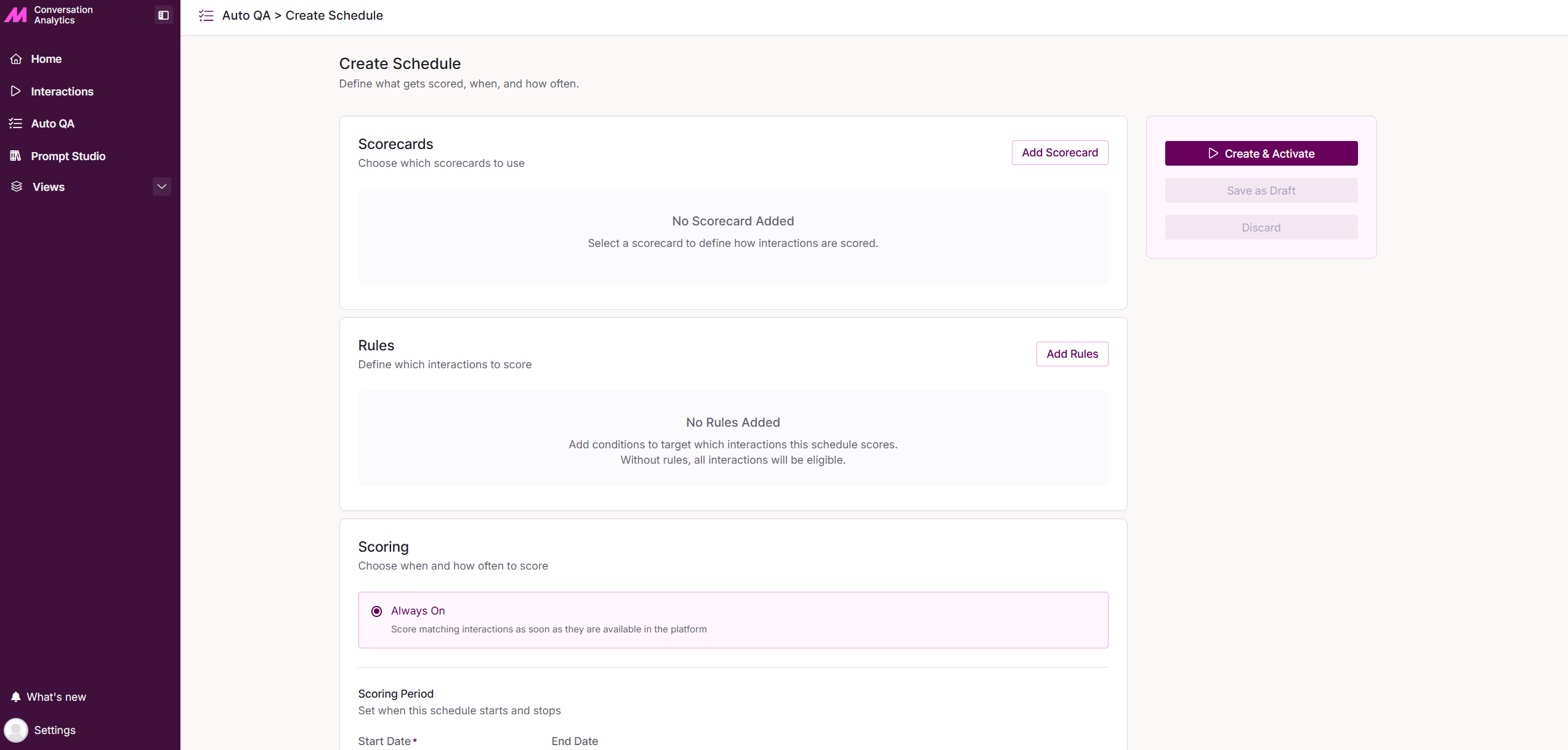
Creating a Schedule
Select Create New to open the Create Schedule view. The setup is broken down into four sections.
Scorecards. Select the scorecard to use by selecting Add Scorecard.
Rules. Define which interactions the schedule should score. Select Add Rules to open a modal where you can apply filters to target specific interactions, in the same way you would when creating a view.
Scoring. Choose when and how often to score. The available options are as follows.
| Field | Description |
|---|---|
| One Time | Scores matching interactions once. Best for historical reviews and one-time audits. |
| Always On | Scores matching interactions as soon as they are available in the platform. This is the only scoring mode currently available. |
| Scoring Period | Set when the schedule starts and stops using the Start Date and End Date date pickers. |
Details. Set the name and description of the schedule.
| Field | Description |
|---|---|
| Schedule Name* | The name of the schedule, as it will appear in the Schedules tab. Must be between 1 and 200 characters. |
| Description | An optional description to help identify the purpose of the schedule. Can be up to 500 characters. |
* Required field
Once you have configured the schedule, three options are available on the right-hand side.
| Option | Description |
|---|---|
| Create & Activate | Saves and immediately activates the schedule. |
| Save as Draft | Saves the schedule without activating it. The schedule will appear in the list with a Draft status. |
| Discard | Discards the schedule setup without saving. |