
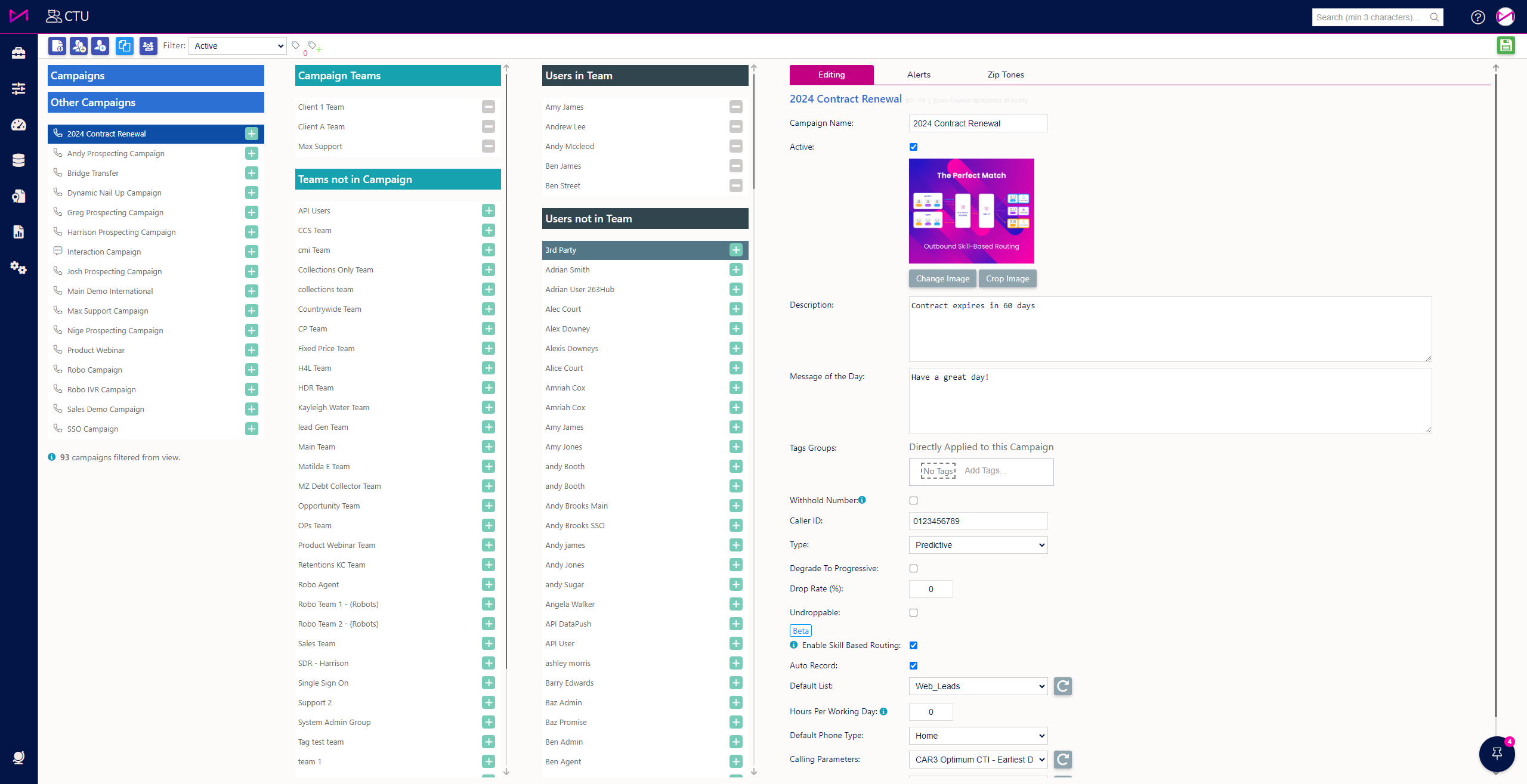
To add a tag to a campaign, users need to select a campaign (1) from the CTU Admin page. When the campaign is selected, on the right-hand side of the screen (2), the user will see the editing tab populated with the selected campaigns information.
On the editing tab for the campaign there is the ‘Tag Groups:’ box.
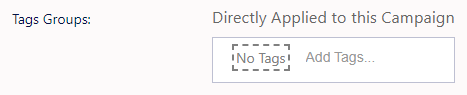
Users can select the white area where it states, ‘Add Tags…’.
Doing so will open the box further to reveal available/previously created tags to select.
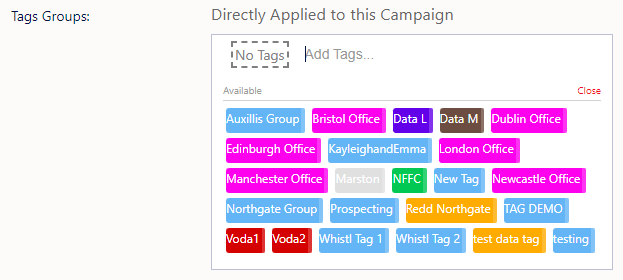
Hovering over a tag will expand the coloured tab to add it to the selected list.
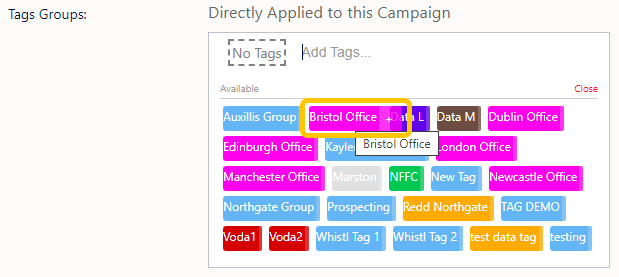
Once the user has clicked the coloured tab with the '+' symbol, the tag will show in the area above, where it previously said ‘No Tags’ (If there are already tags there, the newly selected tag will be added to them). To remove a tag, users can select the coloured tab that should have a '_' symbol.
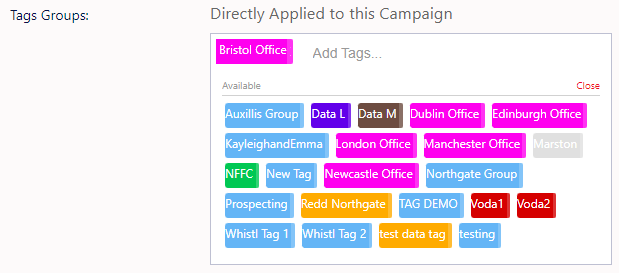
Once the user has added the required tags to a campaign they must save the changes in the top right of the CTU Admin page.
Next step - Adding a Tag to Teams