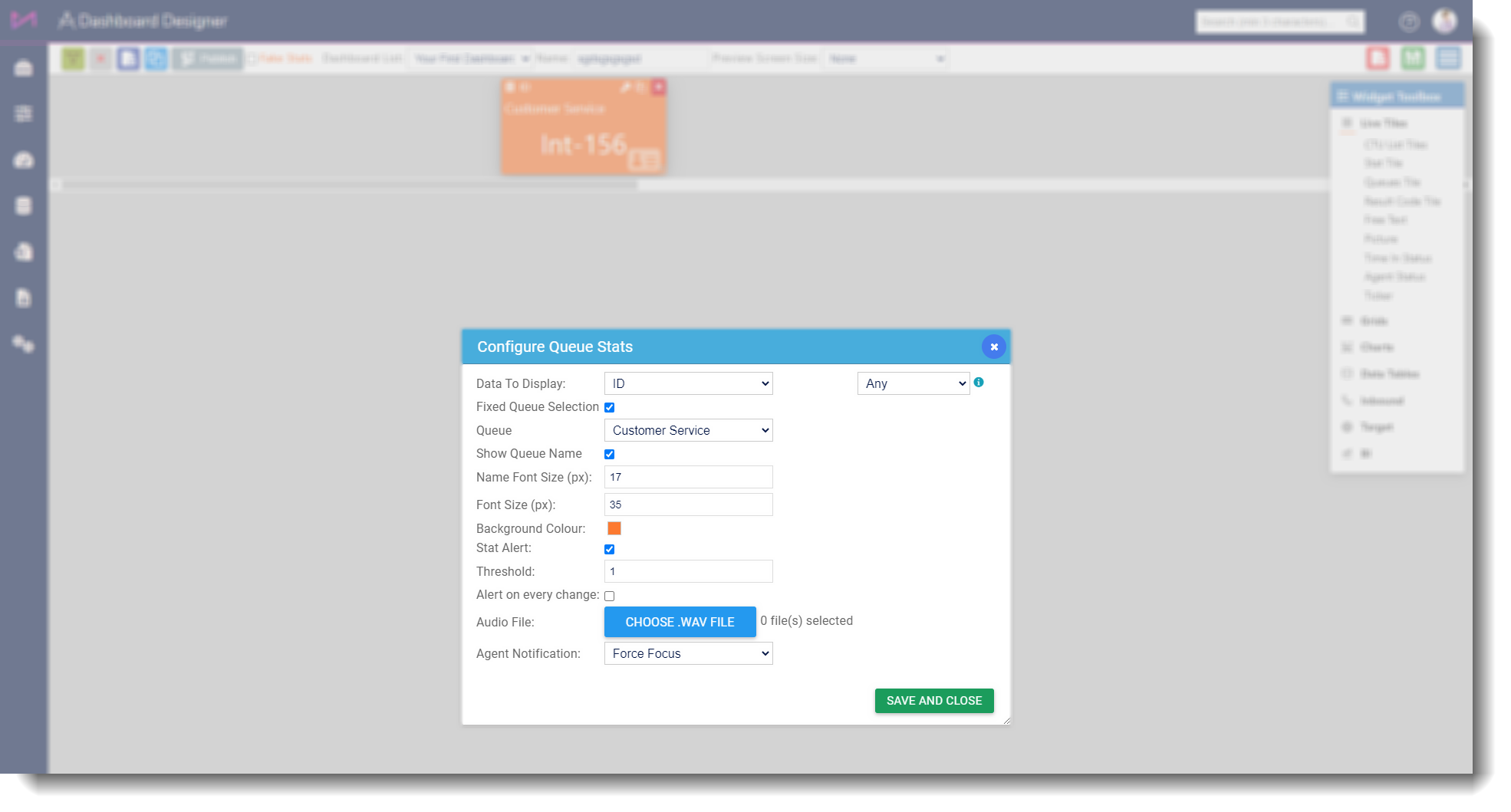
This option added to Skills tiles within Web Agent dashboards, triggers a chrome plugin notification to force the browser to the front of the screen.
This has been added because some of our clients users only go ready for calls when there is a call in queue as part of their process and won't necessarily have the Web Agent visible on screen at all times whilst working on other things. Previously this would mean they may miss an alert. By adding an extension to chrome and enabling the new feature on the widget, the Web Agent browser window will automatically be brought forward with each alert.
To have the feature enabled in the product, please contact support via 0330 159 6565 or help@maxcontact.com
Once you have had it enabled, you will need to follow the below guide to set it up on your system;
Setup.
You will first need to install the Chrome plugin which is available on the chrome web-store via the following link;
https://chrome.google.com/webstore/detail/max-contact-agent-extensi/cpabeedodjfmfcjjpcephhpigamahmdm?hl=en&authuser=0
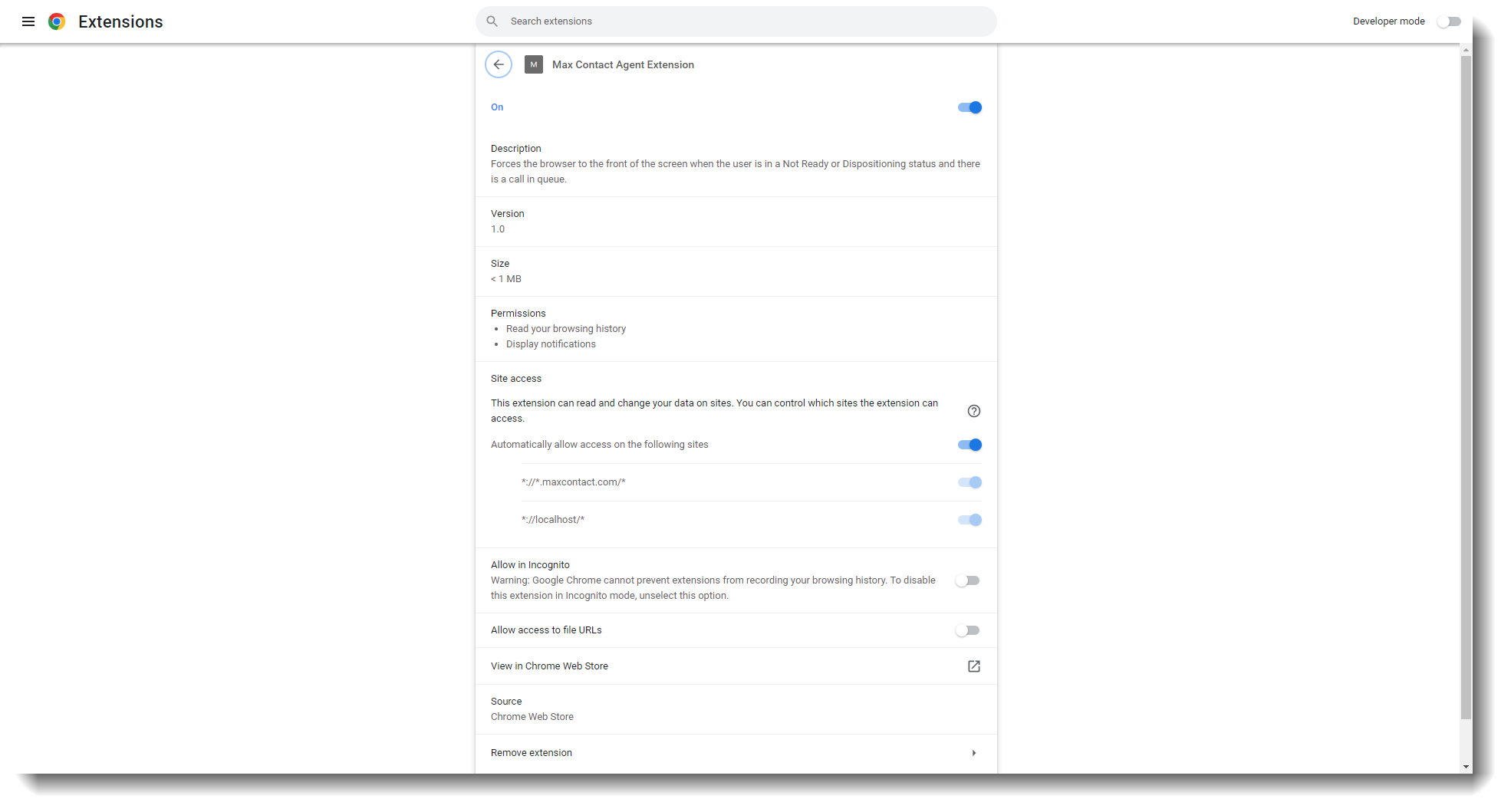
This plugin can be installed on a local chrome browser, and must be installed in order for the functionality to work.
By default, the plugin will not function in incognito mode.
You can modify some of the plugin configuration by right clicking on it in Chrome and selecting 'Manage Extensions'
Web Agent Dashboard setup.
Select a queues widget on the dashboard, then go into the configuration settings of the widget by clicking on the cog symbol.
Under threshold, add in the figure you require.
For the 'Agent Notification' drop-down, select 'Force Focus'.
Once the data value for the widget exceeds the threshold, the Auto Focus event will be triggered bringing the browser to the front of other browser windows.