
This guide will show you the simple steps to take to clone an IVR in order to avoid the manual process of building multiple pages from scratch every time, and resulting in additional risk of manual error in the case of complex IVRs.
You are only able to clone an IVR page that has up to 150 individual elements. If you have more than this, you will be informed via a 'toast message' that it isn't possible.For information on building IVRs, see this section of the knowledge base.
Please click on the images below for a better view.The IVR screen
Once you navigate to the IVR screen you will see the configuration buttons across the top of the page.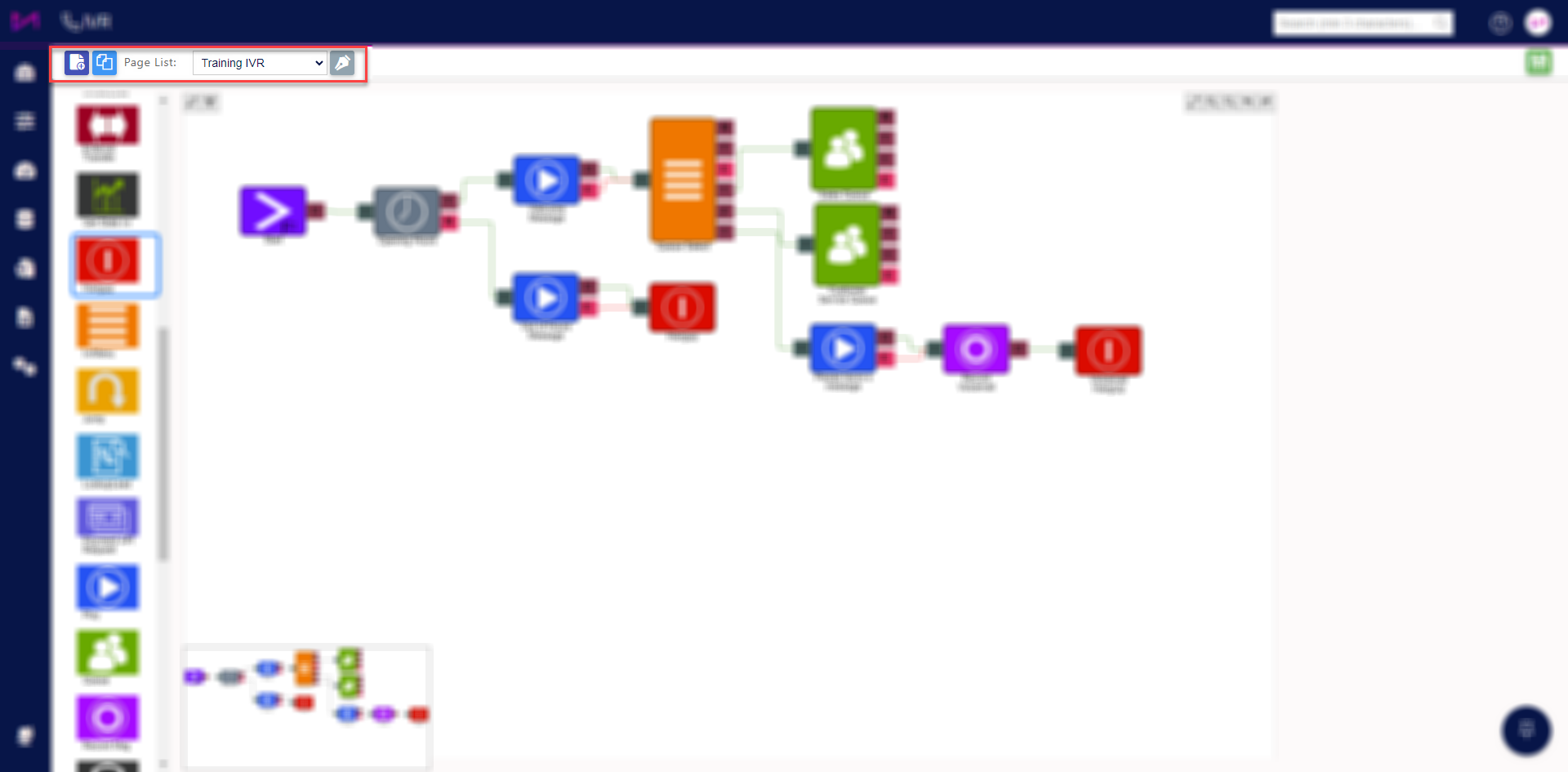
Fig 1. Configuration buttons.
 | Create new IVR page. |
 | Clone IVR page. |
| Page list | Dropdown of all existing IVR pages in the system. |
 | Edit the name of selected IVR page. |
 | Save changes. |
How to clone an IVR (page)
1 - Select the IVR page from the dropdown so it appears on screen (if you have just created one it will be here once you have saved it).
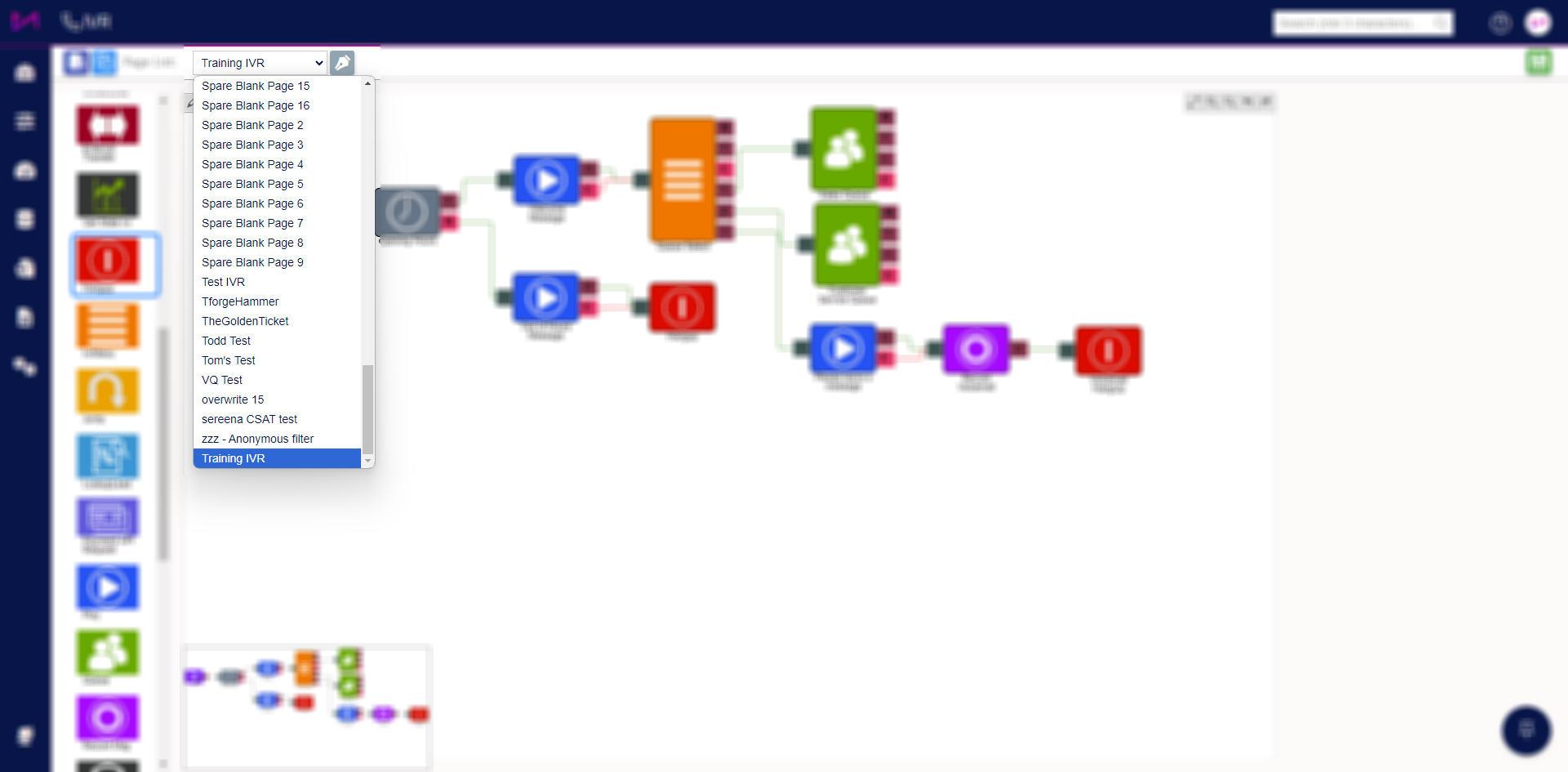
Fig 2. The IVR page selector dropdown.
2 - Select the Clone IVR button with your IVR page selected (and on screen).
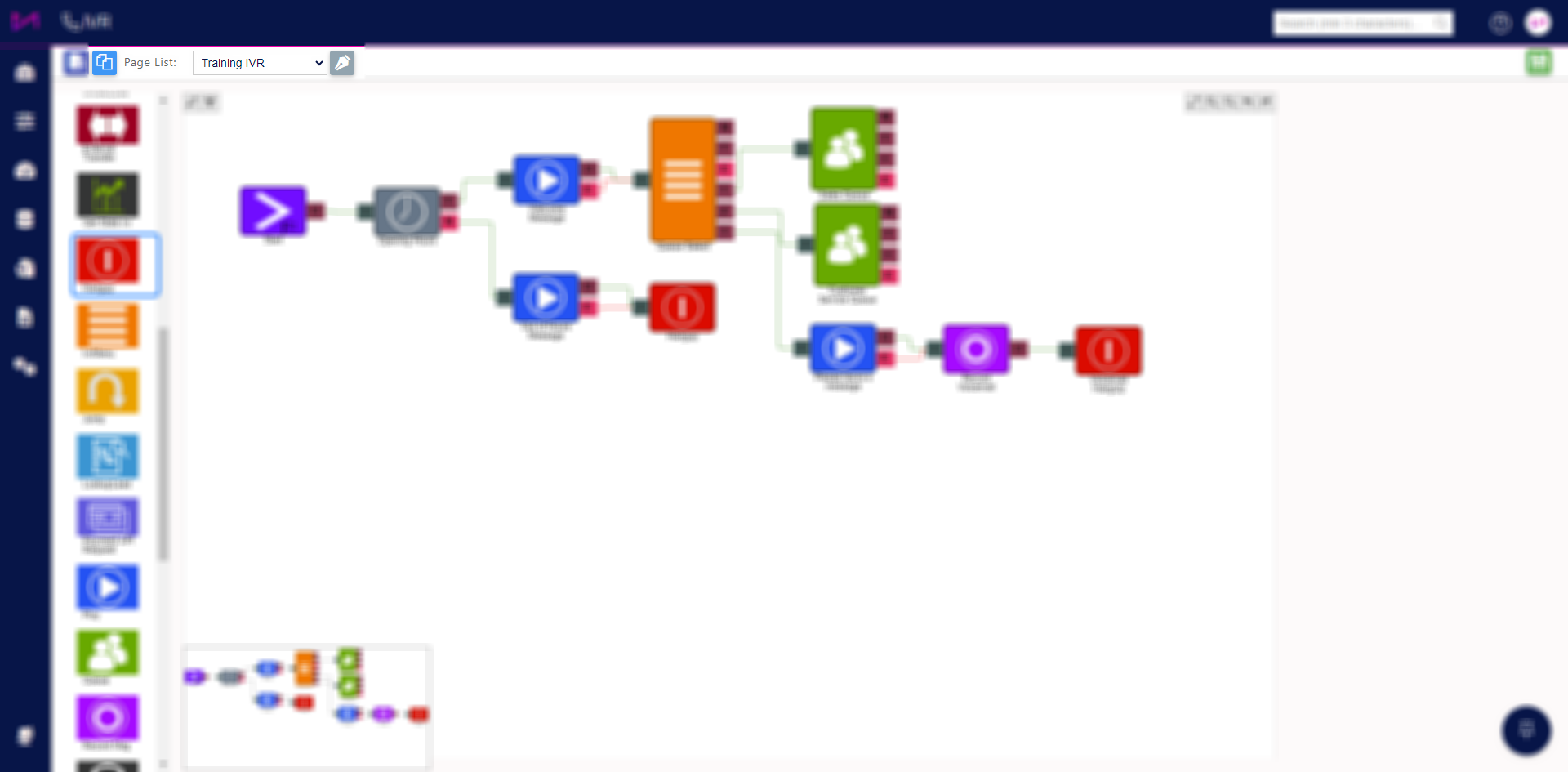
Fig 3. Clone IVR button with IVR selected.
3 - You will receive a 'toast message' and see the new name box.
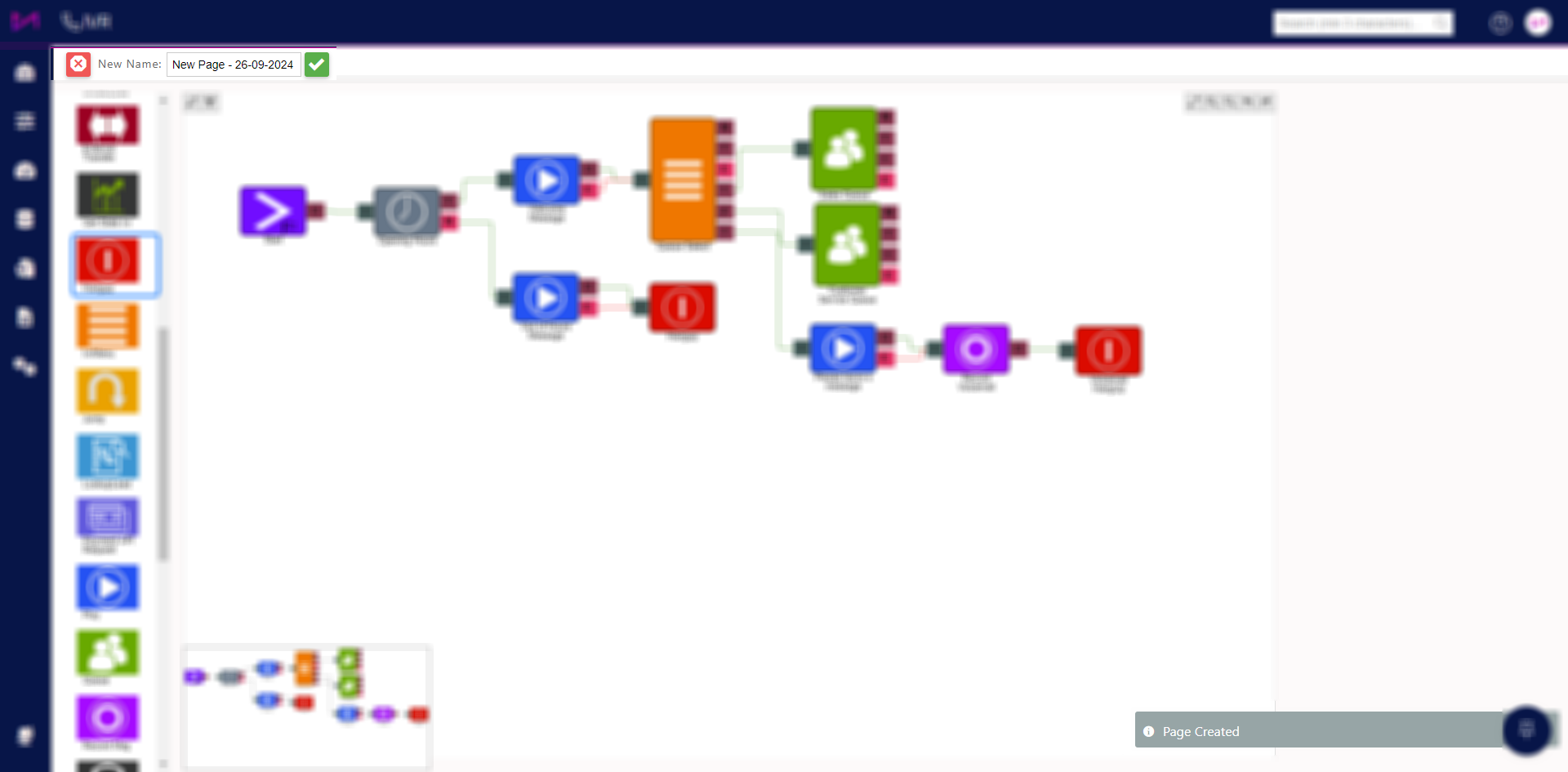
Fig 4. New name option and toast message.
4 - Select the tick button (for the name change) then save.
5 - Your cloned page will then be visible and you can then edit accordingly.
Fig 5. Completed clone of IVR.
Your new (cloned) IVR will not be configured for any inbound numbers (via the Inbound numbers page) but everything else will be configured in the same way E.g. queues assigned to elements, api requests etc. So you must ensure that once you have cloned the IVR page, it is configured according to your requirements before pointing any call traffic toward it.