What is a Virtual Queue
Having a virtual queue setup on your system allows you to reduce your wait times for inbound queues as well as providing a better customer experience, due to not having to wait on the line until someone becomes available.
When a customer calls one of your inbound numbers, you can offer them the ability to leave their number in the queue rather than waiting. The customers number will stay in the queue until it gets through to an agent at which point, the system will ring the number. Upon answering, the customer will be connected to a user.
Overview
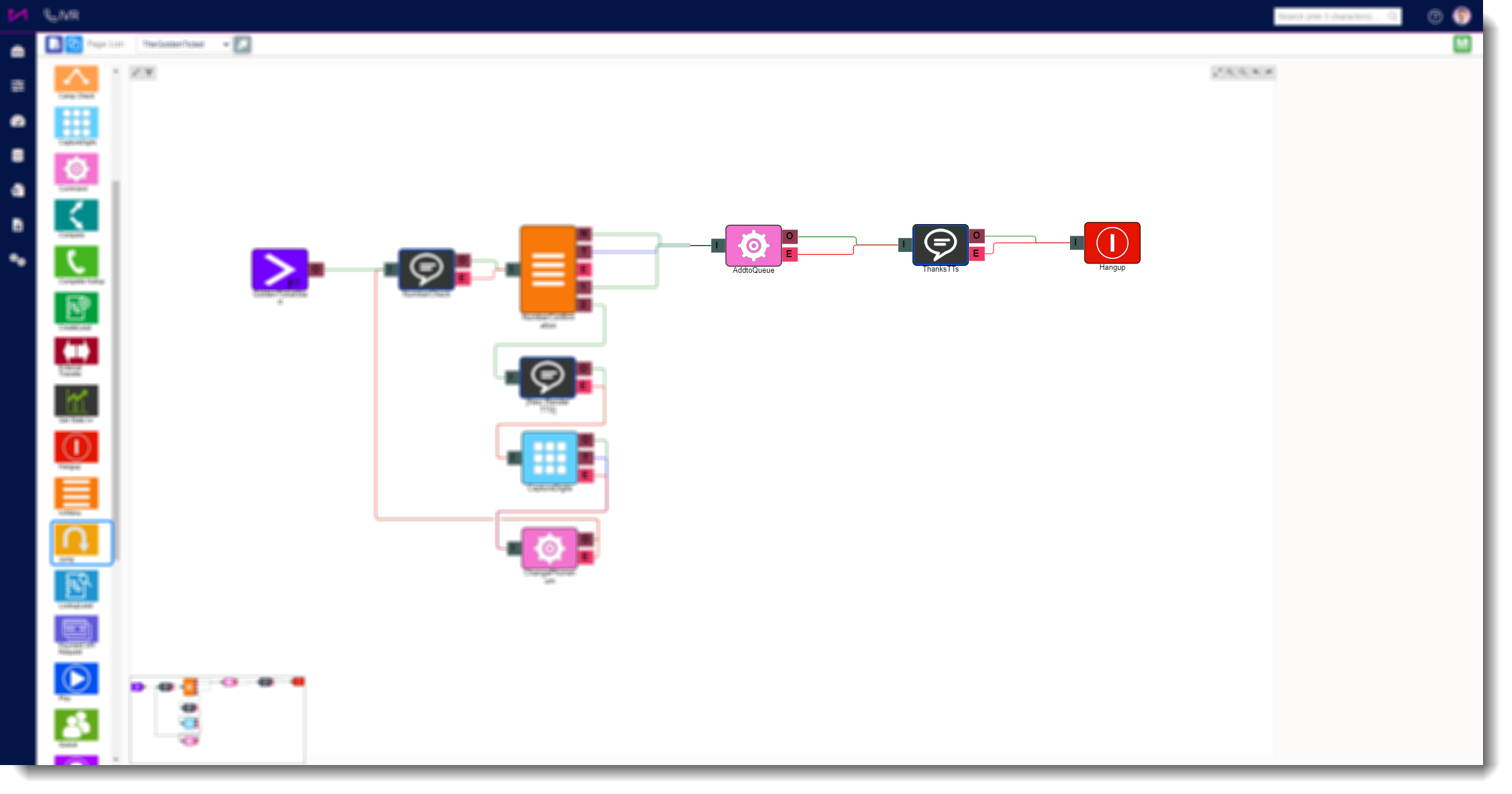
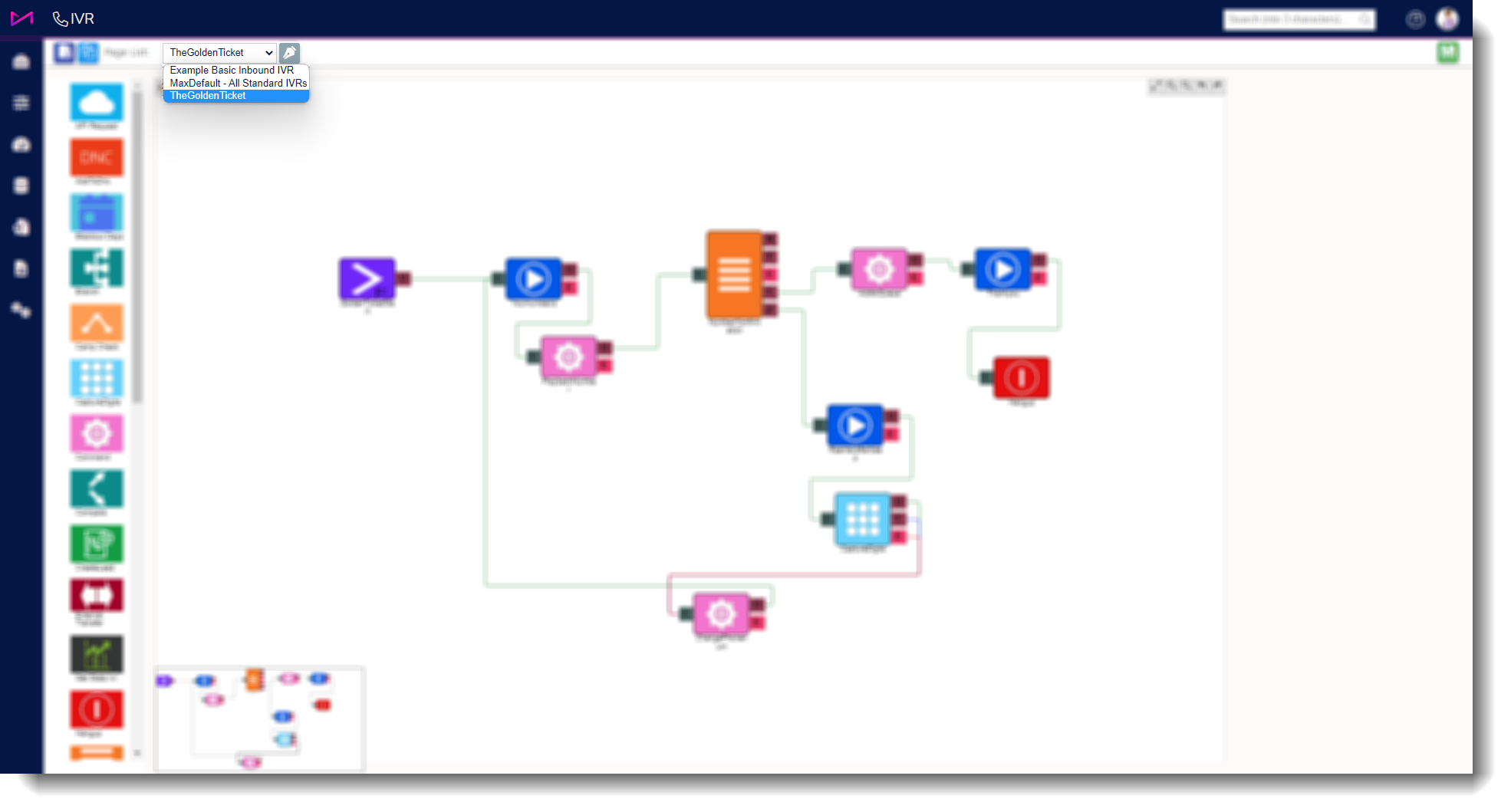
All MaxContact systems come with a default virtual queue setup on the system (access this from ADMIN > GENERAL > IVR then from the drop down you should see the option titled 'The Golden Ticket'). To include this in your inbound route(s) there are some simple steps to take.
Note - The default Virtual queue contains the Play Element option detailed further in this guide.
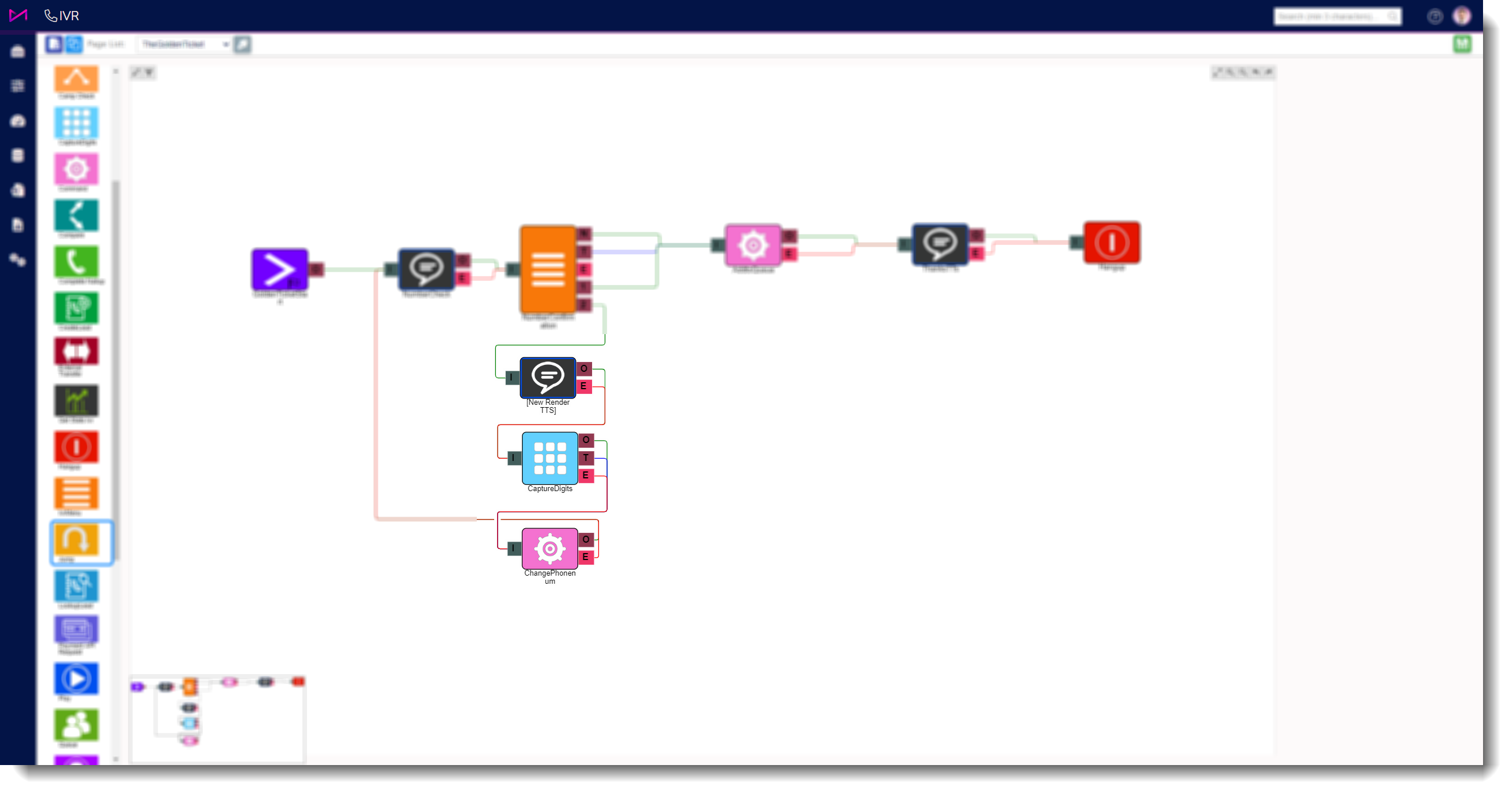
The four steps to a complete virtual queue IVR routine
 Step 1 – Let the callers know of the Virtual Queue option
Step 2 – Verify the phone number
Step 3 – Capture and update a new phone number
Step 4 – Thank the caller then disconnect
IVR Step 1 – Let the Callers Know of the Virtual Queue Option
While waiting in a queue, callers are not going to know that they have this option, or may not know what a virtual queue means, so that should be something that is included in the Route’s Phrases on the Queue element. You may want to add it to the beginning and/or include it every couple of minutes as part of a message while waiting in a queue.
Note - This will need to occur on your main inbound route(s) queue element.
Examples;
- “Thank you for calling. Your call will be answered as soon as possible. Should you not want to wait, you may press 1 to be added to our virtual queue. This will allow you to hang up and still keep your place in queue. We will call you back when an agent is available.”
- "If you would like to keep your place in the queue and have us call you back, please press option 1 and follow the instructions."
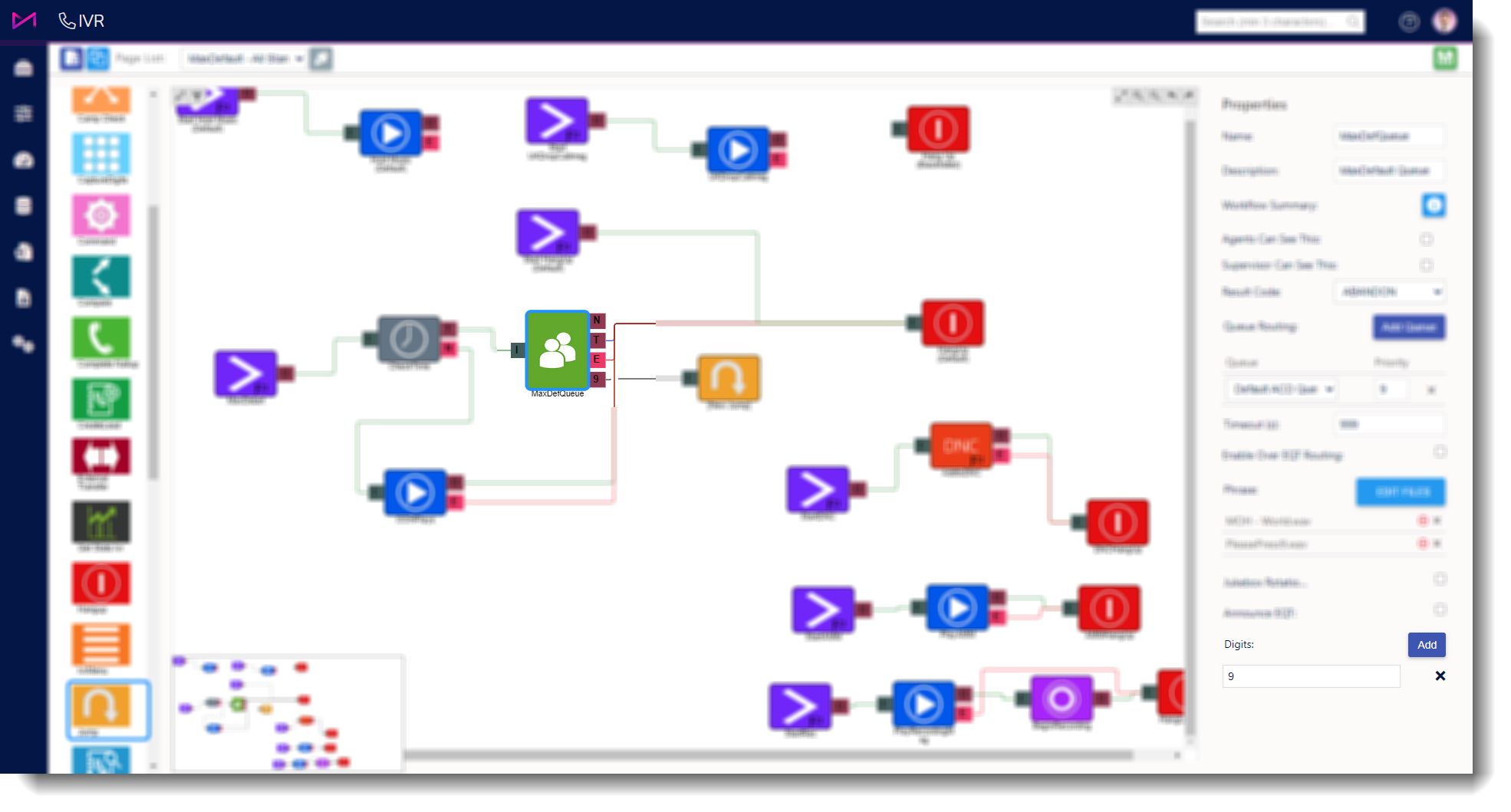
To add this to your existing inbound route, you need to add a digit to the queue element and add a 'Jump element' for the digit to route to.

Adding a digit to your queue element
To add an option to the queue, simply select the Queue element. On the right hand side of the screen you will see that elements properties. The 'Add' button is at the bottom and selecting this will add a digit (default value = 0). Change the digit to the number you prefer (In this case, 9) and this will have added the route to the element.
Adding a 'jump element'
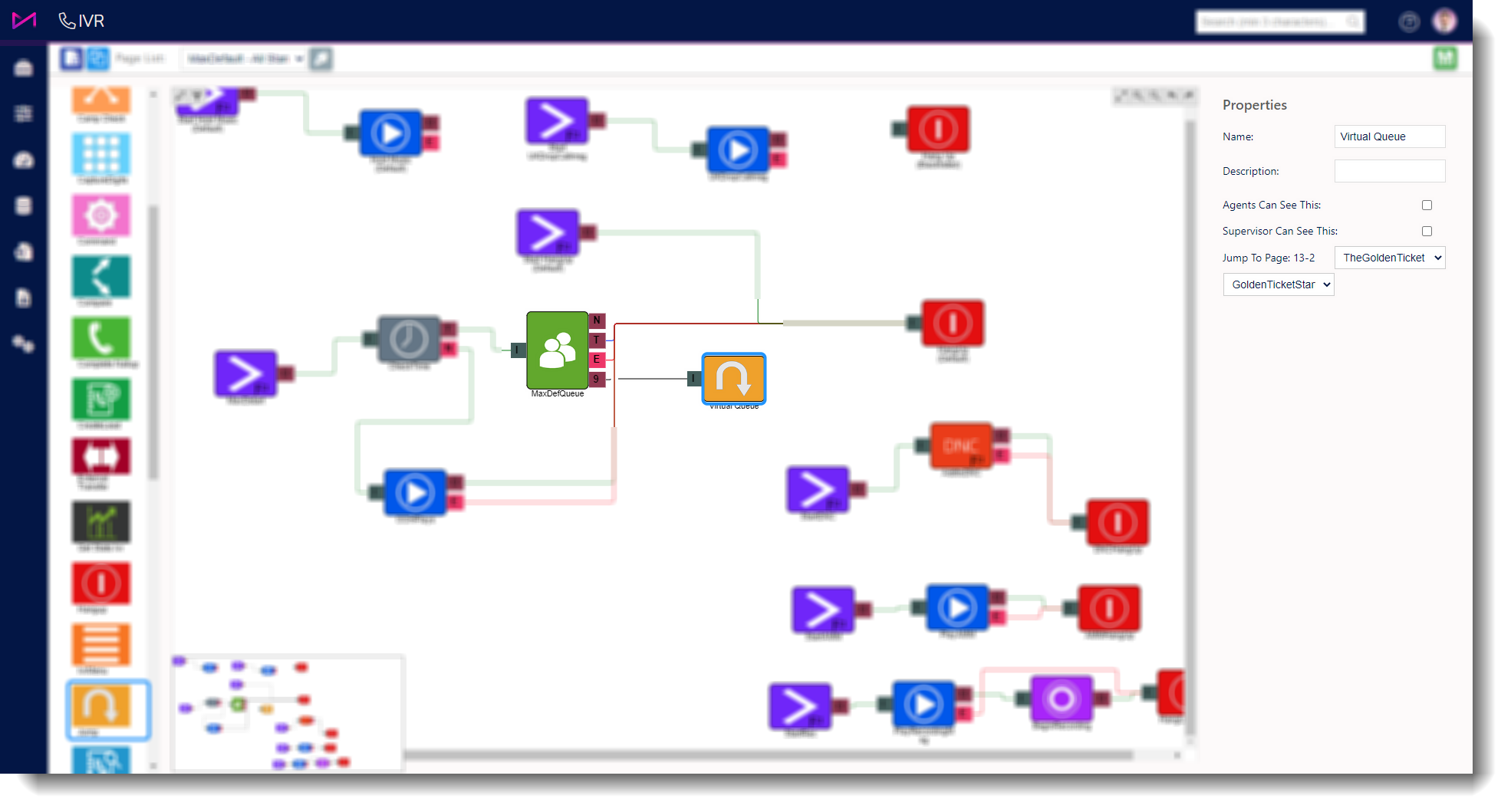
The next stage is to connect a jump element to the digit so the caller will be taken to the virtual queue. To do this, drag a Jump element from the left hand panel of elements, onto the page.
Next, join the digit to the new jump element by clicking the digit and dragging it to the I (Input) on the jump element.
Finally, select the Jump element and configure the properties pane. Here you can name the Jump accordingly and tell the Jump element which IVR to Jump to and the start element. This will usually be 'The Golden Ticket' page and the start element will be Golden Ticket Start. Please note however that names may be changed by users with access to the IVR section of the portal.
IVR Step 2 – Verify the Phone Number
We can’t assume the number the customer called in on is not a blocked number or one the caller wants to be called back on, so we need to verify the number that we have and allow the caller the option to change it. In order to play the phone number for them to verify, we can use a text to speech (TTS) element setup or a Play element and a command element setup (default).
TTS Element
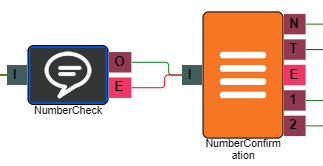
For TTS, you will need 2 elements. First, the TTS Element should have a phrase telling the caller what their phone number is i.e. “The number we have for you, is {{call.phonenum:SpellOut}}. To use this number, after the beep please press 1, to enter a new number please press 2".
And the last is an IVR Menu element to confirm it, This will have the "Beep" play file to signal the caller can make their choice.
Play Element
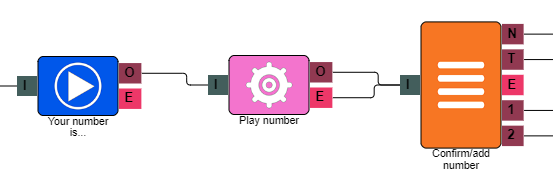
For a Play element, you will need three IVR elements. First, a Play element that begins with telling them what their phone number is i.e. “We have your phone number as…”. The next is a Command element; that will repeat the phone number to the caller. And the last is an IVR Menu element to confirm it, i.e. “If this is correct press 1. To change it, press 2”.
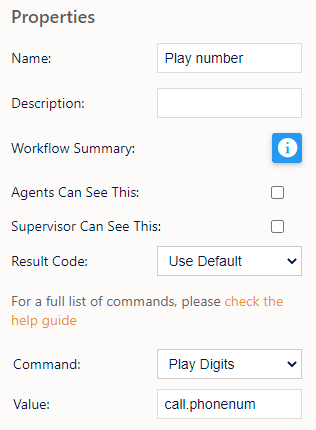
Note that the Command element should be of type 'Play Digits'. Do no use or confuse it with “Play Number” which will try to play back some gigantic sounding number like '3 billion, 33 million, 172 thousand etc.'. Because we need to play a dynamic value – the caller’s phone number in this case, Command needs to say 'Play Digits' and the Value field needs to be set to 'call.phonenum'. The system will substitute this value for the actual phone number of the caller.
Finally, an IVR menu element should be added to allow the customer to confirm the number entered is correct or enter a new number.
Play
- Verbiage should be something like, “We have your phone number as…”
Command
- Set the 'Command' property to 'Play Digits'.
- Set 'Value' to 'call.phonenum'.
IVR Menu
- Verbiage should be something like, “If this is correct press 1. To use an alternate number, press 2.”
The '2' option will link to routines you setup in Step 3 below.
IVR Step 3 – Capture and Update a New Phone Number
If the caller does not confirm the correct phone number, then the IVR routine needs to capture and update the call with a new phone number. This is done using three additional IVR elements; a Play/TTS element to ask them to enter a phone number, a Capture Digits element to capture all those digits they entered, and finally a Command element to update the call with. Any failures along the way should take the caller back to the first IVR menu. A success should take the caller to phone number verification created in Step 3.
Play/TTS
- Prompt the caller to enter their phone number after the beep (the beep is assigned to the Capture digits element).
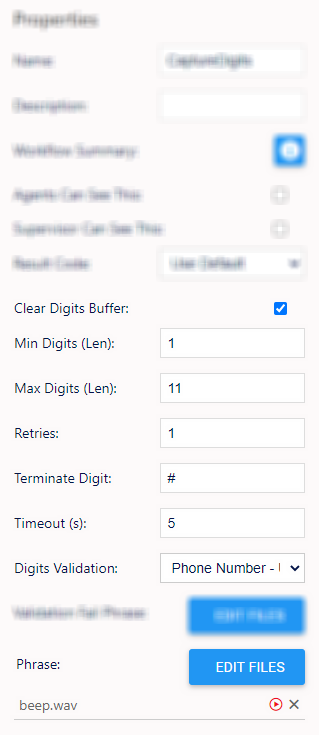
Capture Digits
- Set the Min and Max Digits to the appropriate length of the phone number expected, set the retries limit you require, the terminate digit to a # and a timeout value.
- Digits Validation should be set to 'Phone Number - UK/USA/SA'
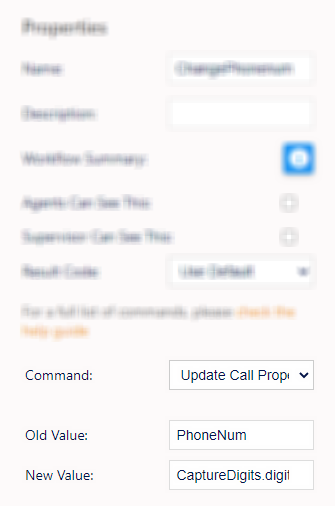
Command
- Set command to 'Update Call Property'.
- Set Old Value to 'PhoneNum'.
- Set New Value to the Name of the Capture Digits element followed by '.digits'. Example: If the name of the Capture Digits element is 'Test VQ Capture Phone', then use 'Test VQ Capture Phone.digits'.
IVR Step 4 – Thank the Caller then Disconnect
If you just hang up the call after adding the caller to the virtual queue without a message, the caller may wonder whether they’ll get a call or not. It is wise to play a final message confirming to the caller that they have successfully been added to the virtual queue. To do this, you need to add a message to either a TTS element or a Play element.