
TABLE OF CONTENTS
Data Label
This field will pull information from the DB depending on what field you map it to. However you cannot overwrite or change the data in the field as it is an output field only.
Tab 1 – Field Config
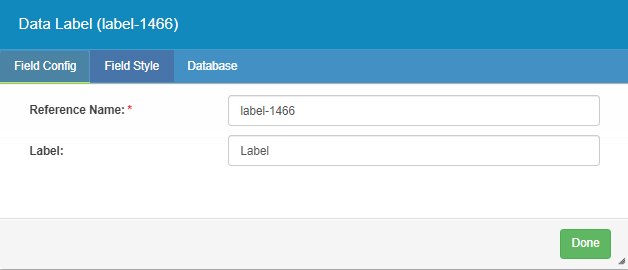
Reference Name – The reference generated by the system.
Label – The field name which can be edited.
Tab 2 – Field Style
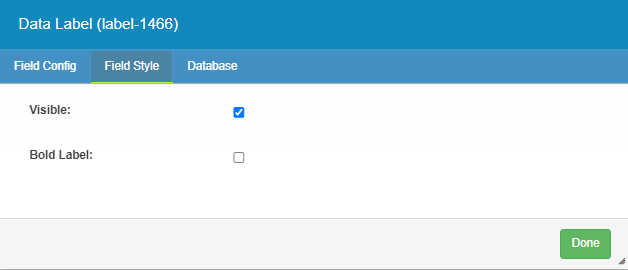
Visible – Make the field visible or invisible
Bold Label – Make the Field bold or not on the page.
Tab 3 - Database
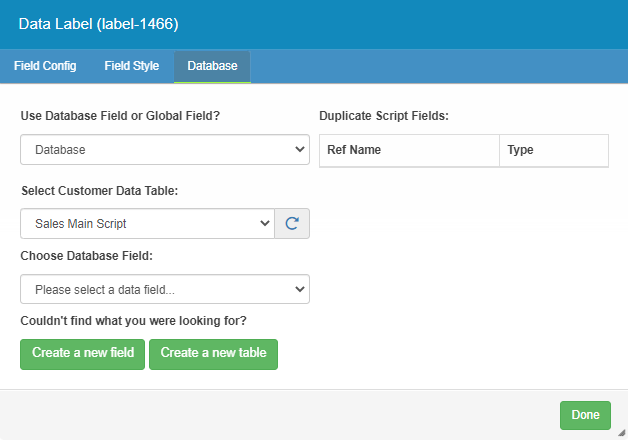
Use Database Field or Global Field? – Allows you to choose whether to display data from the database in the selected field, or pull data from an existing Global field on the script
Duplicate Script Fields – This displays any other fields in the script which are currently linked to the same database field as the one selected i.e. when a field is set up in the same way, any change to one will affect the other.
Select Customer Data Table – Here, you can select which secondary database to reference. This allows you to select the database table you wish to link the field to.
Choose Database Field – Allows, you to select the field they wish to link to this Script field
Couldn’t find what you were looking for? – Here, you can create a new field or table by selecting either button.
Create a new field – Will give a further tab with the following options:
Create a new table – Clicking here will open the Table Creator page of MaxContact in a new tab where the users can add a new table.
Free Text
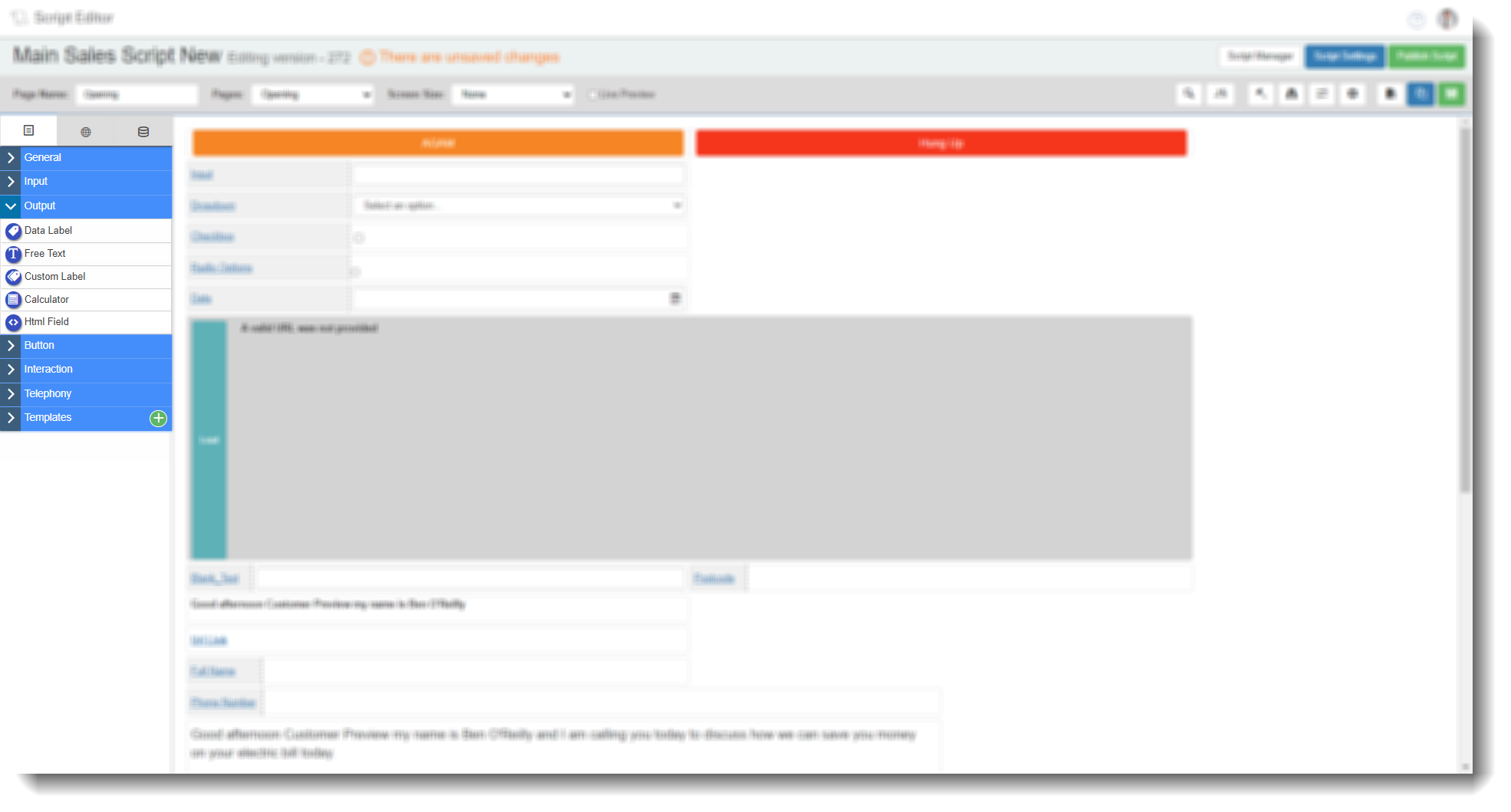
Allows you to add free text onto the script which can include fill-points containing data such as customer names, details of appointment dates set via the script etc.
Tab 1 – Field Config
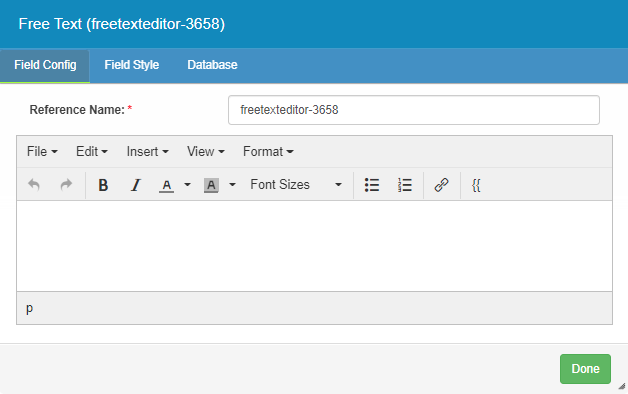
Reference name – Users can set the name of the field here.
Tab 2 – Field Style
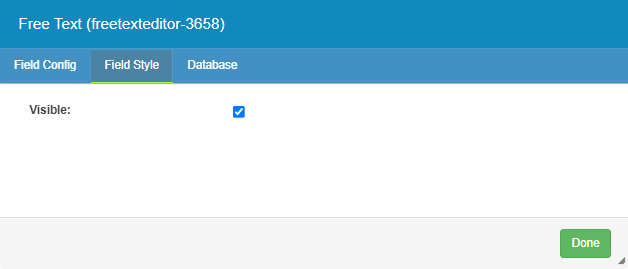
Visible – Make the field visible or invisible
Tab 3 - Database
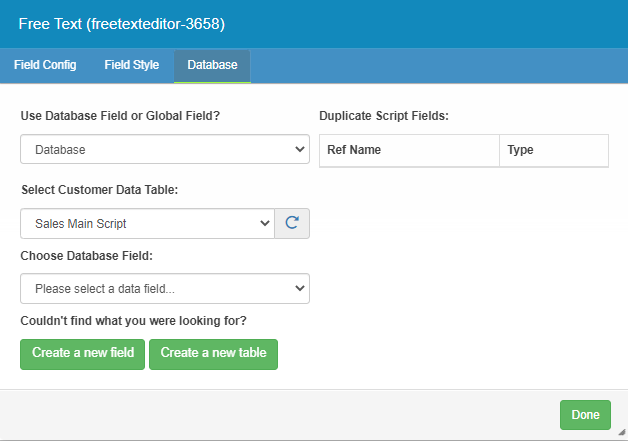
Use Database Field or Global Field? – Allows you to choose whether to display data from the database in the selected field, or pull data from an existing Global field on the script
Duplicate Script Fields – This displays any other fields in the script which are currently linked to the same database field as the one selected i.e. when a field is set up in the same way, any change to one will affect the other.
Select Customer Data Table – Here, you can select which secondary database to reference. This allows you to select the database table you wish to link the field to.
Choose Database Field – Allows, you to select the field they wish to link to this Script field
Couldn’t find what you were looking for? – Here, you can create a new field or table by selecting either button.
Create a new field – Will give a further tab with the following options:
Create a new table – Clicking here will open the Table Creator page of MaxContact in a new tab where the users can add a new table.
Custom Label
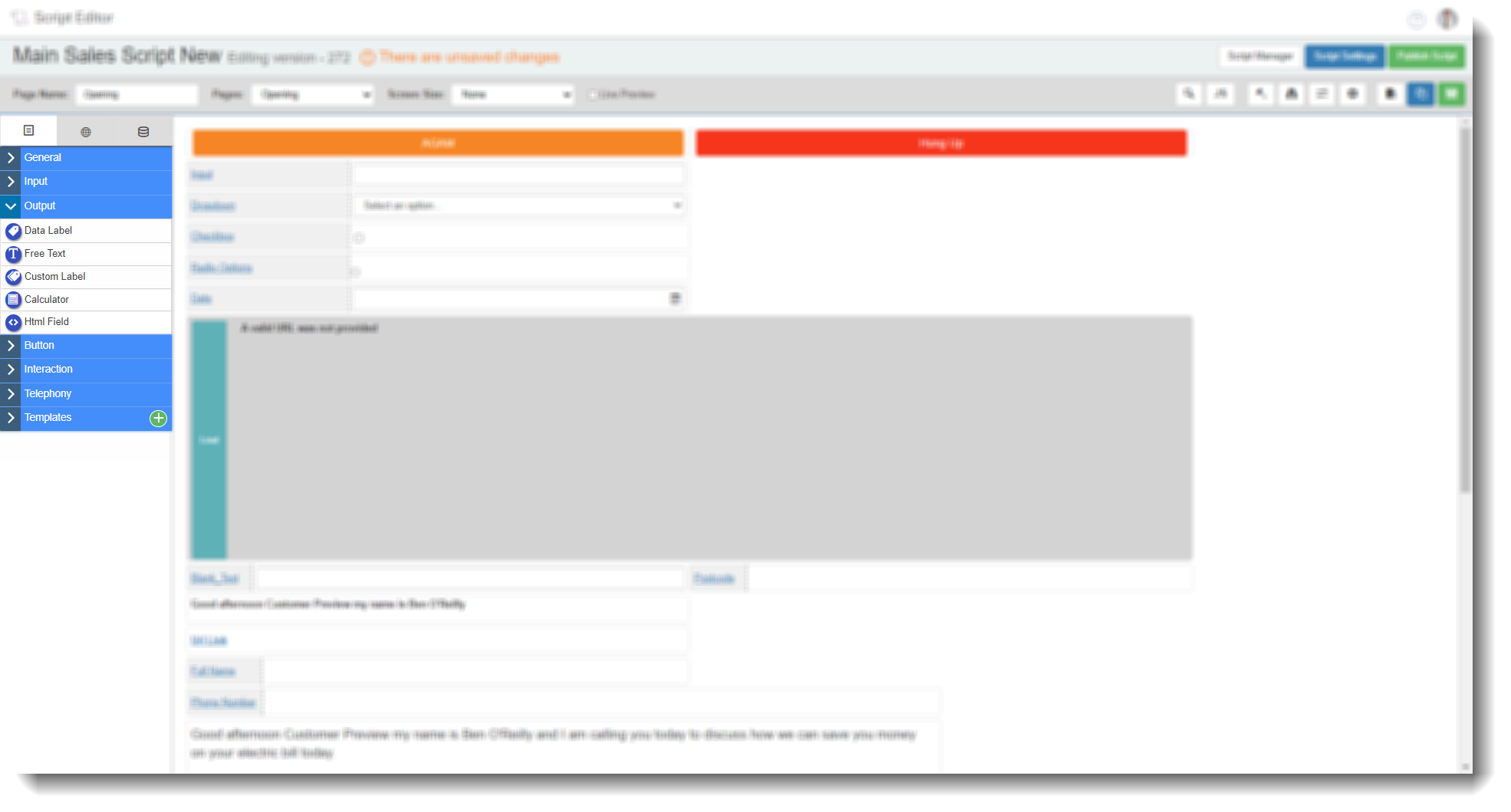
Allows the user to add a custom field to the script that could contain different pieces of data in the one field e.g. This field consists of {{label-data-label-1}} and {{label-data-label-2}} or Customers full address {{address-line-1}}, {{address-line-2}}, {{address-line-3}}, {{post-code}} and so on.
Tab 1 – Field Config
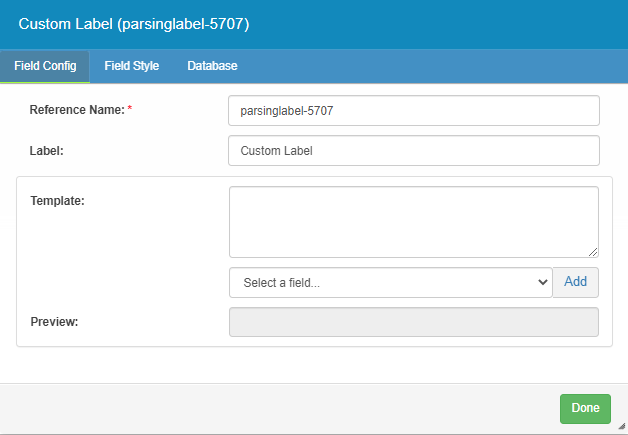
Reference Name – The reference generated by the system.
Label – The field name which can be edited.
Template – Users can select ‘System Fields/Page Fields’ to populate a template in the custom Label.
Preview – Will show what the ‘System/Page Field’ will look like on the script.
Tab 2 – Field Style
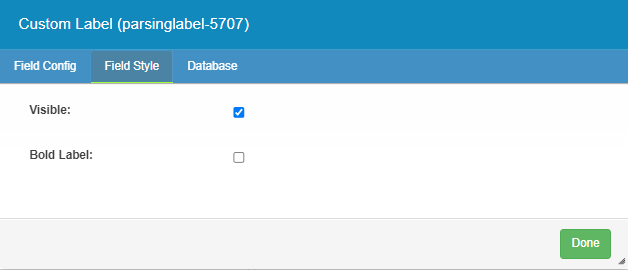
Visible – Make the field visible or invisible
Bold Label – Make the field bold or not on the page.
Tab 3 - Database
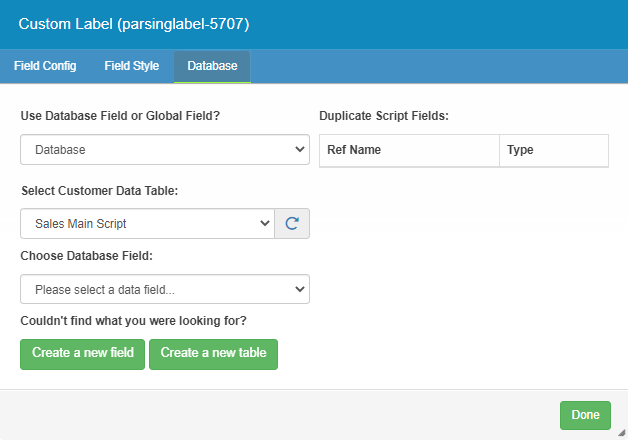
Use Database Field or Global Field? – Allows you to choose whether to display data from the database in the selected field, or pull data from an existing Global field on the script
Duplicate Script Fields – This displays any other fields in the script which are currently linked to the same database field as the one selected i.e. when a field is set up in the same way, any change to one will affect the other.
Select Customer Data Table – Here, you can select which secondary database to reference. This allows you to select the database table you wish to link the field to.
Choose Database Field – Allows, you to select the field they wish to link to this Script field
Couldn’t find what you were looking for? – Here, you can create a new field or table by selecting either button.
Create a new field – Will give a further tab with the following options:
Create a new table – Clicking here will open the Table Creator page of MaxContact in a new tab where the users can add a new table.
Calculator
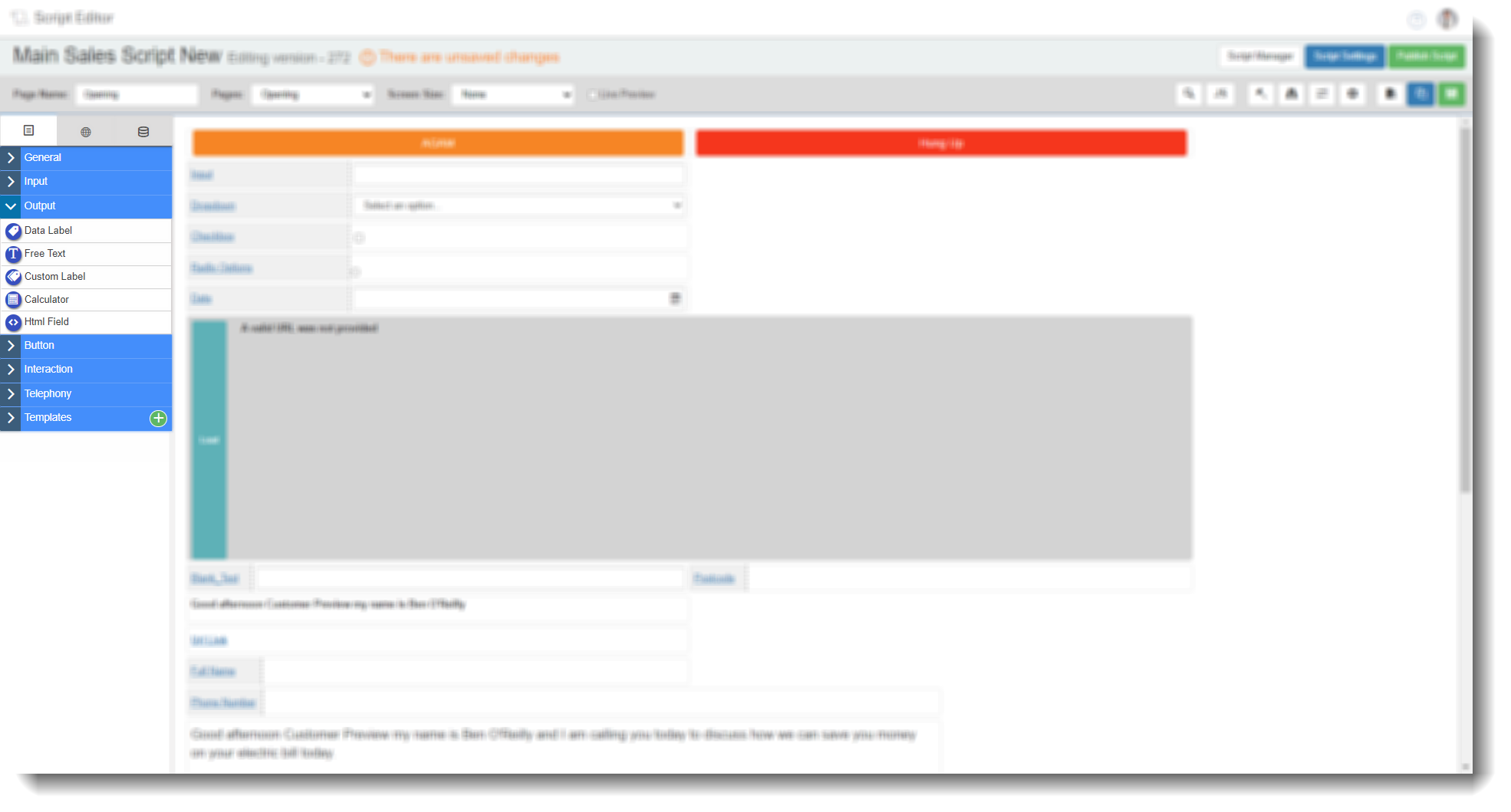
This field allow you to do simple maths and show the result, you can also reference other fields to include in the calculation (via the drop-down).
Tab 1 – Field Config
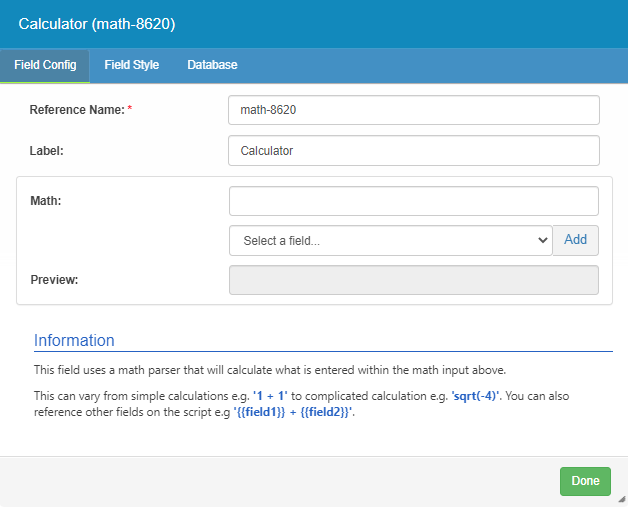
Reference Name – The reference generated by the system.
Label – The field name which can be edited.
Math – The user needs to enter the calculation they want the script to perform.
Preview – Displays what the field selected will look like when live.
Tab 2 – Field Style
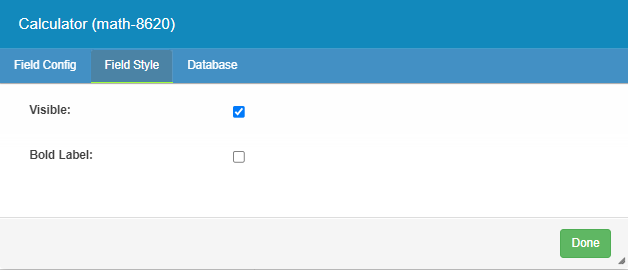
Visible – Make the field visible or invisible
Bold Label – Make the field bold or not on the page.
Tab 3 - Database
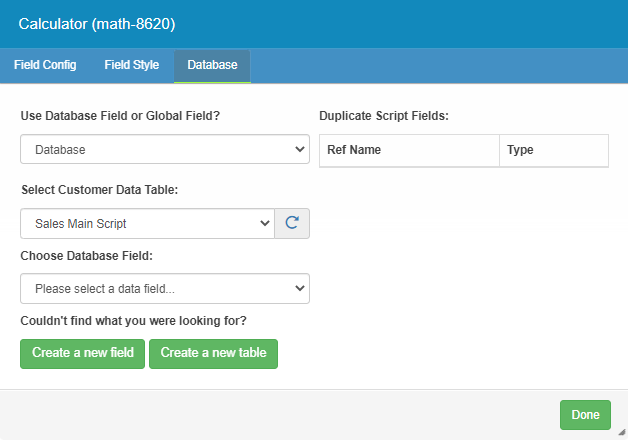
Use Database Field or Global Field? – Allows you to choose whether to display data from the database in the selected field, or pull data from an existing Global field on the script
Duplicate Script Fields – This displays any other fields in the script which are currently linked to the same database field as the one selected i.e. when a field is set up in the same way, any change to one will affect the other.
Select Customer Data Table – Here, you can select which secondary database to reference. This allows you to select the database table you wish to link the field to.
Choose Database Field – Allows, you to select the field they wish to link to this Script field
Couldn’t find what you were looking for? – Here, you can create a new field or table by selecting either button.
Create a new field – Will give a further tab with the following options:
Create a new table – Clicking here will open the Table Creator page of MaxContact in a new tab where the users can add a new table.
HTML Field
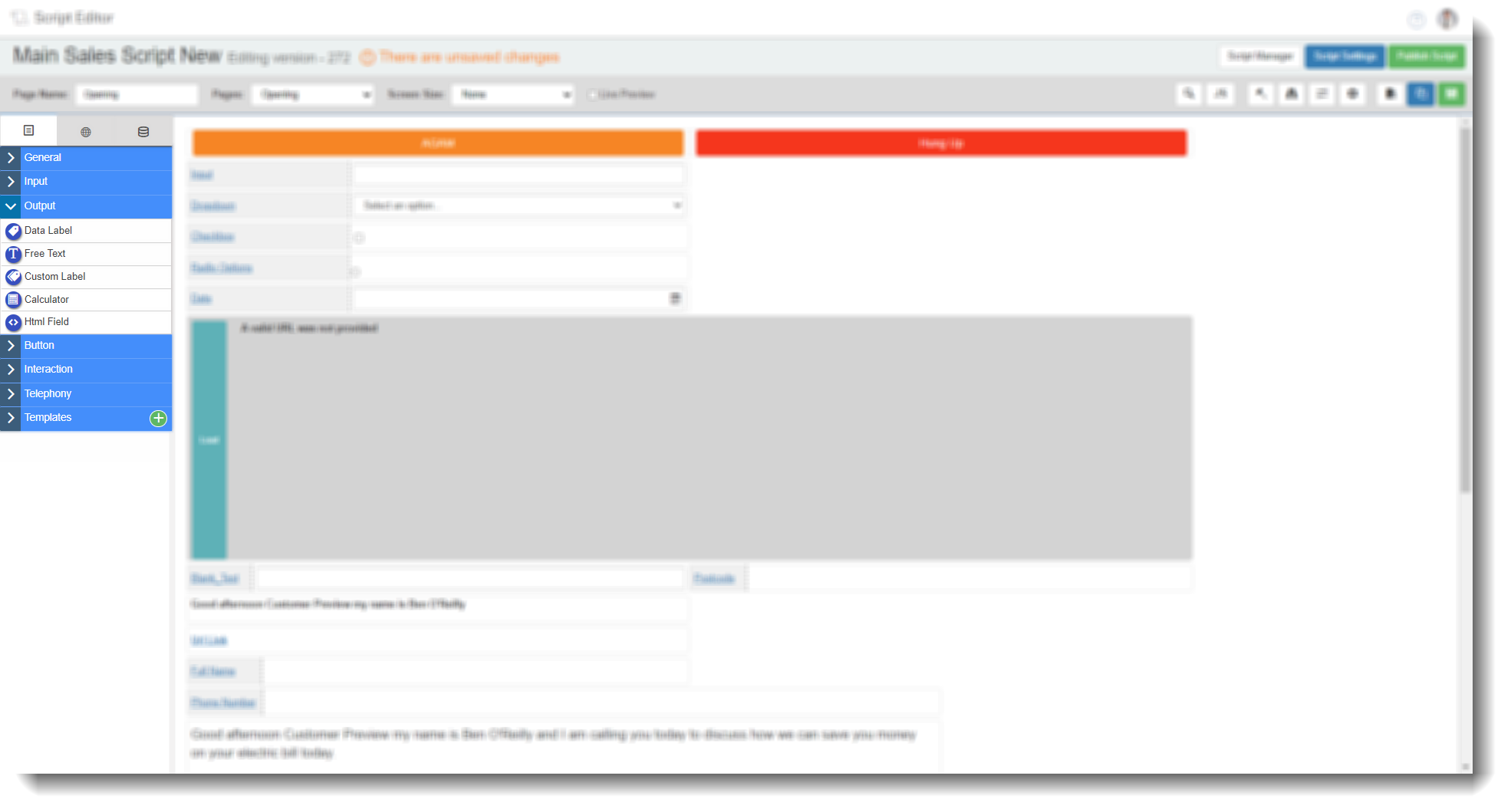
This allows the user to edit/personalise the page with HTML code.
Tab 1 – Field Config
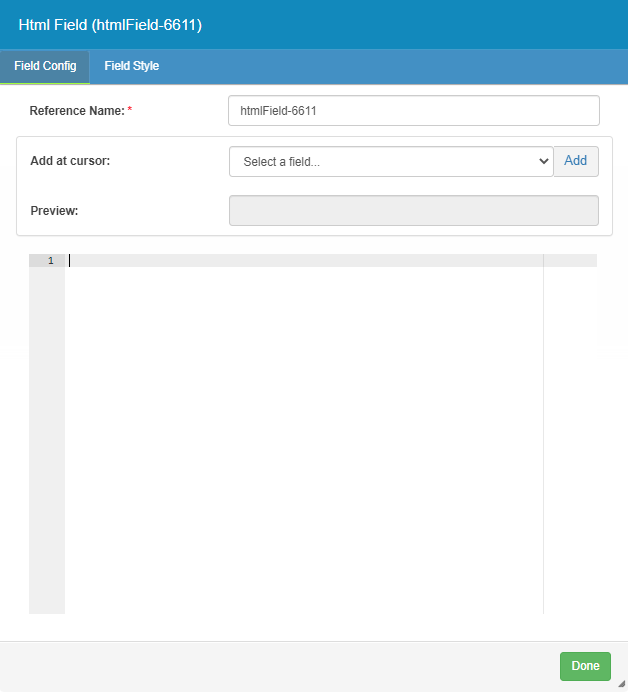
Reference Name – The reference generated by the system.
Add at cursor – Users can select field data which will be inserted into the code.
Preview – Will show how it will look withing the data.
Tab 2 – Field Style
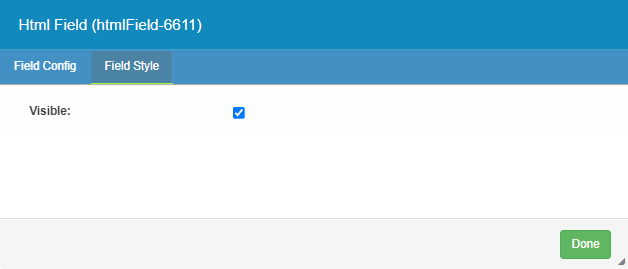
Visible – Make the field visible or invisible by default.