
To add TTS to any IVR routine, drag-and-drop the new TTS IVR element into your IVR routine. The unique properties for this element are simple; Text – the text you want spoken, and the Voice – the speaker you want to use. Users simply need to type in the 'Text' box what they want the customer to hear.
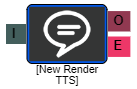
I = Input
O = Output
E = Error
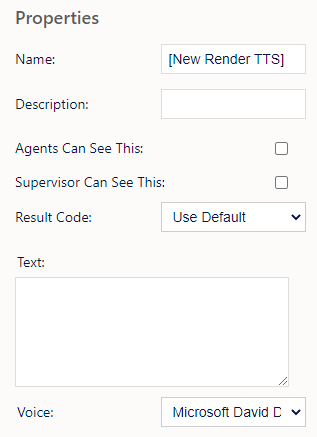
Name, Description - On each IVR element, users can add a name and a description of the element.
Agent Can See This - This means that if the inbound call comes through to an agent, they can select this to transfer the caller to this IVR element.
Supervisor Can See This - Anyone with the role type set as 'supervisor' within their main role, will be able to see the option but no-one else.
Result Code - Users can assign a result code to the IVR element.
Text - Here, users input what they want spoken to the customer.
Voice - Users can choose which voice to use by selecting from the drop-down list. By default there are 3 windows voices to choose from but we can add voices you have purchased if required.
Dynamic Content
Often what needs to be spoken is not static content (though it is perfectly fine to do so) but rather dynamic content (fillpoints used on scripts etc.) like individual names, addresses, dates and/or times which may be specific and unique per call. To do so, surround the field you want rendered dynamically with double curly braces ('{{ }}'). For instance, to play an outbound caller’s name, you can add {{name}} to the Text property by itself or within a sentence ('name' is mapped to the value of the Lead’s name field). If other information is 'mapped' in the other call info when the lead is imported, it can be used too.
Formatting Content
There is some control over how certain parts of speech, particularly dates, times, and numbers should be said and that is through special formatting tags. The formatting tags can only be used within a curly-braces '{{ }}' such as that used by dynamic content and is separated by a colon e.g. Time.
Cached Storage
Any “static” TTS IVR elements (i.e. ones that do not contain any dynamic fields) will be cached on the TTS server for 90 minutes. Anytime the same TTS sound file needs to be rendered, it will use a cached copy if one is available. Using a cached copy extends the cached copy lifetime another 90 minutes. Files with dynamic content are cached for 10 minutes. Using TTS as a complete replacement for traditional WAV sound files is a viable option and should have no impact on server performance.
Special Requirements
Since it uses the built-in speech syntheses provided by Windows, there are no other setups or requirements necessary unless you want to add additional voices and/or languages. The new MaxContact Speech Server contains all the necessary functionality.
Support for Other Languages
To add additional languages, you will need to install the Windows Language Pack for the language desired. This is usually found under the Windows “Regions and Languages” configuration section. Not every language is supported, and not all may have both male and female voices, but most of the world’s top languages are well represented. For instance, installing the French language pack for Windows installs the French Text-to-Speech male voice “Paul” and female voice “Julie” and “Hortence”. See https://support.microsoft.com/en-us/help/22797/windows-10-narrator-tts-voices for a current list of voices supported by Windows 10.
Additional languages and voices are also available through Azure Coginitive Services. Please contact your account manager for further details.