
TABLE OF CONTENTS
Recording Button
This button will stop/start the call recording depending on the current status - and change accordingly.
Tab 1 – Field Config
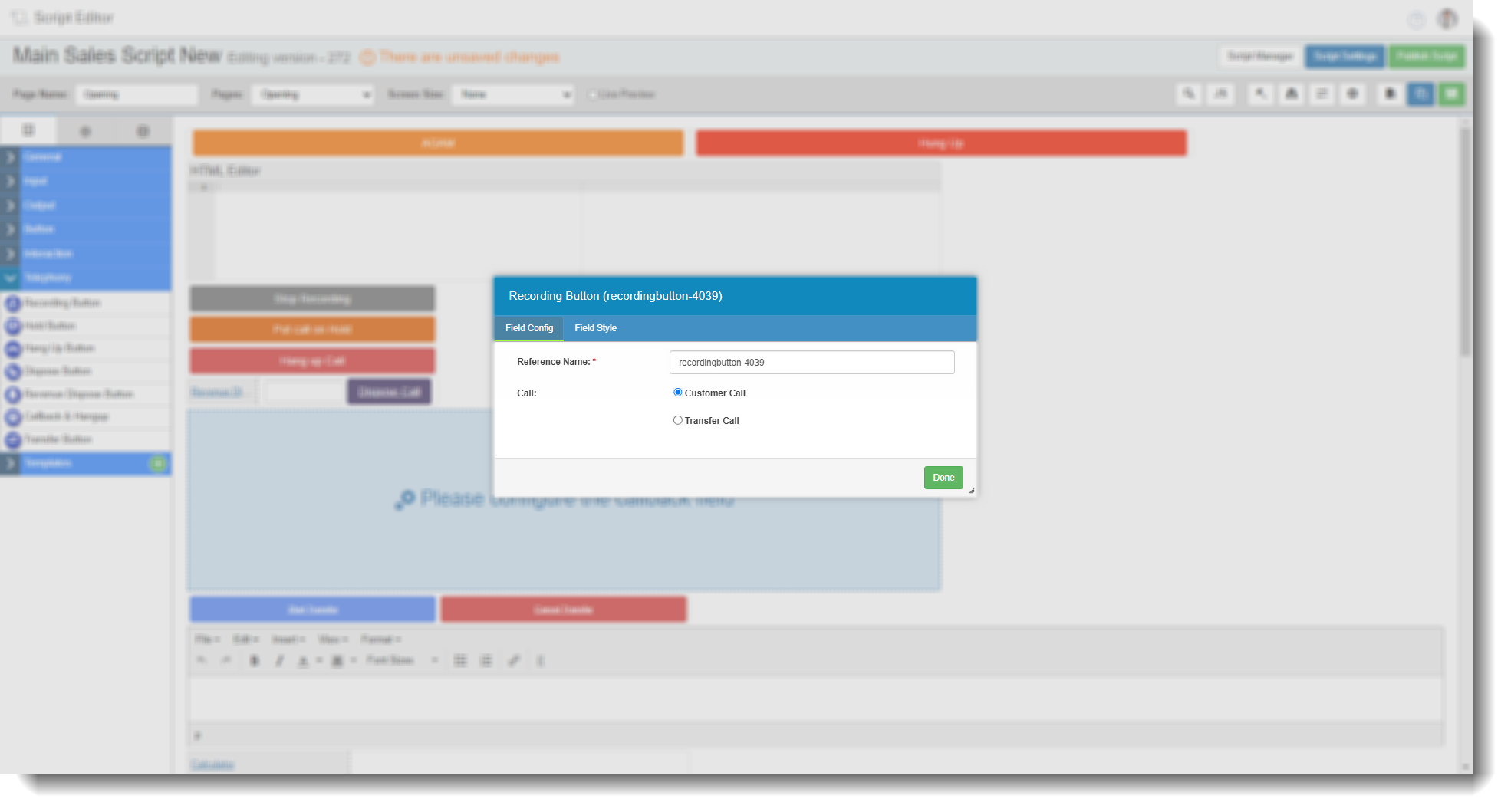
Reference Name – The reference generated by the system.
Call – You can select either a customer call or a transfer.
This would be used mainly for customer calls where the page shouldn’t be recorded, for example taking a payment. If the page calls for a Hot key transfer for example, this could also be used.
Tab 2 – Field Style
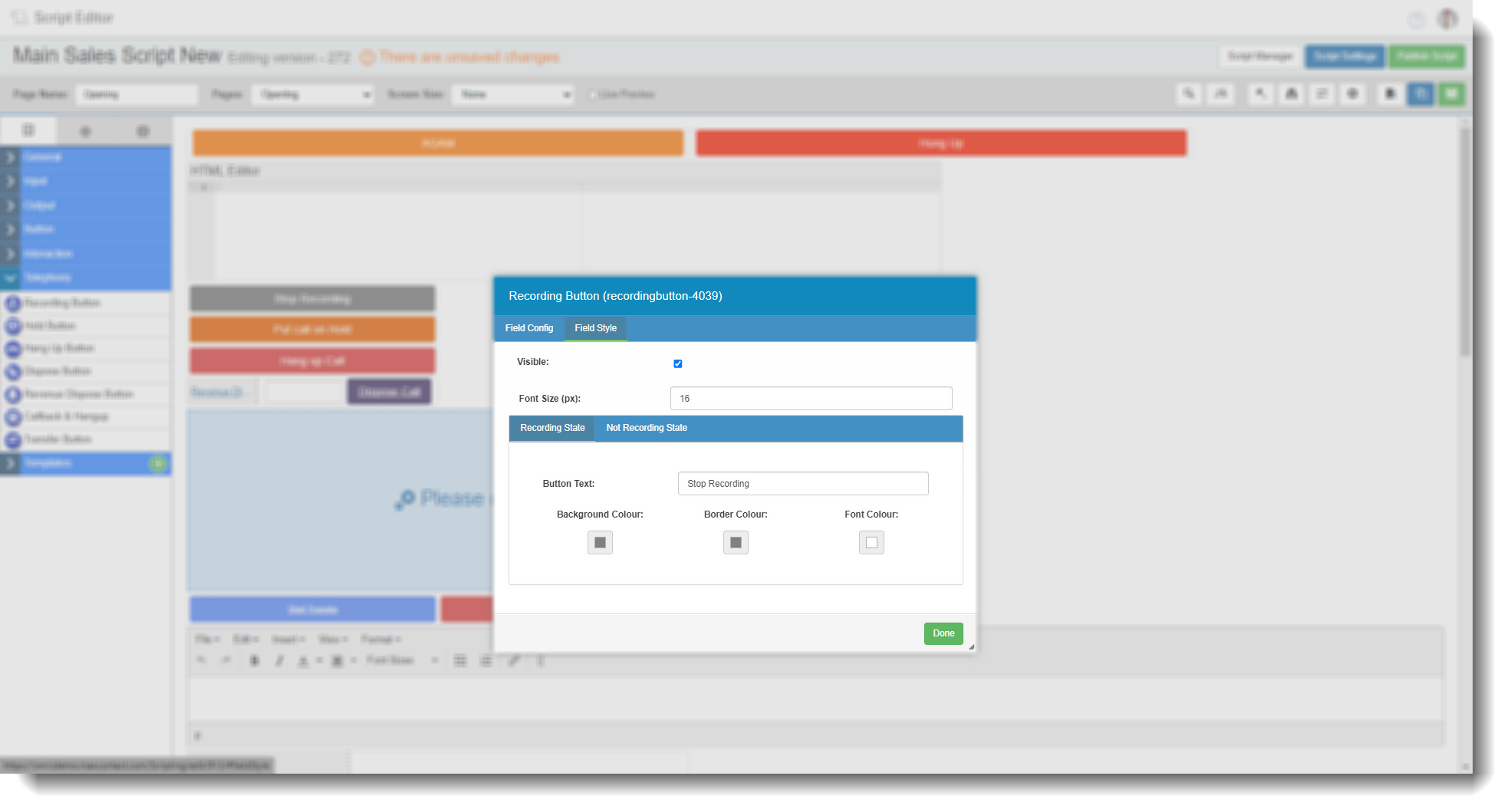
Visible – Checking will make the field visible in the script, unchecking will make it invisible.
Font Size (px) – Allows you to set the size of the font.
Recording State – You can set the button text and colours whilst in the recording state.
Not Recording State – You can select the button text and colours whilst not recording here.
Hold Button
This lets you put the call on hold during the call.
Tab 1 – Field Config
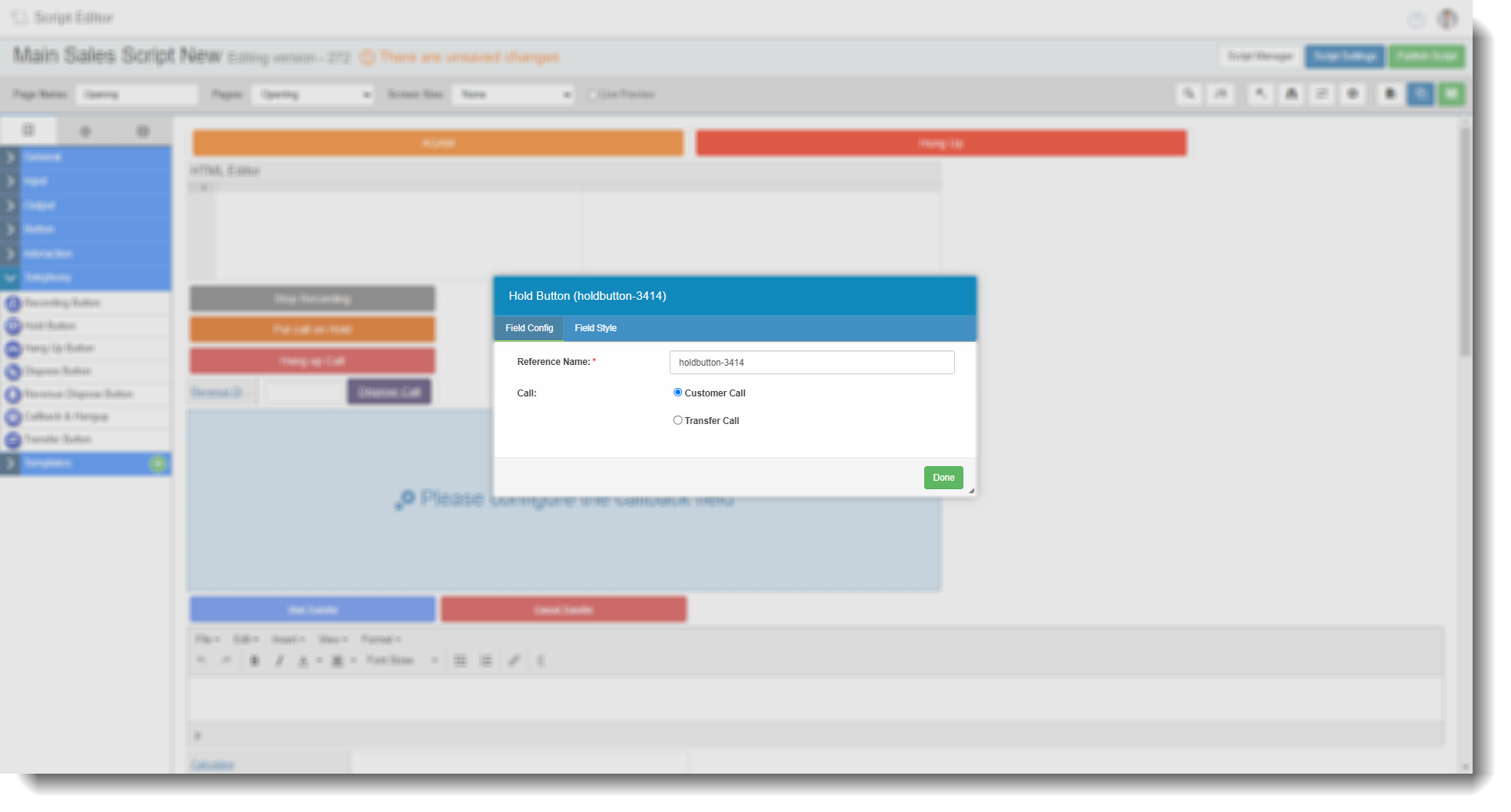
Reference Name – The reference generated by the system.
Call – You can select either a customer call or a transfer. Mainly used on customer call to put the customer on hold. This could also be used in a transfer to put the other agent on hold.
Tab 2 – Field Style
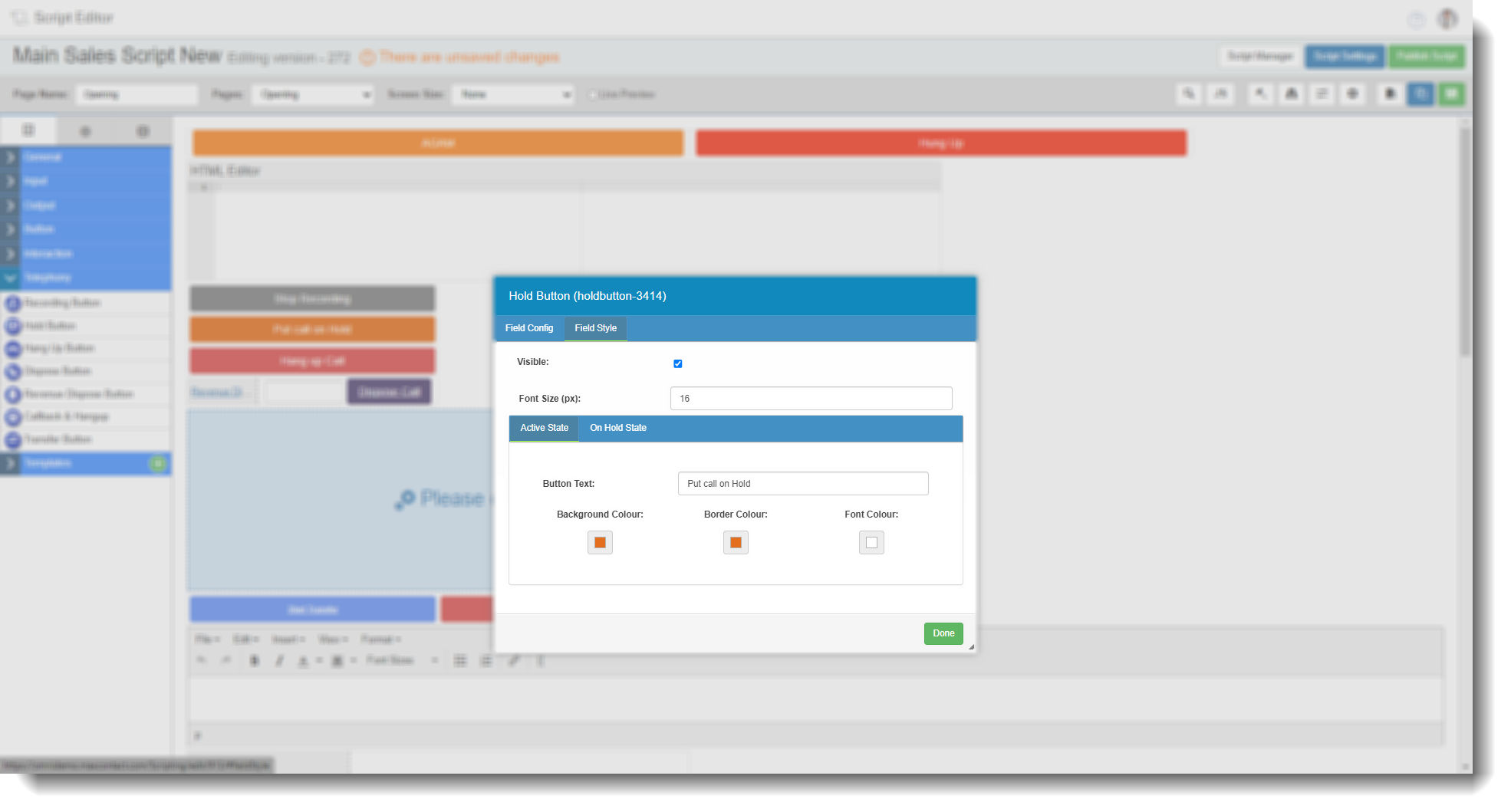
Visible – Checking will make the field visible in the script, unchecking will make it invisible.
Font Size (px) – Allows you to set the size of the font.
Active State – You can set the button text and colours whilst in the active state.
On Hold State – You can select the button text and colours whilst on old.
Hang Up Button
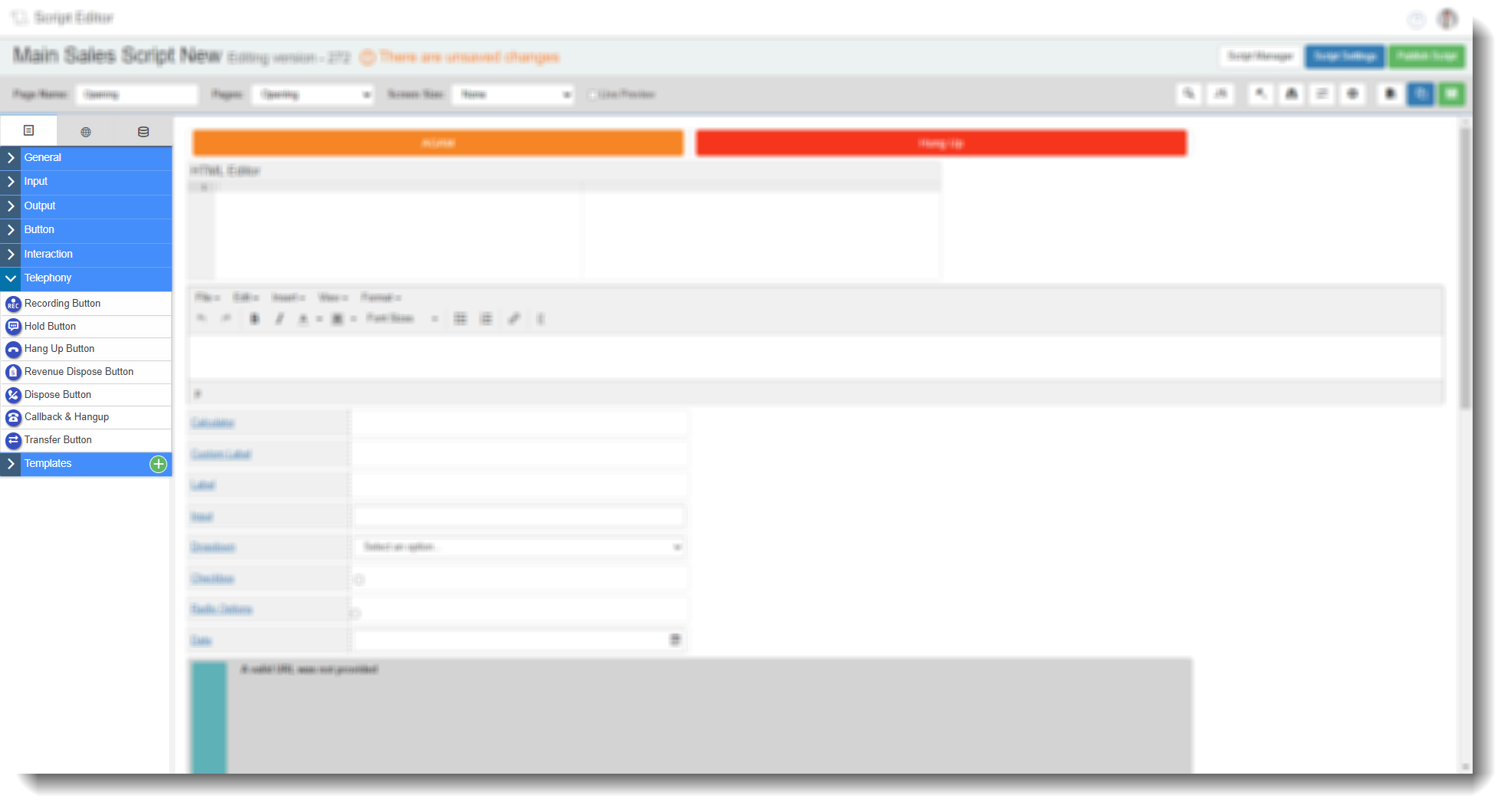
Used to hang up the call through the script.
Tab 1 – Field Config
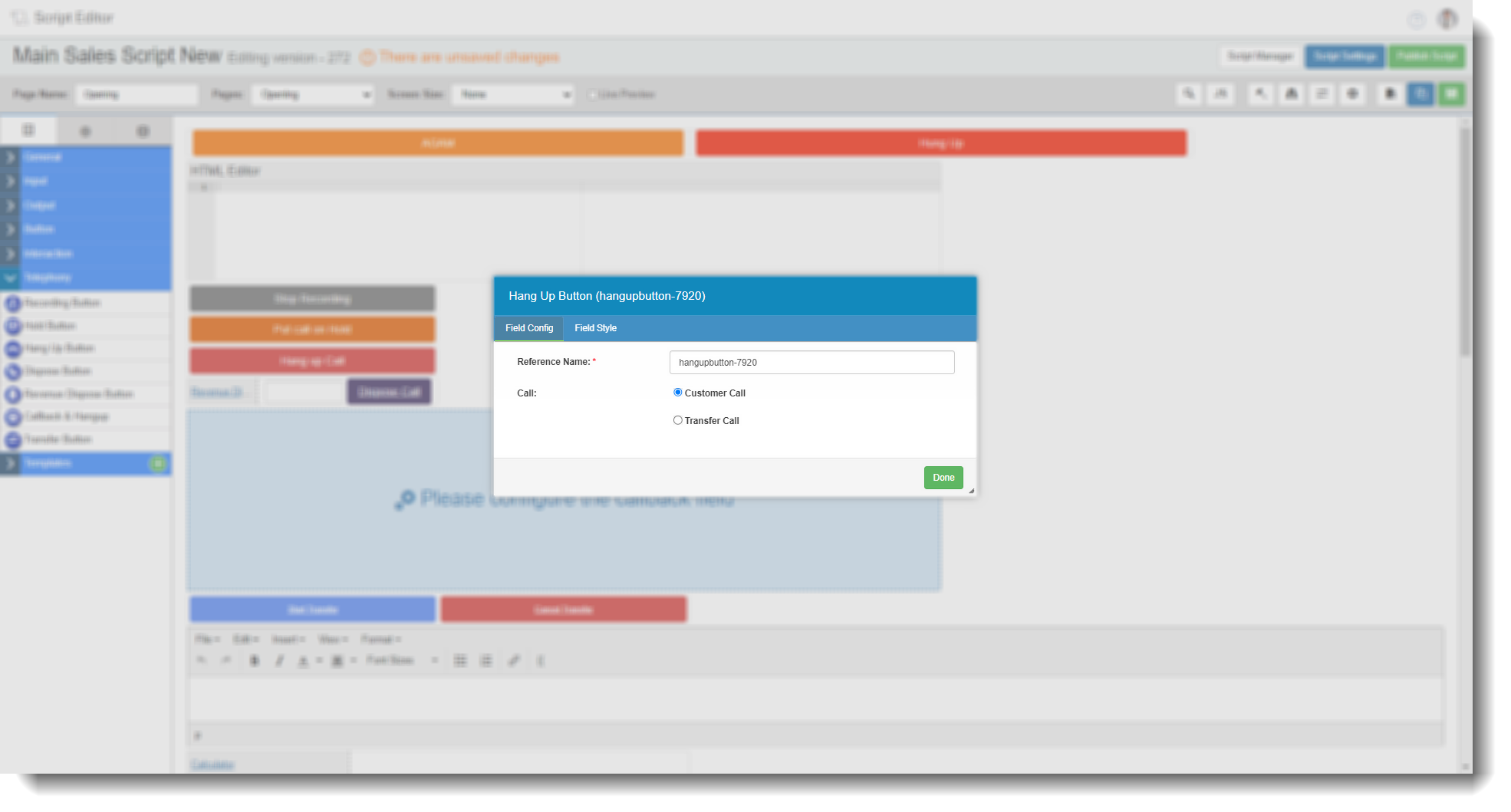
Reference Name – The reference generated by the system.
Call – You can select either a customer call or a transfer. Used to hang up the customer call or can be configured to hang up a transfer in the instance that the other end is busy/no answer.
Tab 2 – Field Style
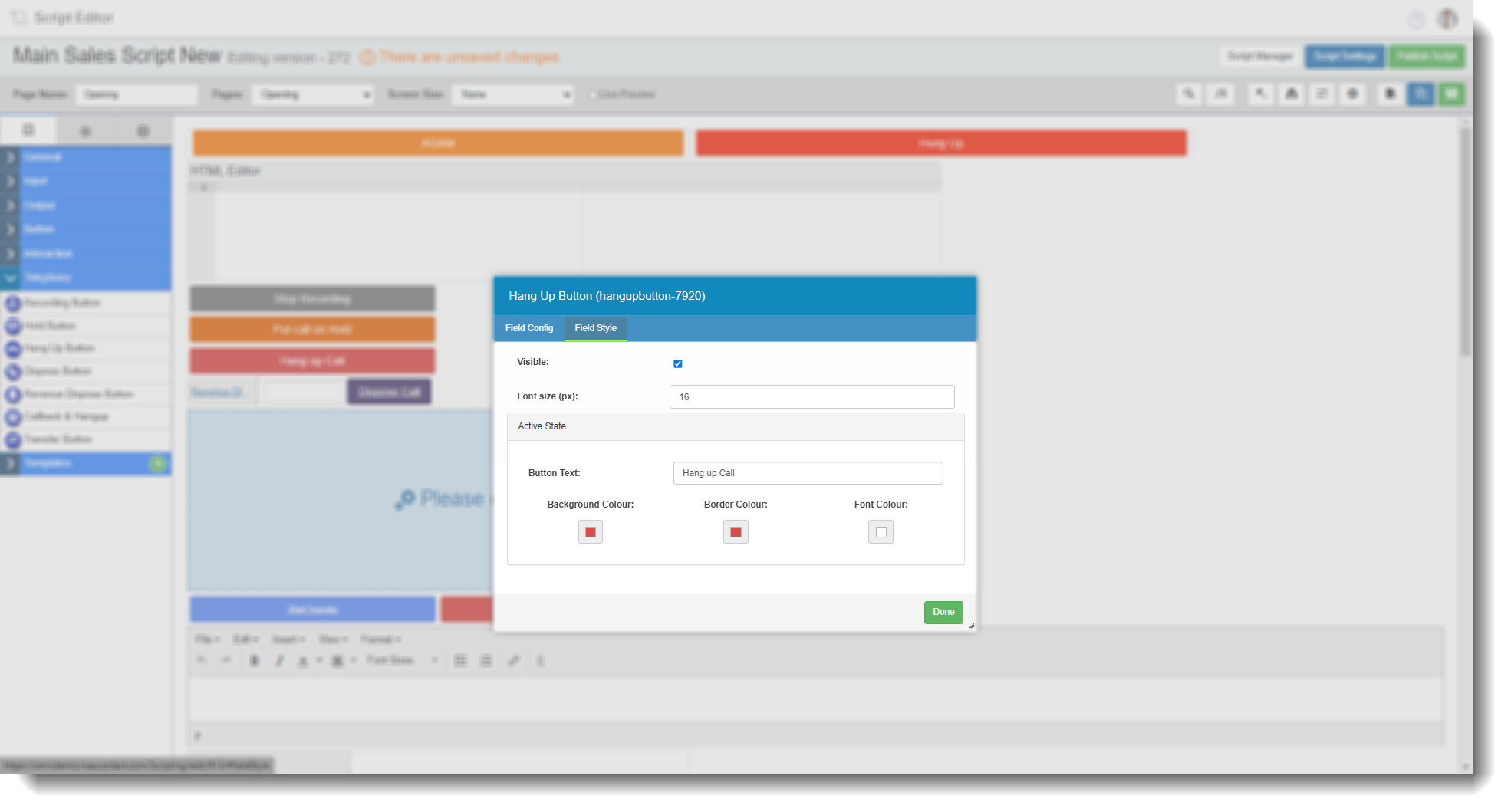
Visible – Checking will make the field visible in the script, unchecking will make it invisible.
Font Size (px) – Allows you to set the size of the font.
Active State – You can set the button text and colours whilst in the active state.
Dispose Button
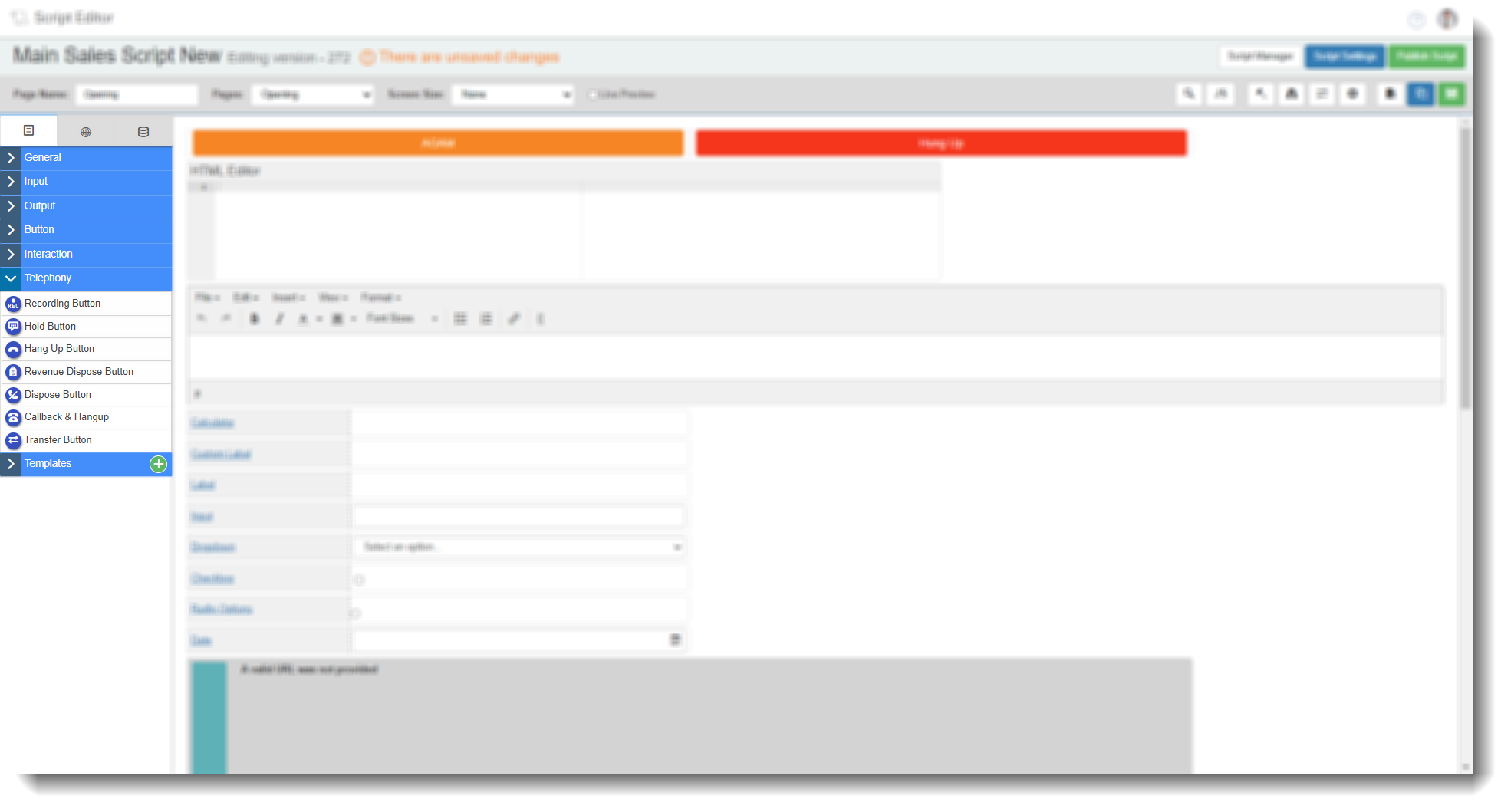
Can be used to take the agent to the disposition page.
Tab 1 – Field Config
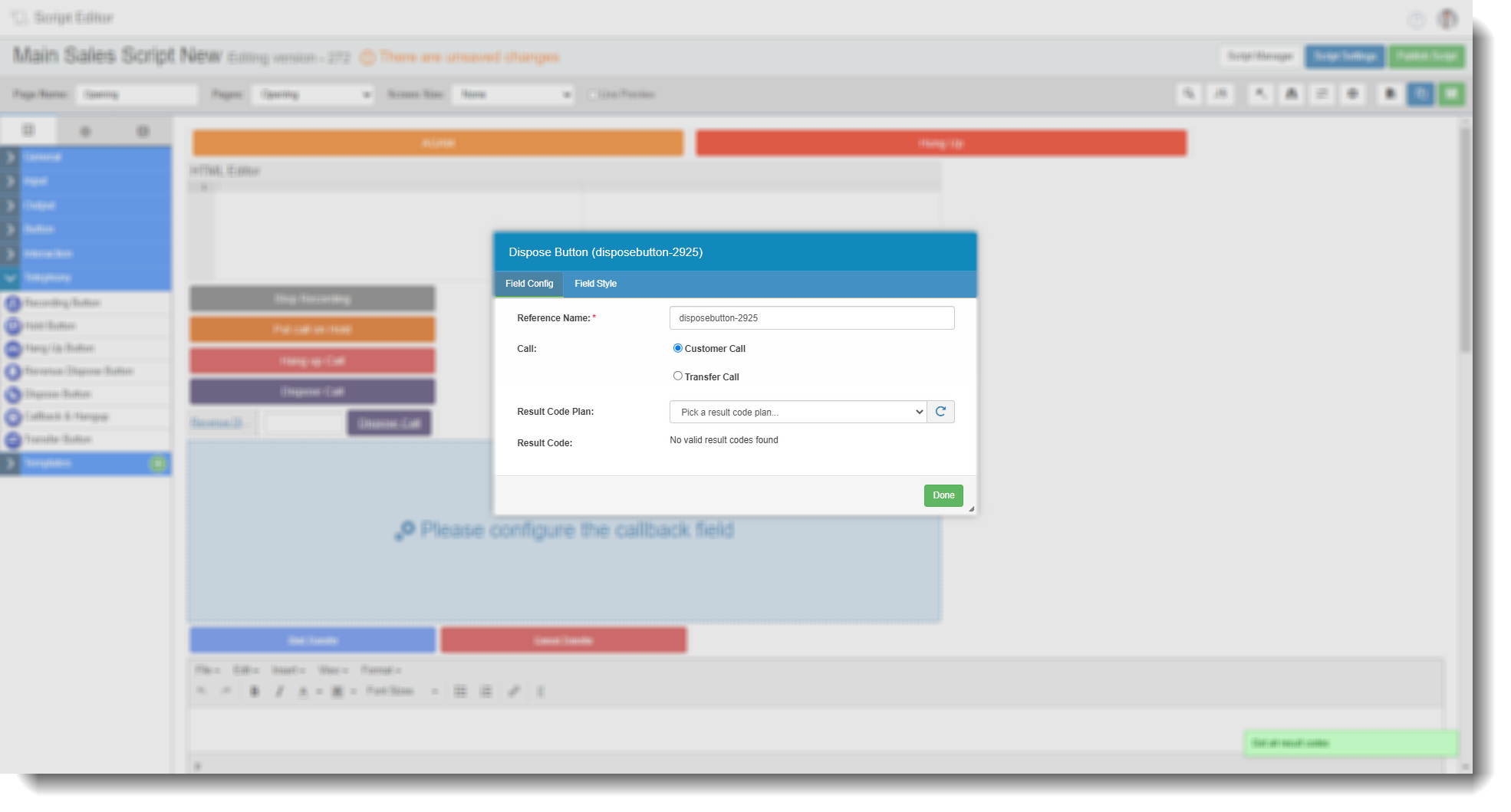
Reference Name – The reference generated by the system.
Call – You can select either a customer call or a transfer. Used to disposition the customer call or can be used to disposition a transfer if the other end is busy/no answer.
Result Code Plan – Allows you to choose the result code plan to choose a code from.
Result Code – Once a result code plan is selected, the result code will show a drop down of all the result codes allowing you to assign one to the button.
Selecting a result code will change the button text to that code.
Tab 2 – Field Style
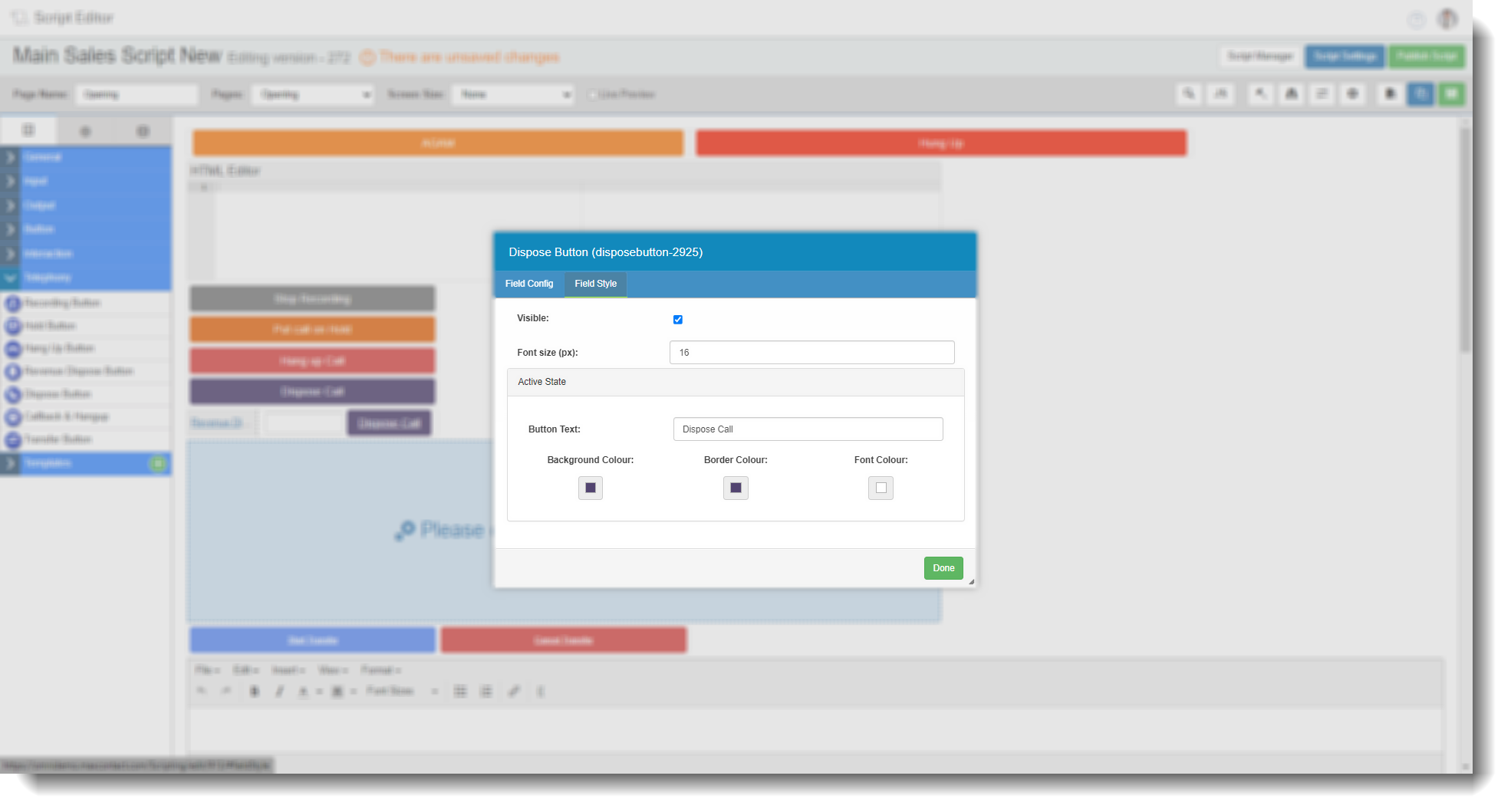
Visible – Checking will make the field visible in the script, unchecking will make it invisible.
Font Size (px) – Allows you to set the size of the font.
Active State – You can set the button text and colours whilst in the active state.
Callback & Hangup
Tab 1 – Field Config
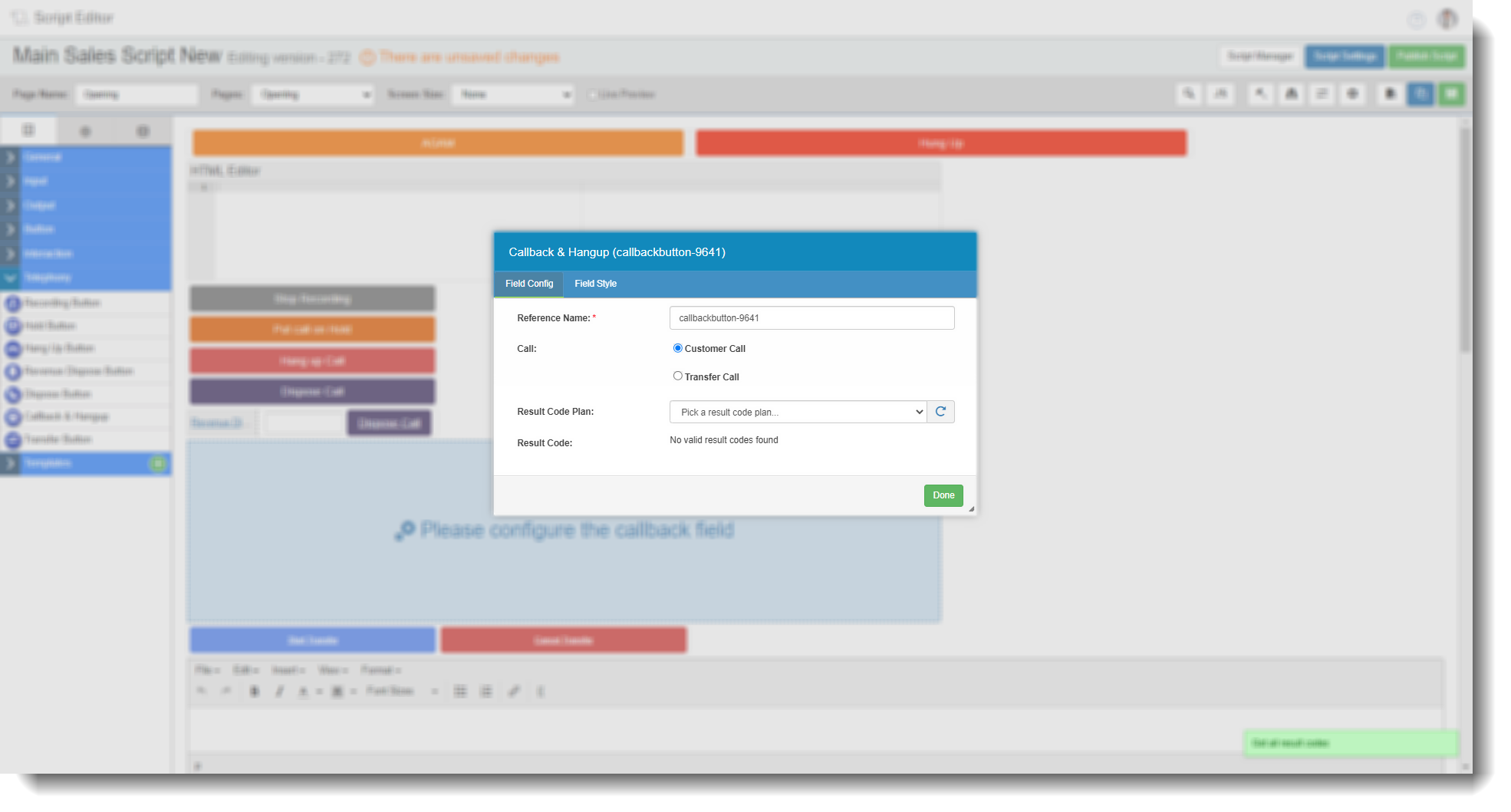
Reference Name – The reference generated by the system.
Call – You can select either a customer call or a transfer. Only used for customer calls.
Allow public Callbacks – Checking this will put the call into the public call-backs for all agents. Unchecking keeps it as a private callback for the agent on the call.
Result Code Plan – Allows you to select the Result Code plan they want to use.
Result Code – Allows you to select the relevant Result Code.
Tab 2 – Field Style
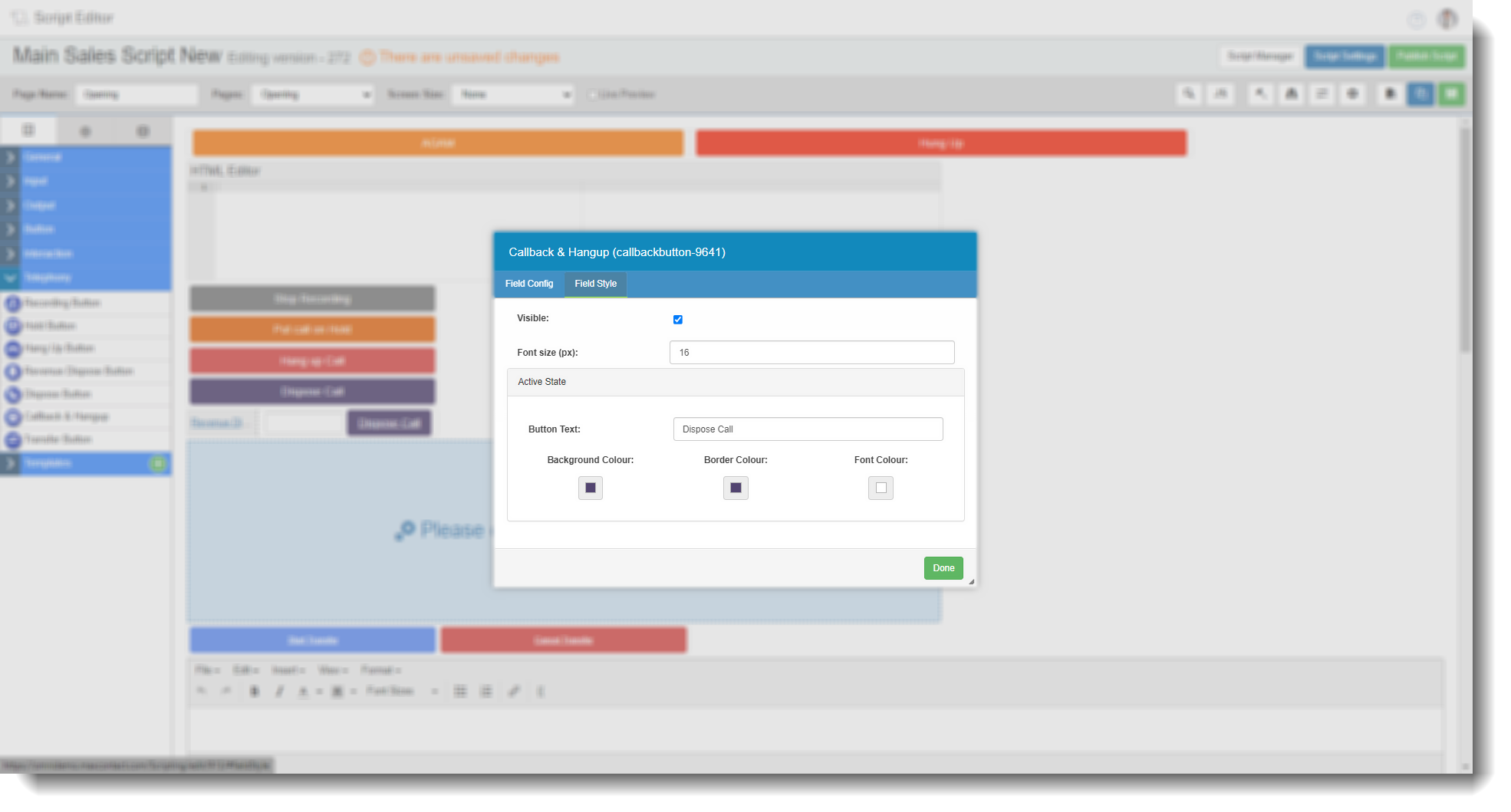
Visible – Checking will make the field visible in the script, unchecking will make it invisible.
Font Size (px) – Allows you to set the size of the font.
Active State – You can set the button text and colours whilst in the active state.
Transfer Button
Here you can set a transfer within the script.
Tab 1 – Field Config
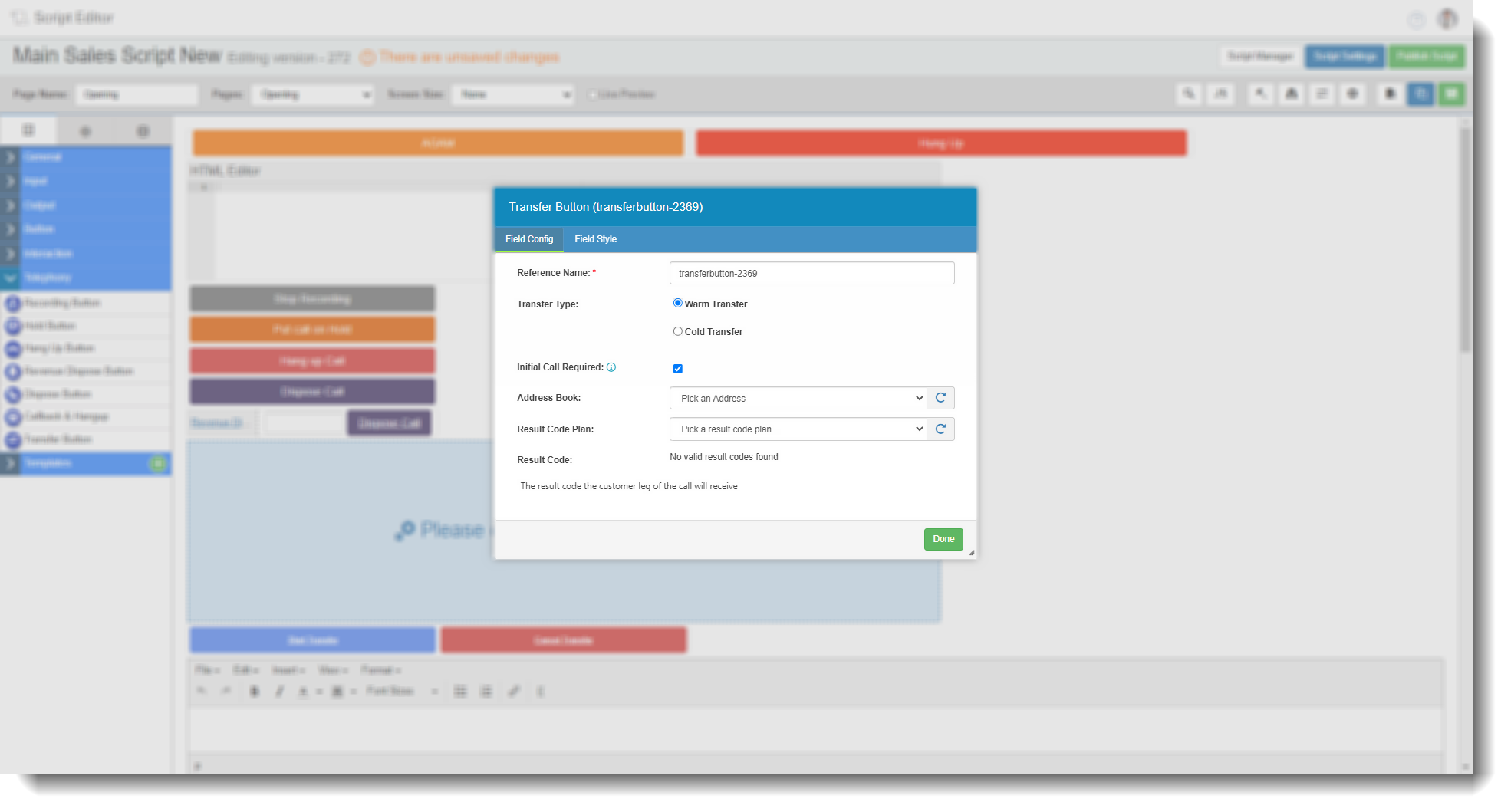
Reference Name – The reference generated by the system.
Transfer Type – You can select either a warm transfer or a cold transfer. Warm transfers will not put the customer on hold by default, so they will be able to hear the agents talking. Cold transfers will put the customer on hold by default while the agents talk.
Address Book – Allows you to select where to transfer the call to. The address book can be set up in Admin > Address Book
Result Code Plan - You can select which result code plan the action will use.
Result Code – You can then select the result code the action will use for the transfer.
Tab 2 – Field Style - Start Transfer
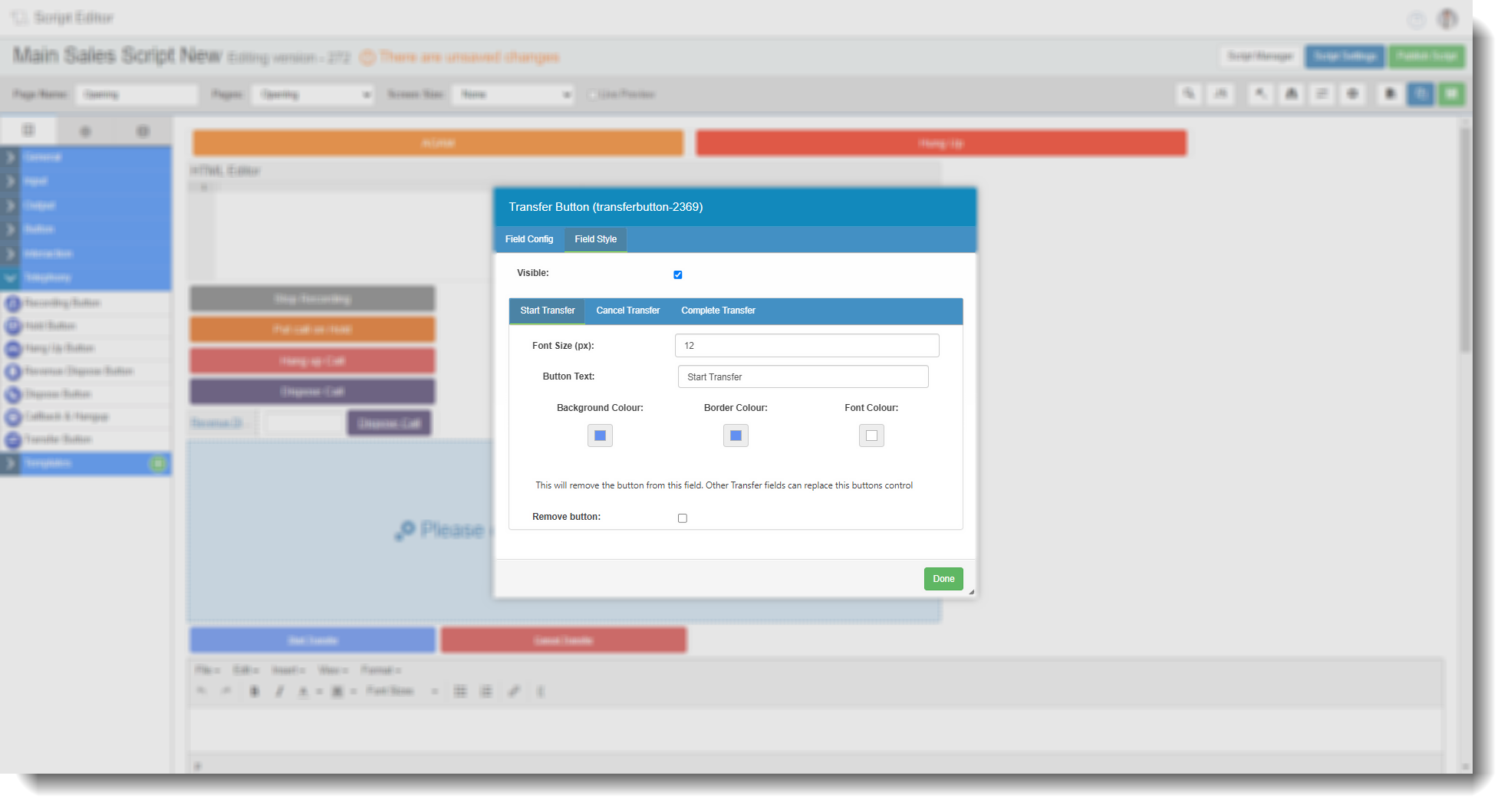
Font Size (px) – Allows you to set the size of the font.
Button Text – You can set how the text on the button reads.
Background, Border, Font Colour – You can change the buttons colours here.
Remove Button - Allows you to remove the option (start) from this particular button.
Tab 2 – Field Style - Cancel Transfer
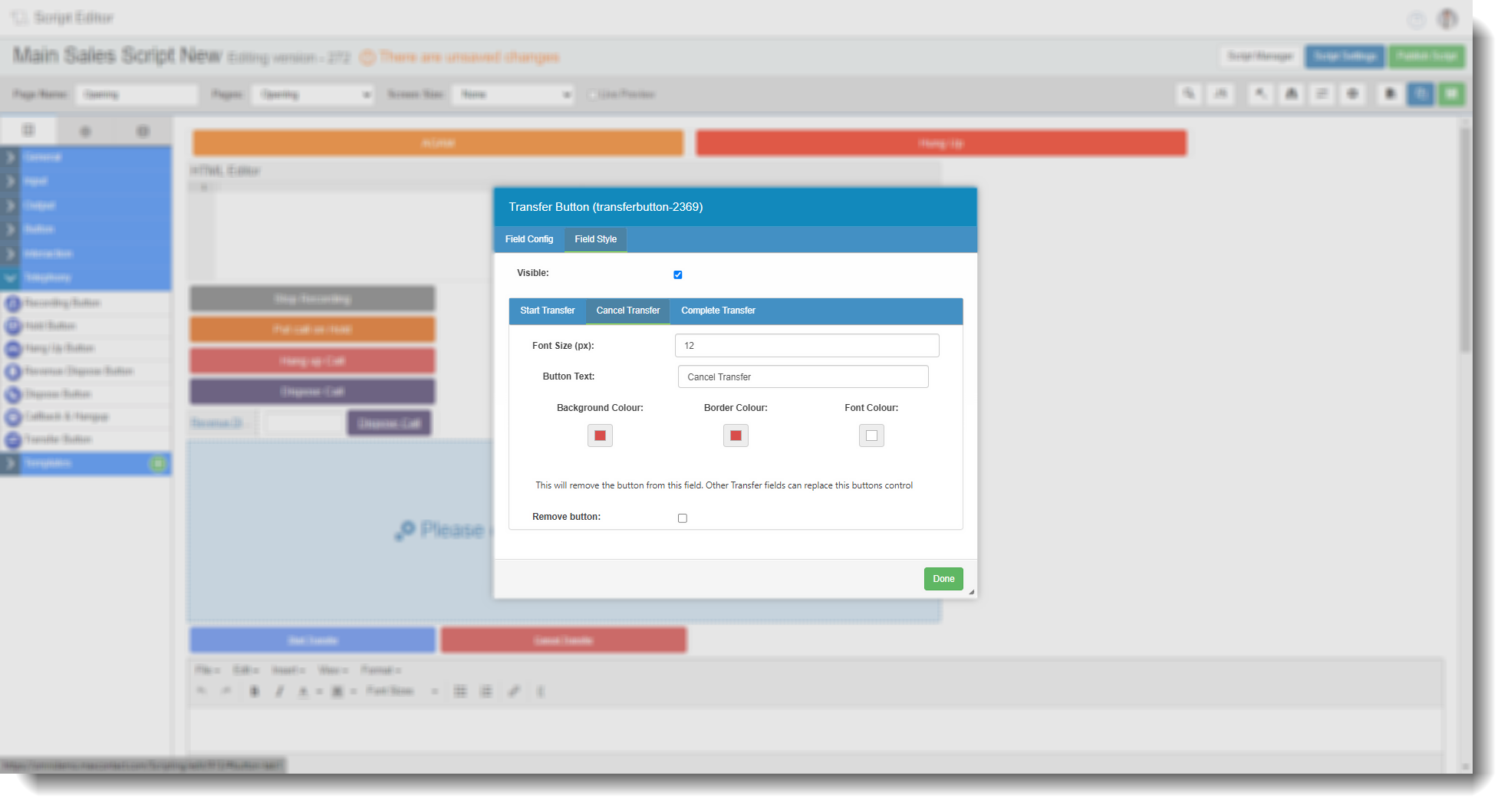
Font Size (px) – Allows you to set the size of the font.
Button Text – You can set how the text on the button reads.
Background, Border, Font Colour – You can change the buttons colours here.
Remove Button - Allows you to remove the option (cancel) from this particular button.
Tab 2 – Field Style - Complete Transfer
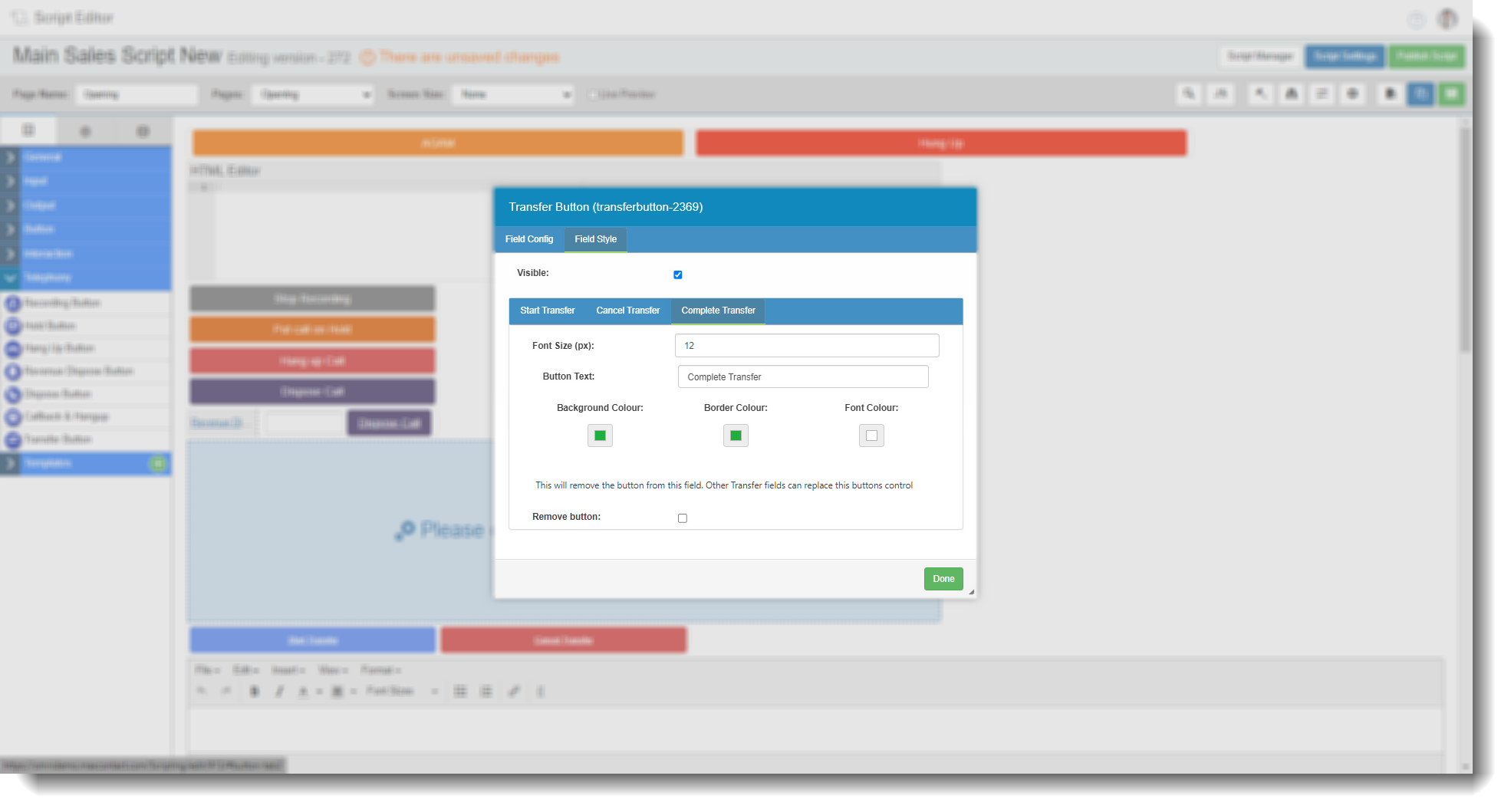
Font Size (px) – Allows you to set the size of the font.
Button Text – You can set how the text on the button reads.
Background, Border, Font Colour – You can change the buttons colours here.
Remove Button - Allows you to remove the option (complete) from this particular button.