
What is Tagging?
Tagging is used to group lists, campaigns, teams and users together under one common 'name', this tag can then be used to filter what users can see as far as campaigns and lists are concerned or what lists are searched upon for data imports and incoming/outgoing calls etc.
You can add tags to campaigns, lists, teams and users and this will not effect their view of things until you edit their role in ADMIN > PERMISSIONS.
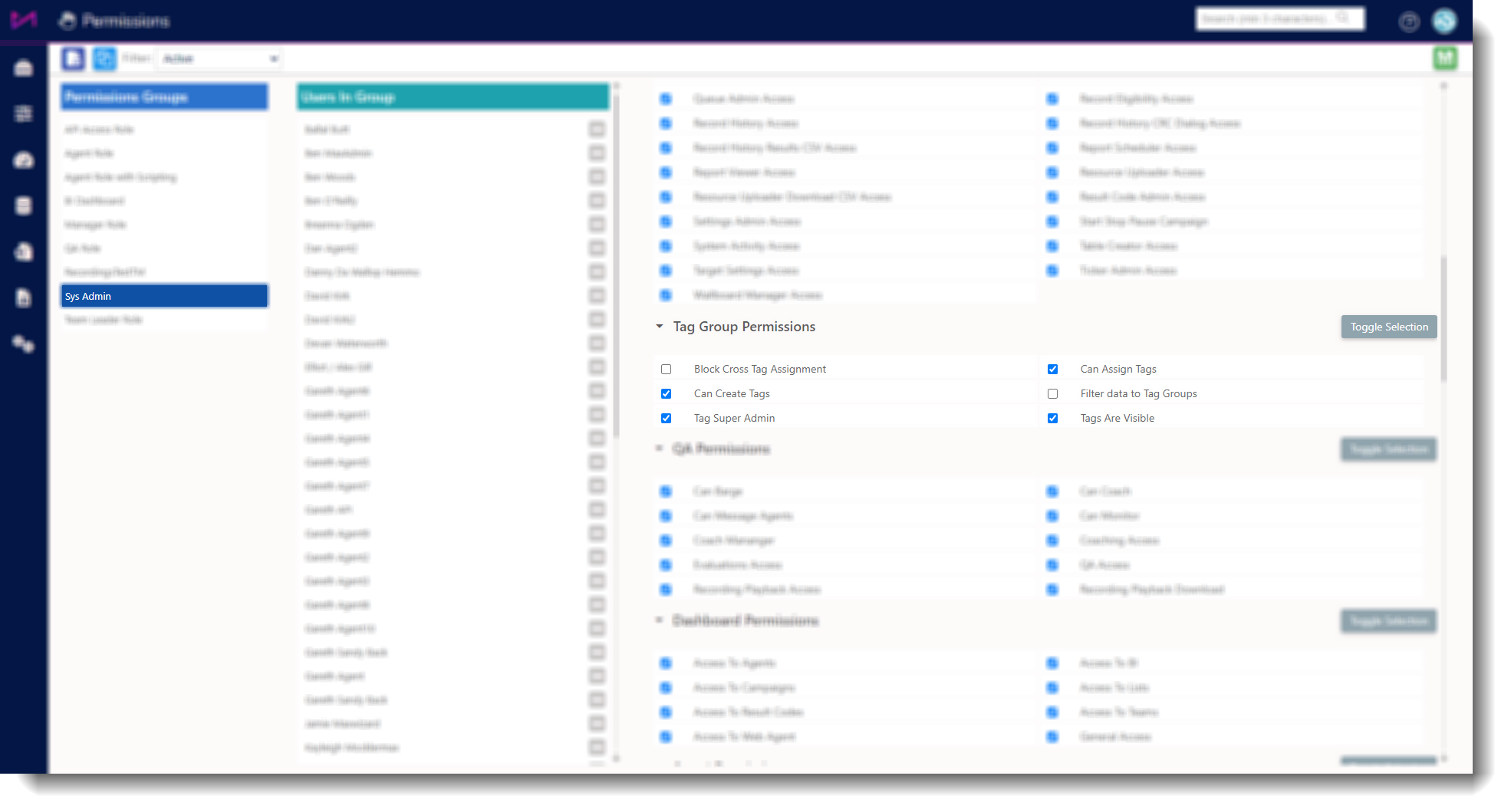
Here, you need to make sure the 'filter data to tag groups' is checked on all user roles you want to be effected by tagging. Once tags are assigned and the role is changed, anything a user isn't tagged with will disappear from their view.
We recommend the following permissions to be selected for 'sys admin' roles;
Creating Tags
In the main, its best to create tags on the Tag manager page of the product (Tags can be added to lists, inbound numbers, campaigns, teams, queues, and users on their respective pages).
| 1 - Head to the Tag manager page. | 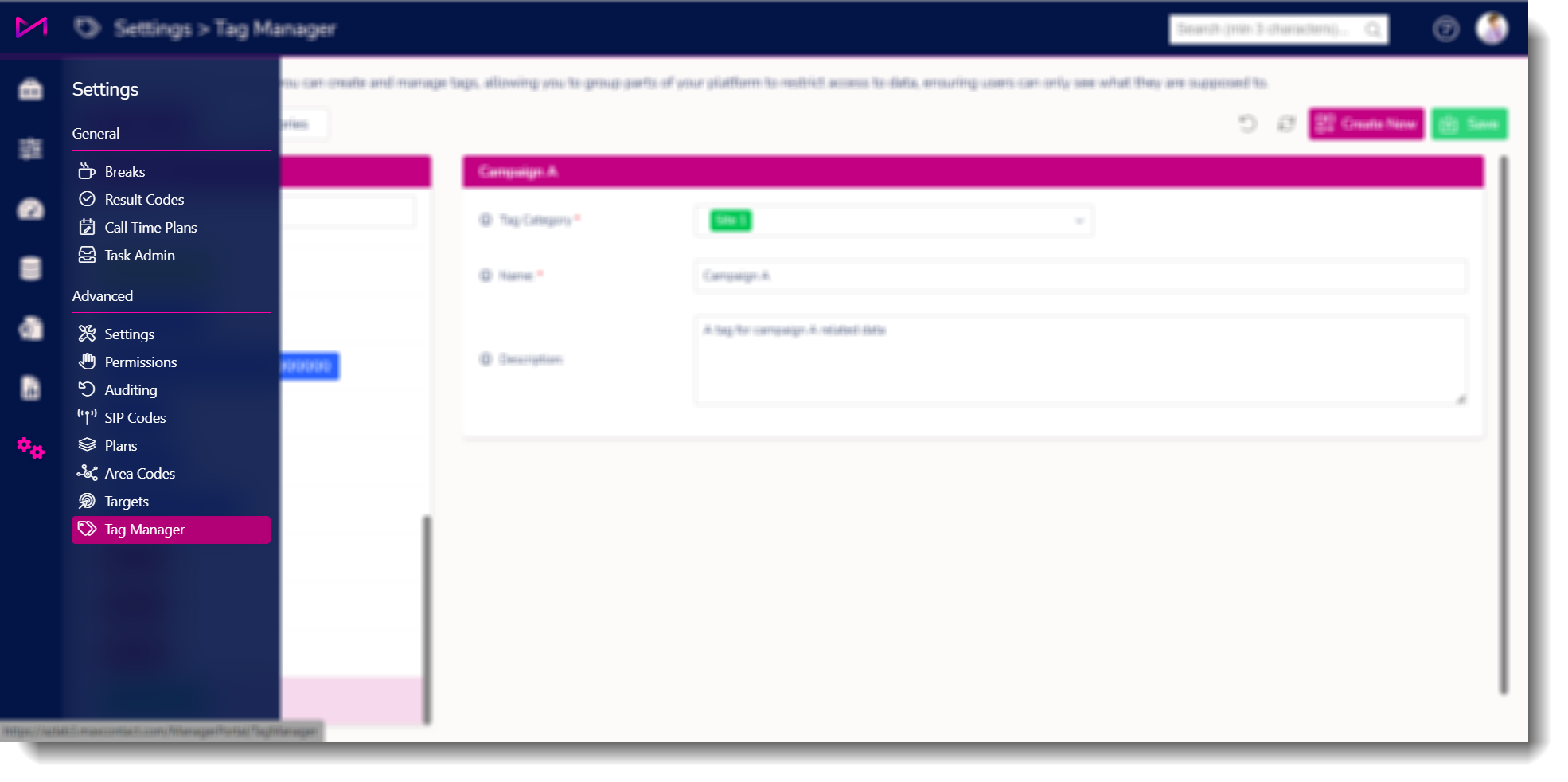 |
| 2 - Click the 'create new' button. | 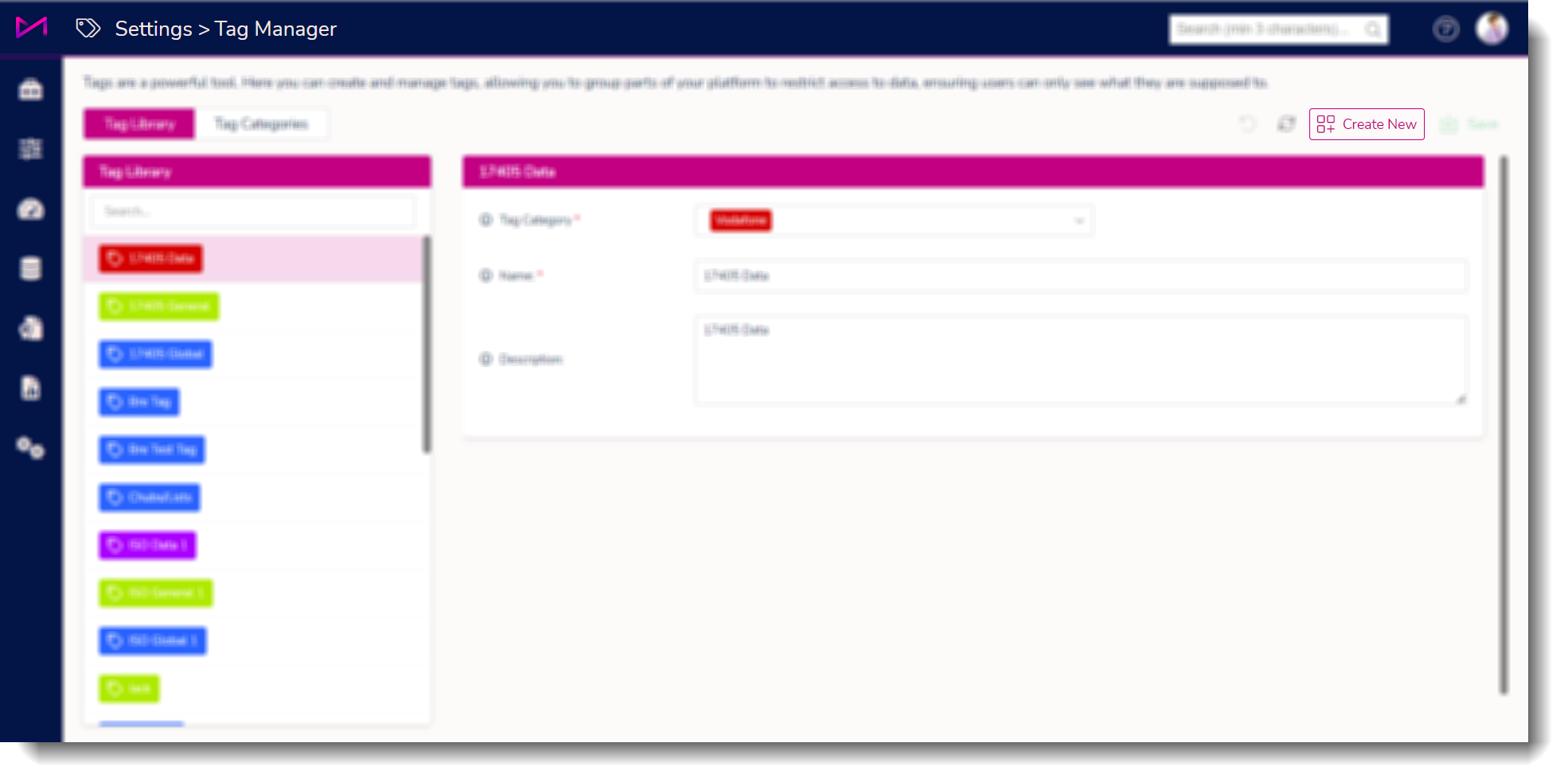 |
| 3 - Choose a category (these can be created via the categories tab). | 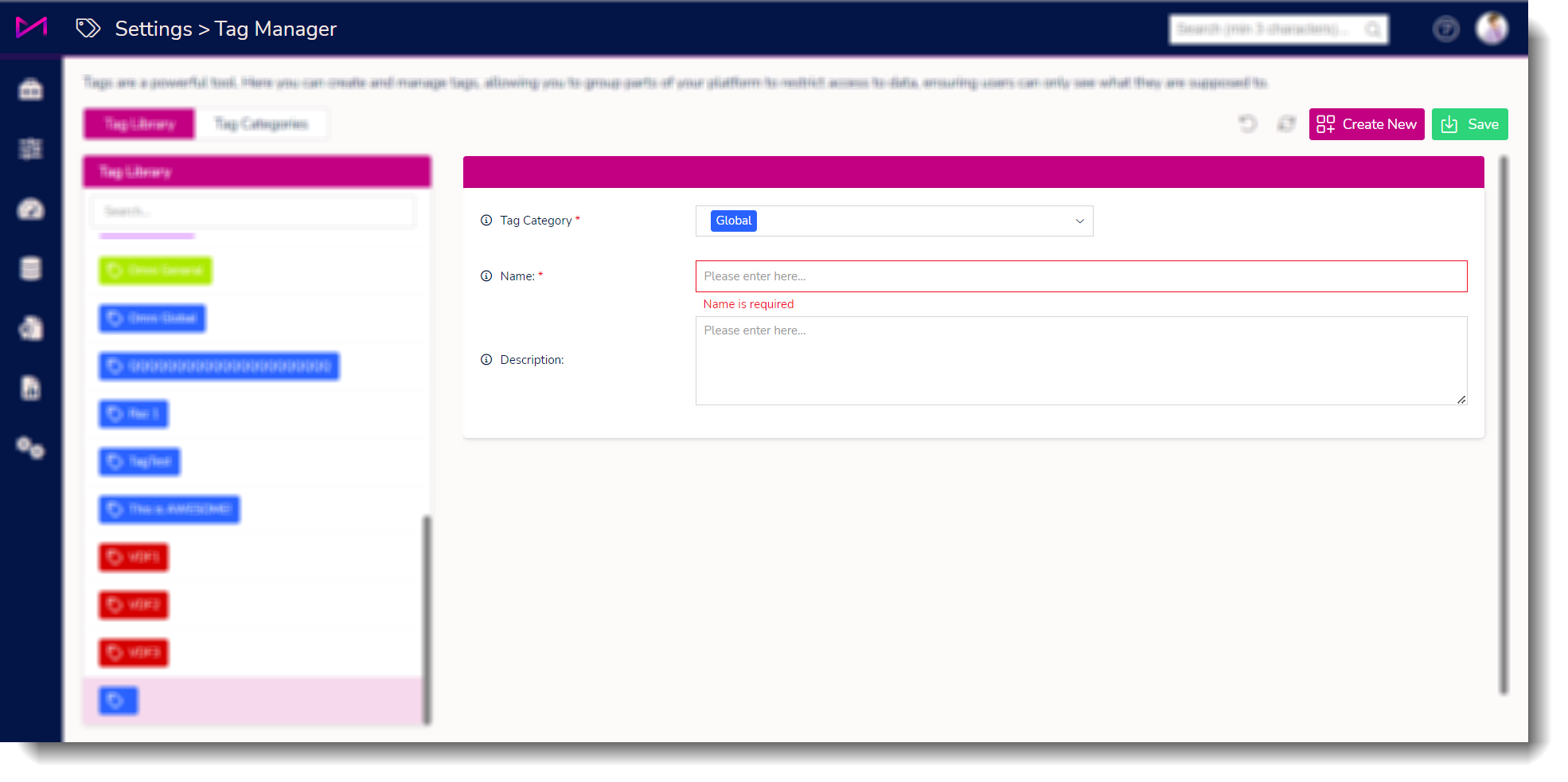 |
| 4 - Add a name and description then save. | 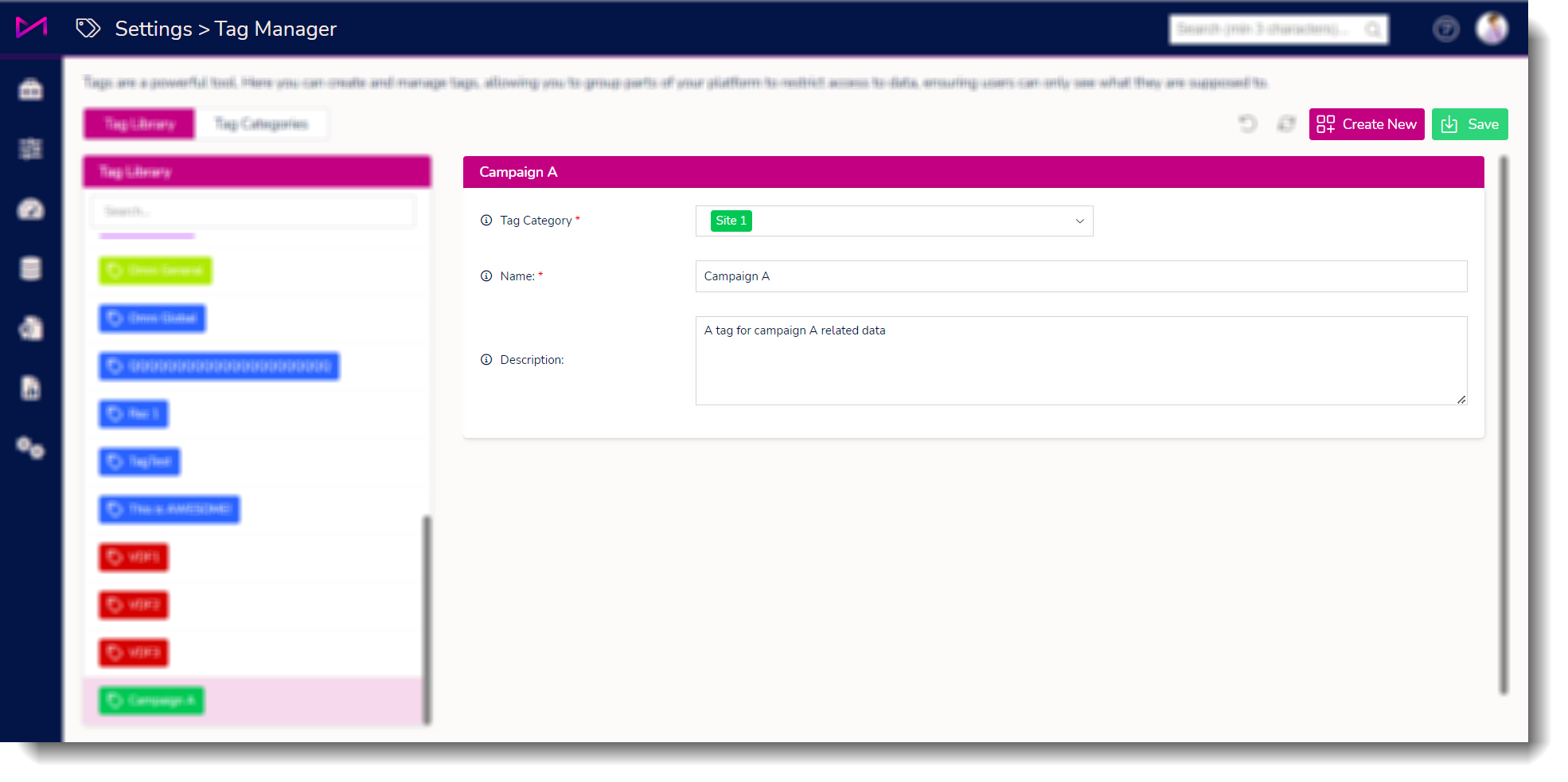 |
Along the top ‘settings bar’ of some pages, users will notice 2 icons relating to Tags.
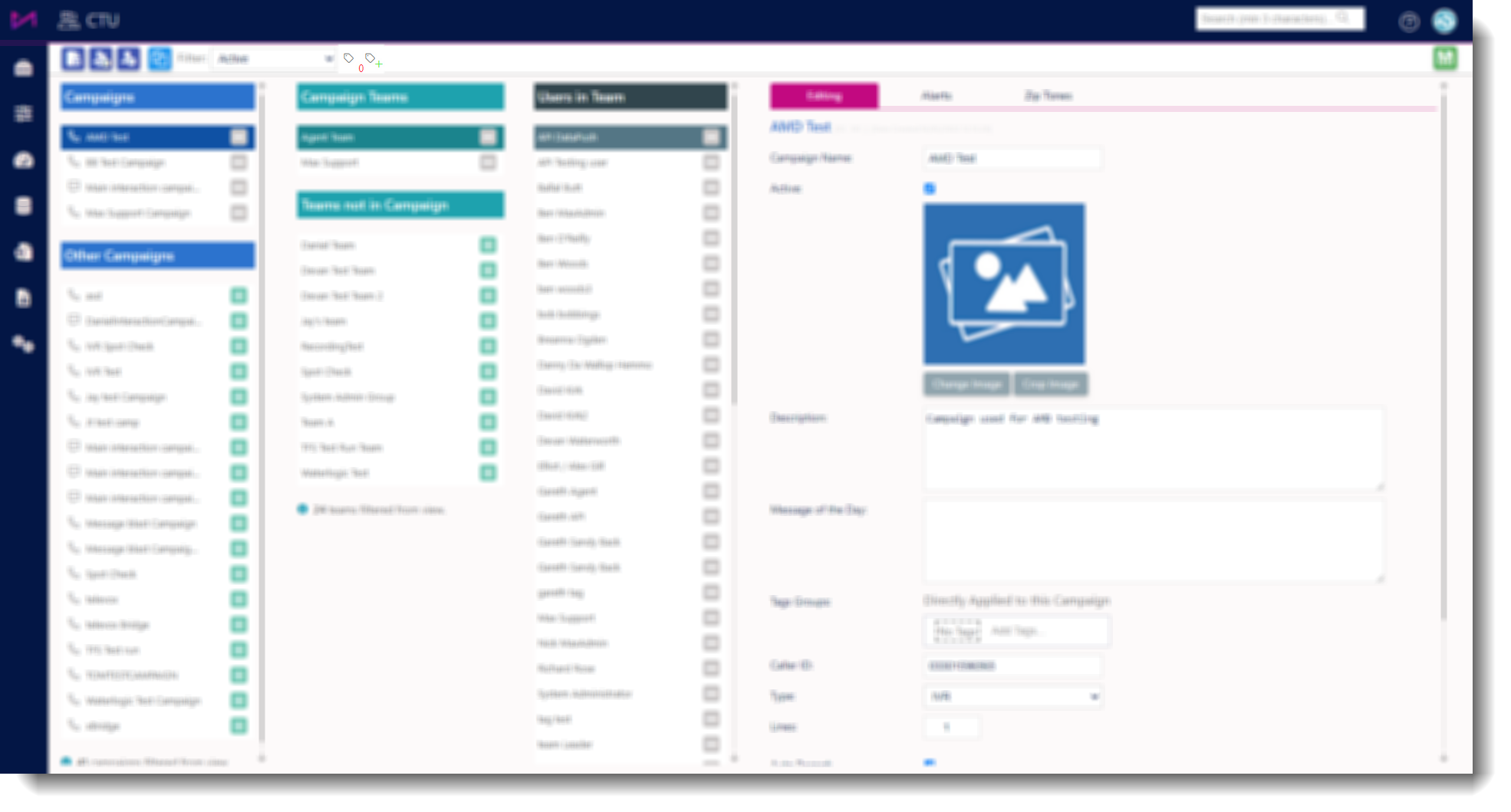
 | Clicking this icon will show the user the filter selection box which will display a list of already created tags to filter from on the List Admin page. If you click on a tag, the page you are on will be filtered to display everything currently associated to that tag. To remove the filtering, click the tag again. 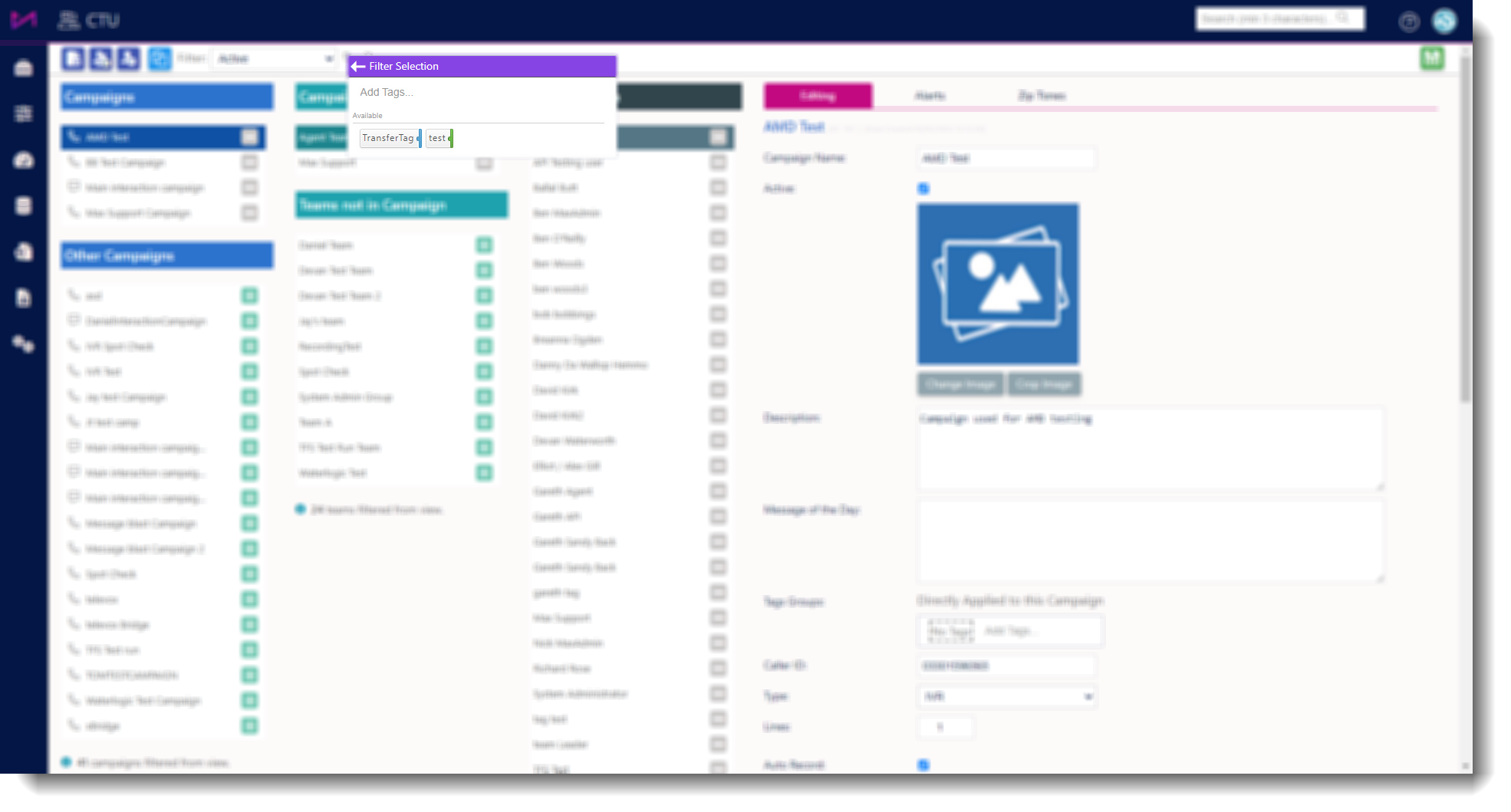 |
 | Clicking this icon will bring up the ‘Tag Management’ dialog box. On the left-hand side, under the heading ‘All tags’, will be a list of all the current tags in the system (when being used for the first time this will be blank). 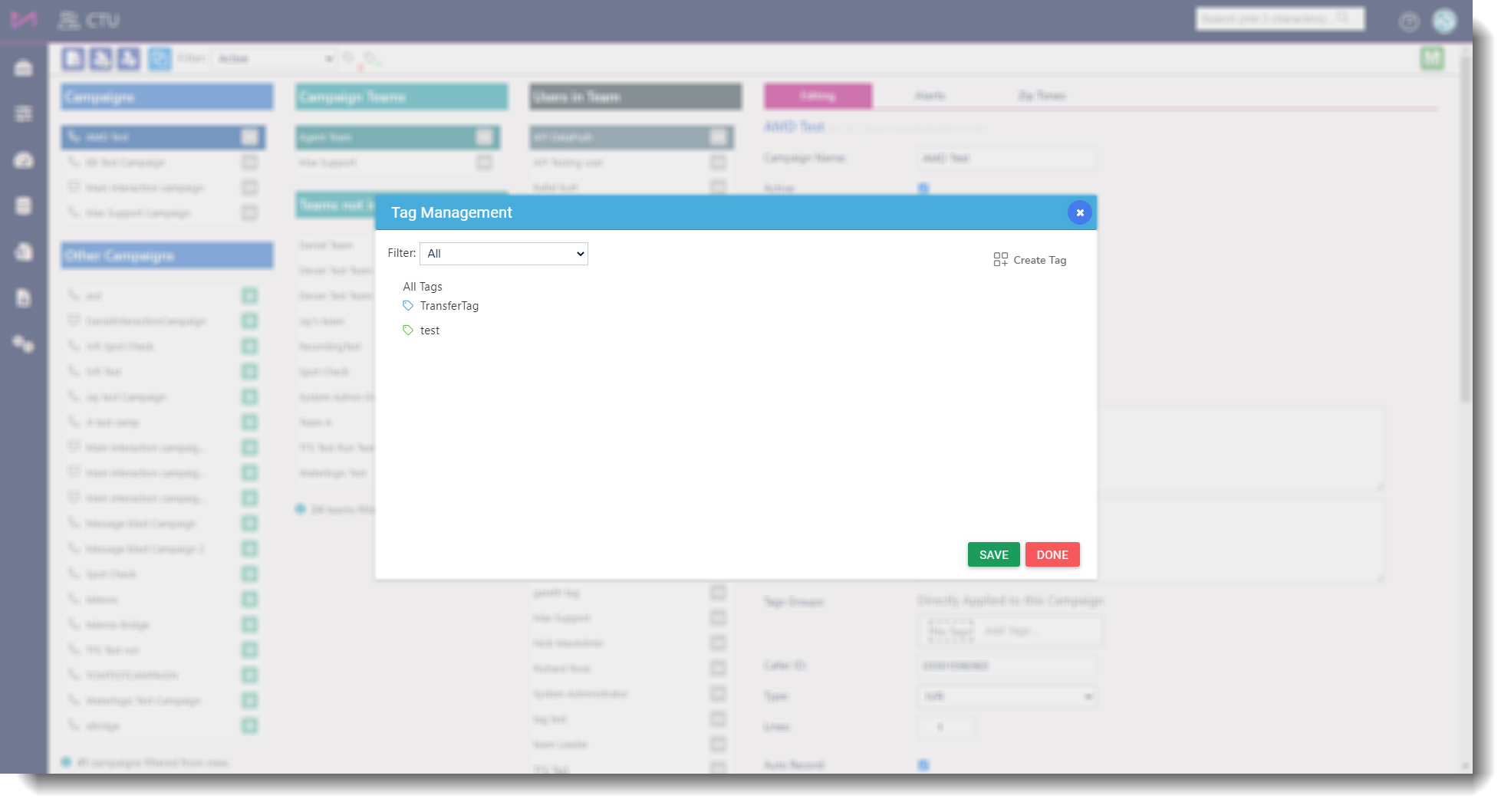 On the right-hand side, under the heading ‘All tags’, the box is blank. When the user selects a tag from the left it will bring up the details of that tag which shows the same details as creating a new one. 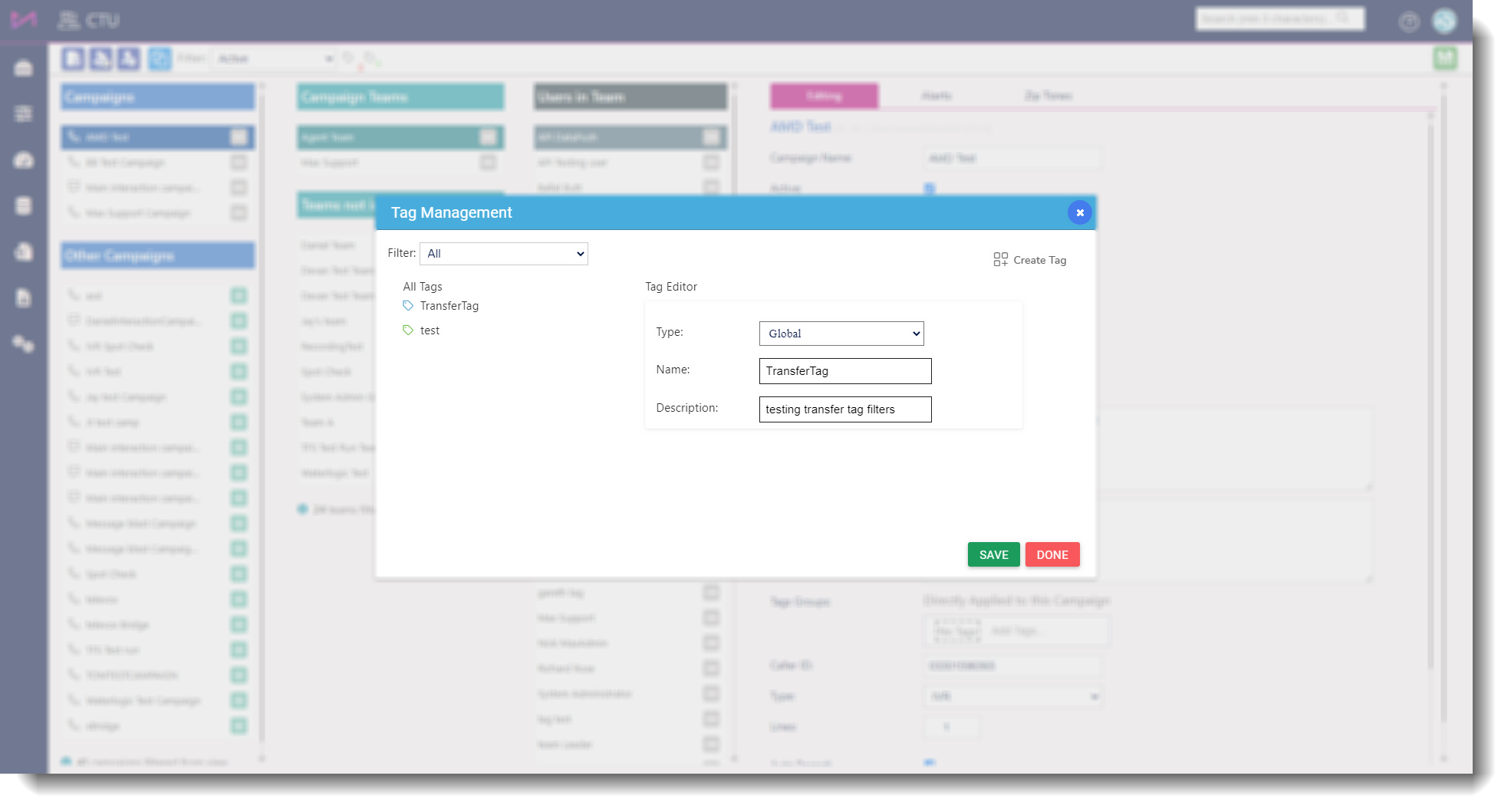 Clicking the create tag button will change the right-hand side of the dialog box to a ‘Tag Editor’ where the user can create a new tag. Clicking the create tag button will change the right-hand side of the dialog box to a ‘Tag Editor’ where the user can create a new tag.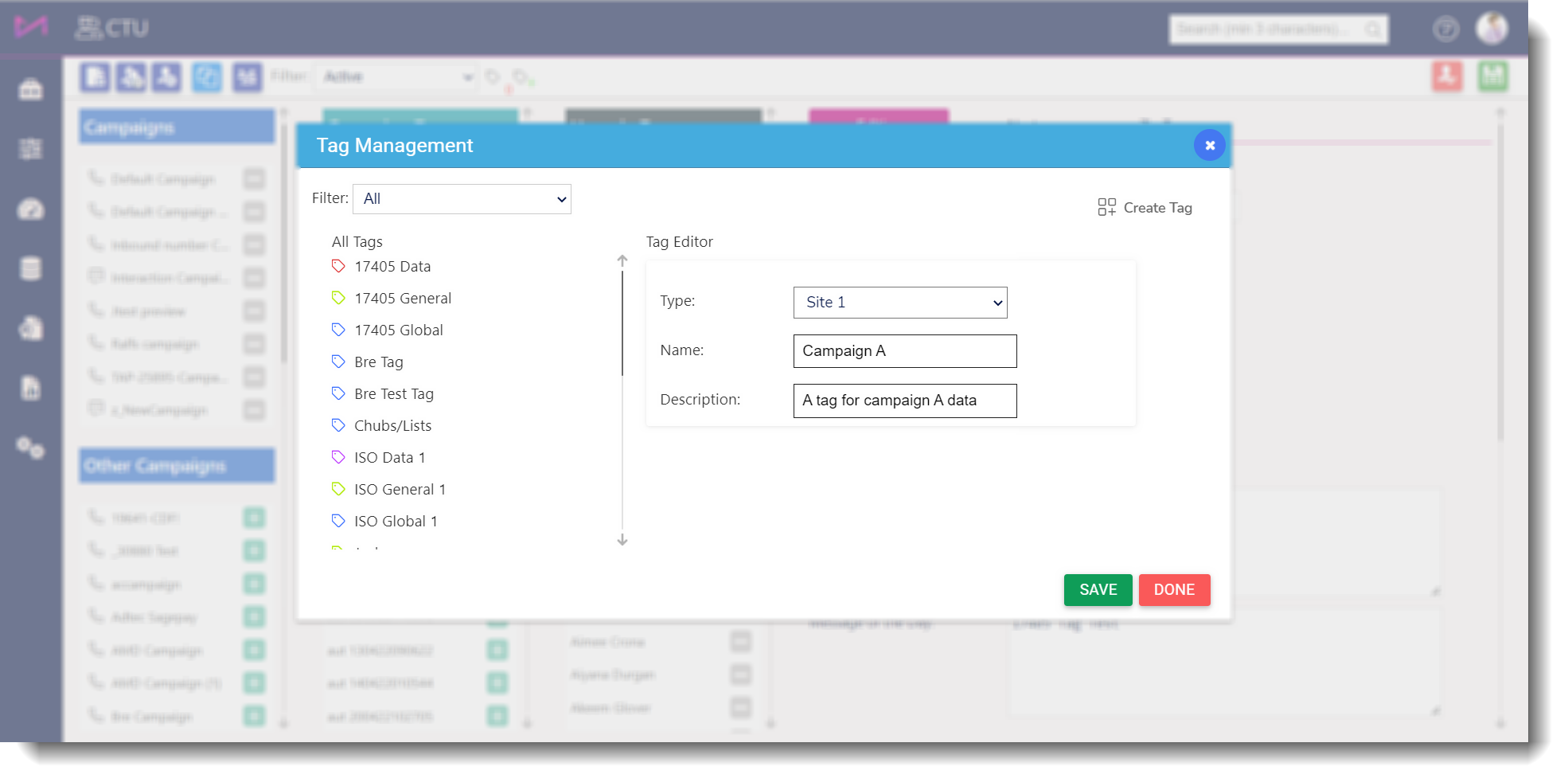 |
| Type - When the user clicks on the drop-down they are presented with all the tag categories created on the system via the Tag manager page. | |
| Tag name - Allows you to name the tag to something specific and relevant. | |
| Tag description - Allows you to add a useful description that other admin staff can follow. |