
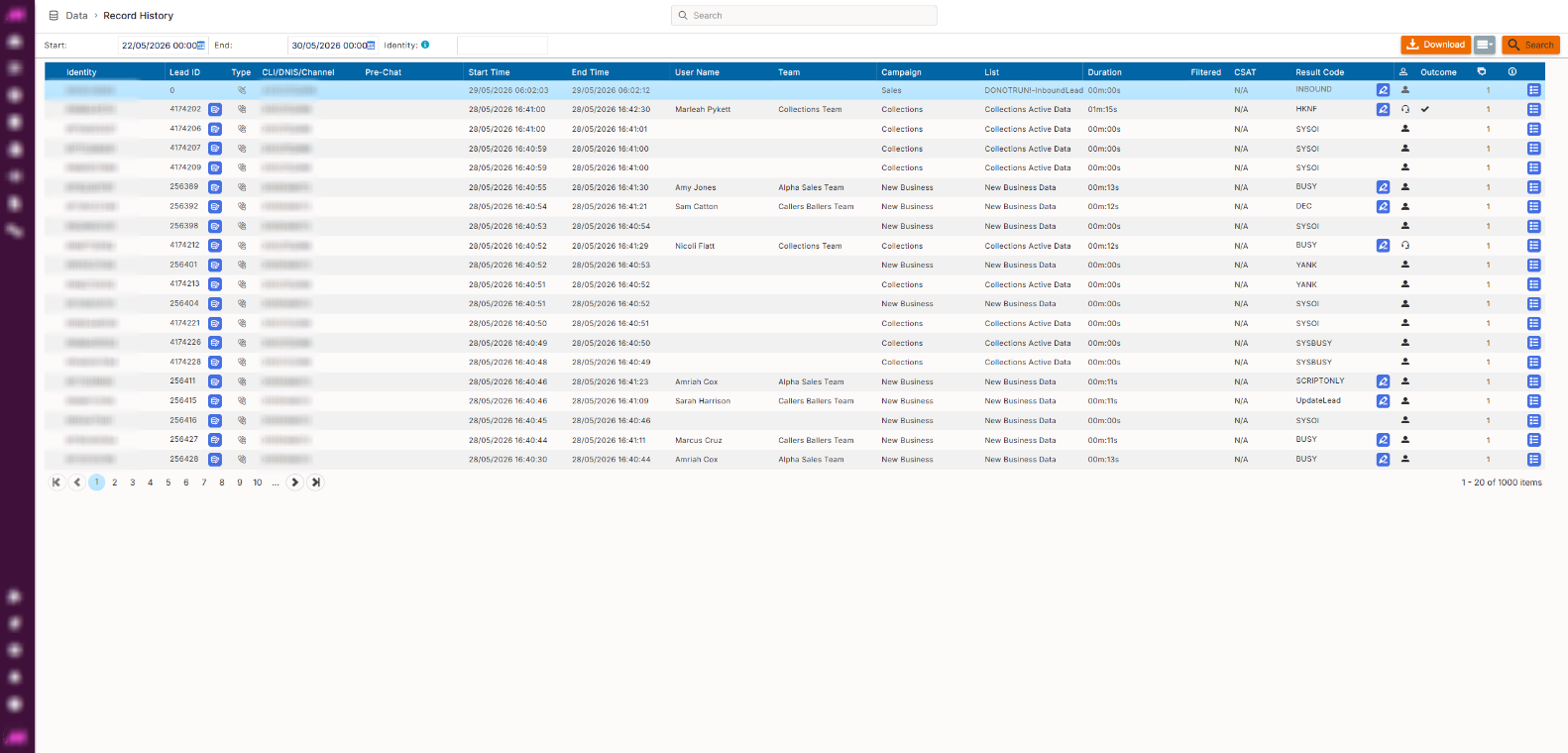
Record History
The Record History page shows the full history of all interactions made and received through MaxContact. You can search by date range, identity, and a wide range of advanced filters, then listen to or view the full interaction directly from the results. Search results can also be downloaded as a CSV file.
To access it, go to Data > Data History > Record History.
Search settings
Use the settings at the top of the page to define your search criteria before running a search.
| Setting | Description |
|---|---|
| Start date | The start of the date range to search within. |
| End date | The end of the date range to search within. |
| Identity | Search by a lead's phone number, reference number, or email address. For webchat interactions, this matches the reference number or email entered by the customer at the start of the chat. |
| Advanced search | Expands the advanced search panel, giving access to additional filters. See the Advanced search options section below. |
| Search | Runs the search using the criteria selected and displays results in the table below. |
| Download | Downloads the current search results as a CSV file. Only available after a search has been run. |
Advanced search options
The advanced search panel provides additional filters to narrow results further. Any combination of filters can be applied at once.
| Filter | Description |
|---|---|
| User | Filter results to interactions handled by a specific agent. |
| Team | Filter results to interactions handled by agents in a specific team. |
| List | Filter results to interactions associated with a specific list. |
| Channels | Filter results to a specific channel. |
| Campaign | Filter results to interactions from a specific campaign. |
| Result code | Filter by a specific result code. Note that the short code is displayed here, not the full description. |
| Interaction type | Filter by interaction type, for example inbound, predictive, email, or chat. |
| History status | Filter by the current status of the interaction record. |
| First name | Search for interactions associated with a lead by first name. |
| Last name | Search for interactions associated with a lead by last name. |
| Postcode | Search for interactions associated with leads at a specific postcode. |
| Reference ID | Search for interactions associated with a specific reference value imported against the lead. |
| Associated | When checked, includes call recordings for interactions that have been transferred, showing both the original and associated recordings together. |
| Hot key only | Similar to Associated, but only returns recordings for interactions transferred via a hot key. |
| Successes only | When checked, returns only interactions where the result code has the Success flag enabled. |
| Exceptions | Filter by exceptions based on the talk time threshold set on result codes. Select Under to return calls below the target duration, or Over to return calls above it. |
| Containing filtered messages | When checked, returns only interactions where at least one message triggered Content Filtering. |
| CSAT rating | Filter results by a specific customer satisfaction survey rating. |
| Rec length | Filter results by recording duration, returning only interactions that fall within the specified length range. |
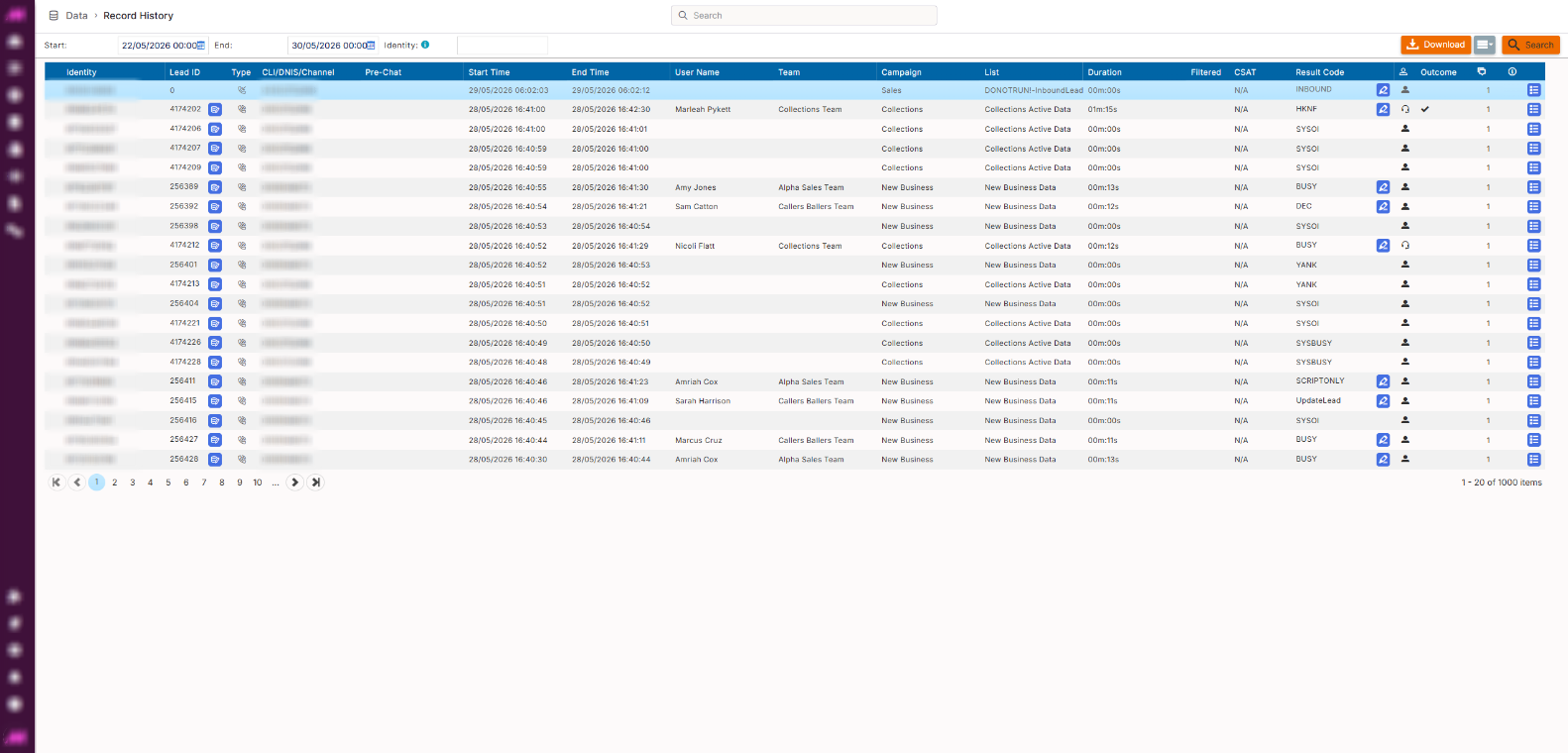
Search results table
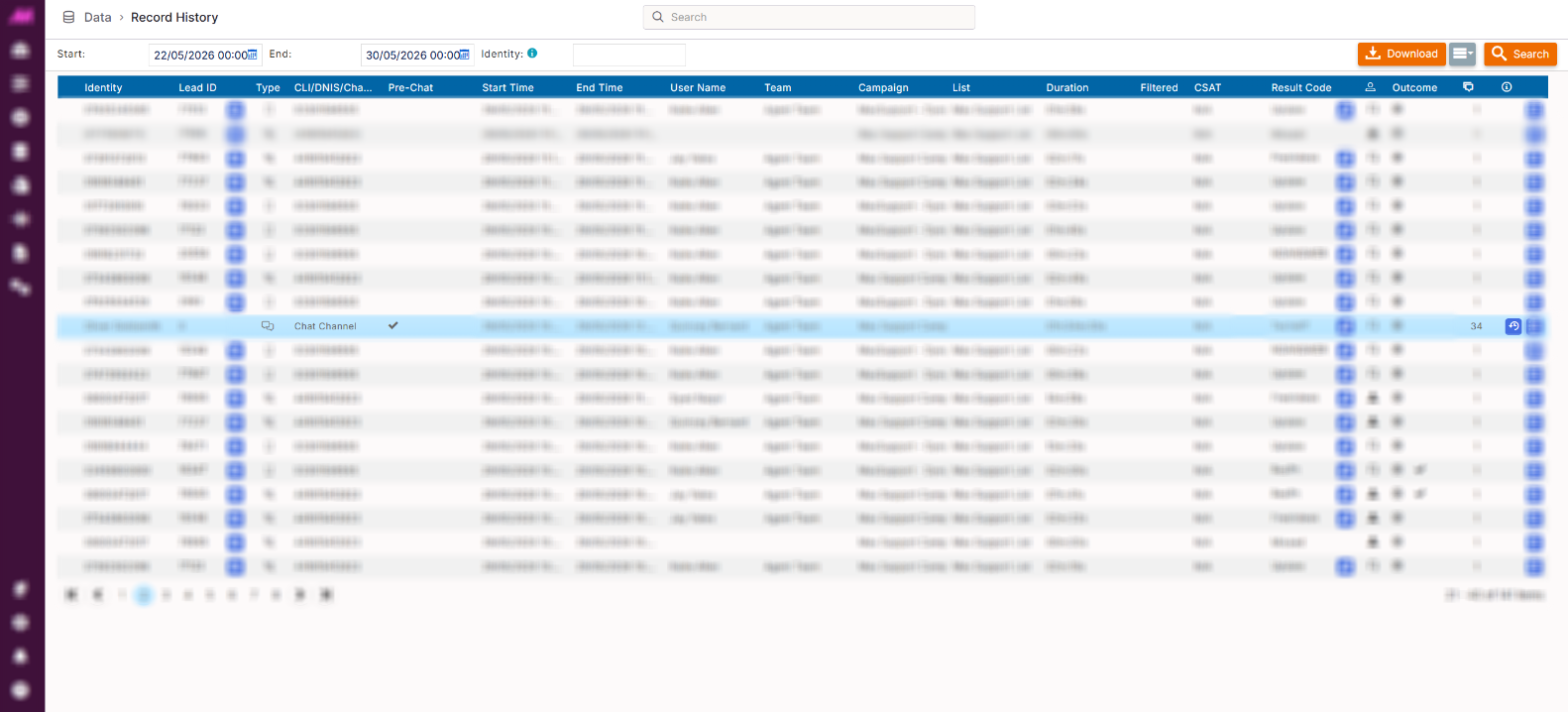
Matching interactions are displayed in the results table below the search settings. Each row represents one interaction.
| Column | Description |
|---|---|
| Identity | The identity of the contact — phone number, email address, or webchat reference. |
| Lead ID | The system-assigned ID of the lead record associated with this interaction. Where permission is granted, an edit button also appears here as a shortcut to Lead Search and Edit, opening that page with the lead's details pre-loaded. |
| Type | The interaction type, for example inbound call, predictive call, email, or webchat. |
| CLI / DNIS / Channel | The calling line identity, dialled number identification service number, or channel name associated with the interaction. |
| Pre-chat | Any pre-chat information provided by the customer before the webchat interaction started. |
| Start time | The date and time the interaction started. |
| End time | The date and time the interaction ended. |
| User name | The agent who handled the interaction. |
| Team | The primary team the user is assigned to. |
| Campaign | The campaign the interaction is recorded against. |
| List | The list the lead's number is currently on. |
| Duration | The total duration of the interaction. |
| Filtered | Indicates whether any messages in this interaction triggered Content Filtering. |
| CSAT | The customer satisfaction rating given for this interaction, if a CSAT survey was completed. |
| Result code | The result code applied to the interaction. Where permission is granted, an edit button also appears here allowing you to change the result code. See the Editing a result code section below for full details and rules. |
| Disconnected by | Shows who disconnected the interaction — the agent, the customer, or the system. |
| Outcome | Indicates whether the interaction was a success, a DNC, or a final. |
| Message count | The total number of messages in the interaction. For calls this is always 1. For digital interactions such as webchat or email, this counts every individual message sent by both the agent and the customer. |
| More info | Opens a dialogue box with detailed information about the interaction across several tabs. See the Interaction detail section below. |
Editing a result code
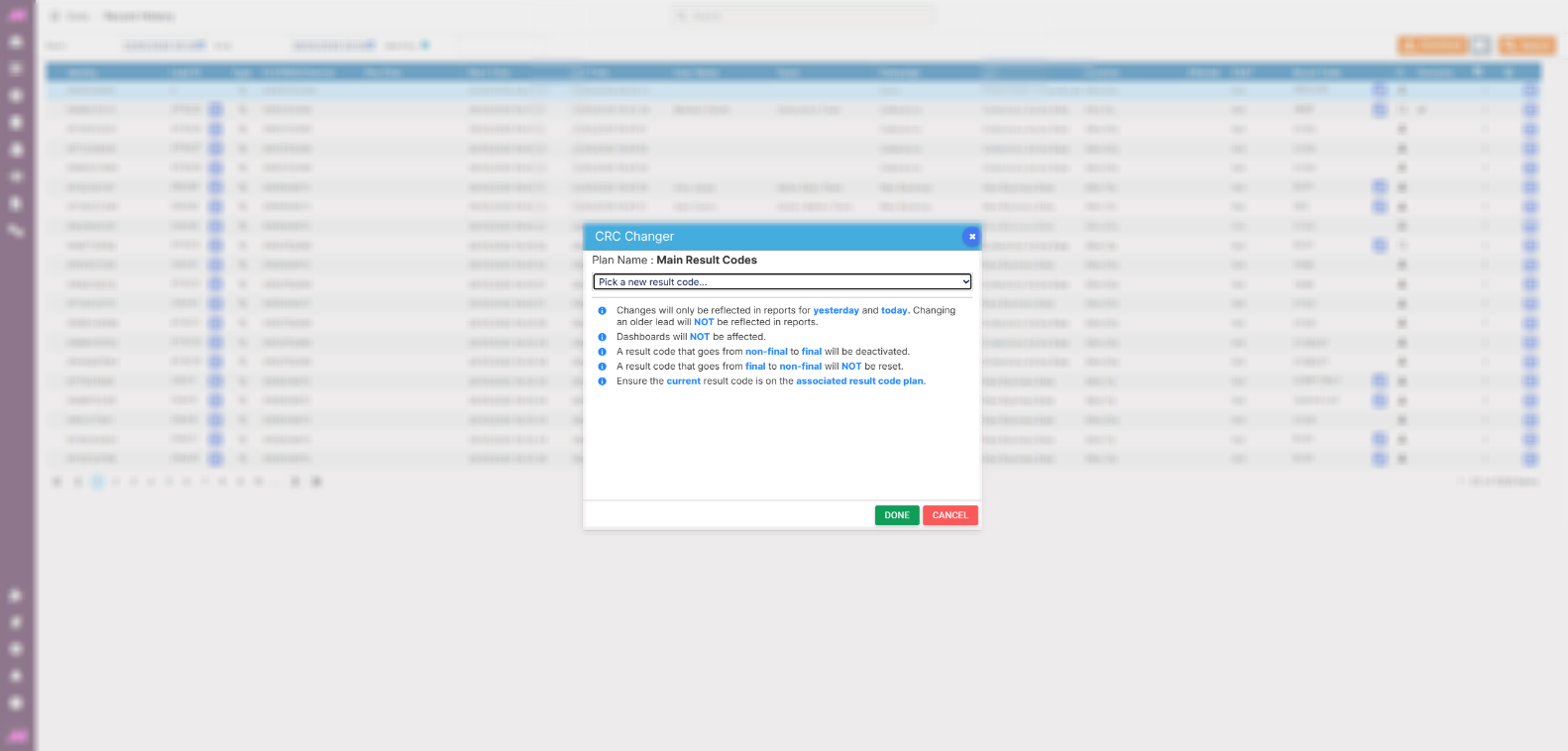
To edit a result code in Record History, you must have the Record History CRC Dialog Access permission enabled on your role. Where this permission is granted, a button appears in the Result code column allowing you to change the result code applied to an interaction. Clicking it opens a dialogue box where you can select a replacement result code from those available on the associated result code plan.
There are several important rules to be aware of before changing a result code:
- Changes are only reflected in reports for today and yesterday. Changing a result code on an older interaction will not update historical reports, due to how the system processes interaction outcomes.
- Dashboards are not affected. They update live and do not change retrospectively.
- If a result code changes from non-final to final, the lead will be deactivated.
- If a result code changes from final to non-final, the lead will not automatically be reset. To reset it, use the Lead Management page.
- The replacement result code must exist on the result code plan currently associated.
Interaction detail
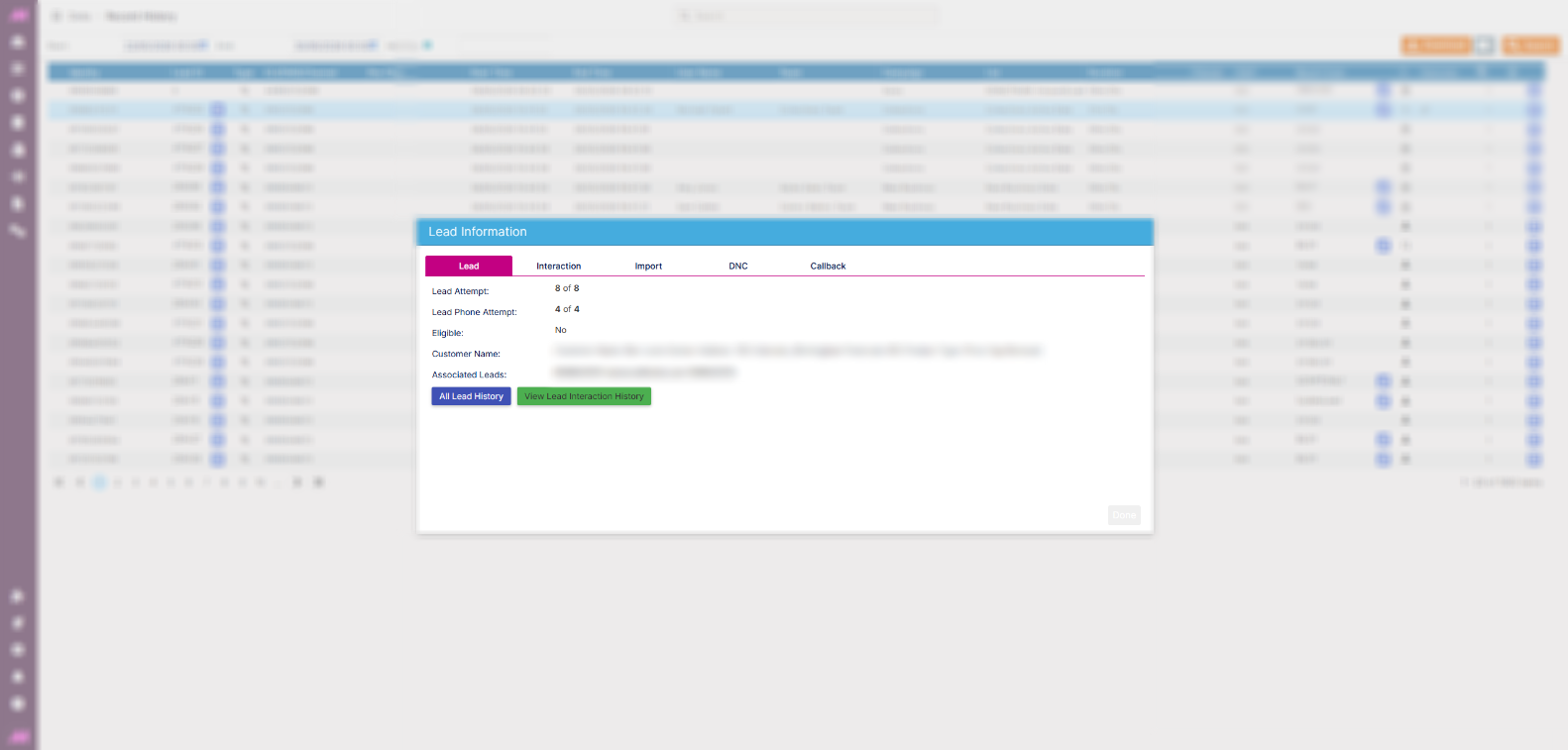
Clicking the More info button on any result row opens a dialogue box containing full details of the interaction across five tabs.
| Tab | Description |
|---|---|
| Lead | Shows the lead details associated with this interaction. |
| Interaction | Shows details of the interaction itself, including a recording (if captured), result code, and agent information. |
| Import | Shows details of the import the lead was part of, including the import name, date, and supplier. |
| DNC | Shows whether the lead's number is on a DNC list and, if so, which category it was added to and when. |
| Callback | Shows private callback information relating to the lead. |
Ticket History (digital interactions)
For any interaction that is not a voice call, a second button appears in the results row alongside the More info button. Clicking it opens the full interaction transcript in a new browser tab.
The ticket history view has two panels:
- The left panel shows the full message thread between the agent and the customer in chronological order.
- The right panel shows a summary of the interaction, along with any previous interaction history with the same customer.
Editing messages
Individual messages within the transcript can be edited directly. This is useful when sensitive information has been entered in error — such as payment details or inappropriate language — and needs to be removed from the stored record.
Click the edit button on any message to make changes. Once edited, a small edit icon appears next to the message to indicate it has been modified.
Deleting attachments
Where permission is granted, attachments sent via chat, email, SMS, WhatsApp, or Facebook can be deleted from the ticket history view. Look for the red bin icon next to any attachment to remove it.