
TABLE OF CONTENTS
- Page details
- Create a script
- Edit a script
- Edit script screen options
- Building a script, drag and drop options
- Editing drag and drop fields
- Naming fields
- Pulling data into a script
- Navigating to other pages
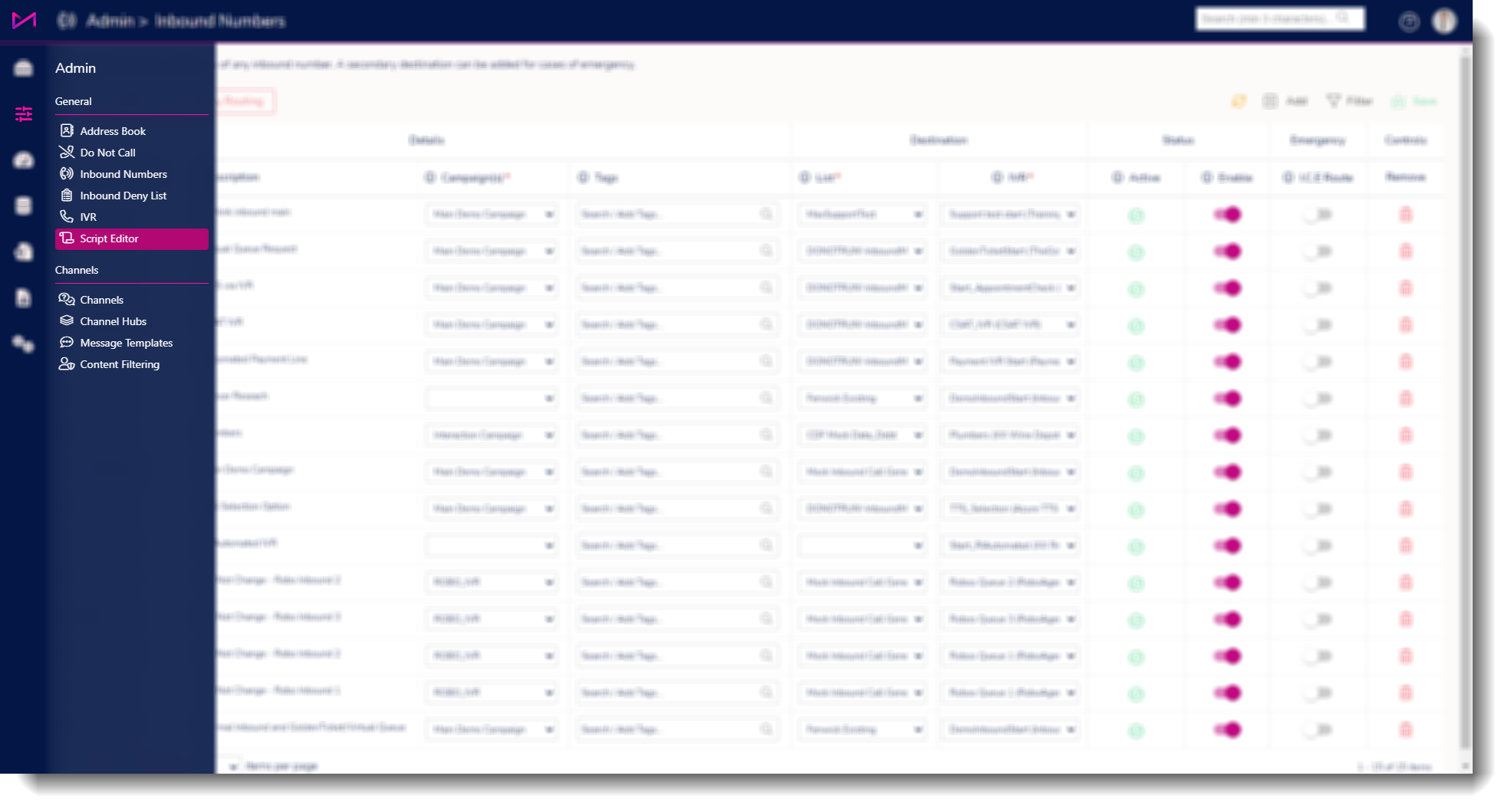
Page details
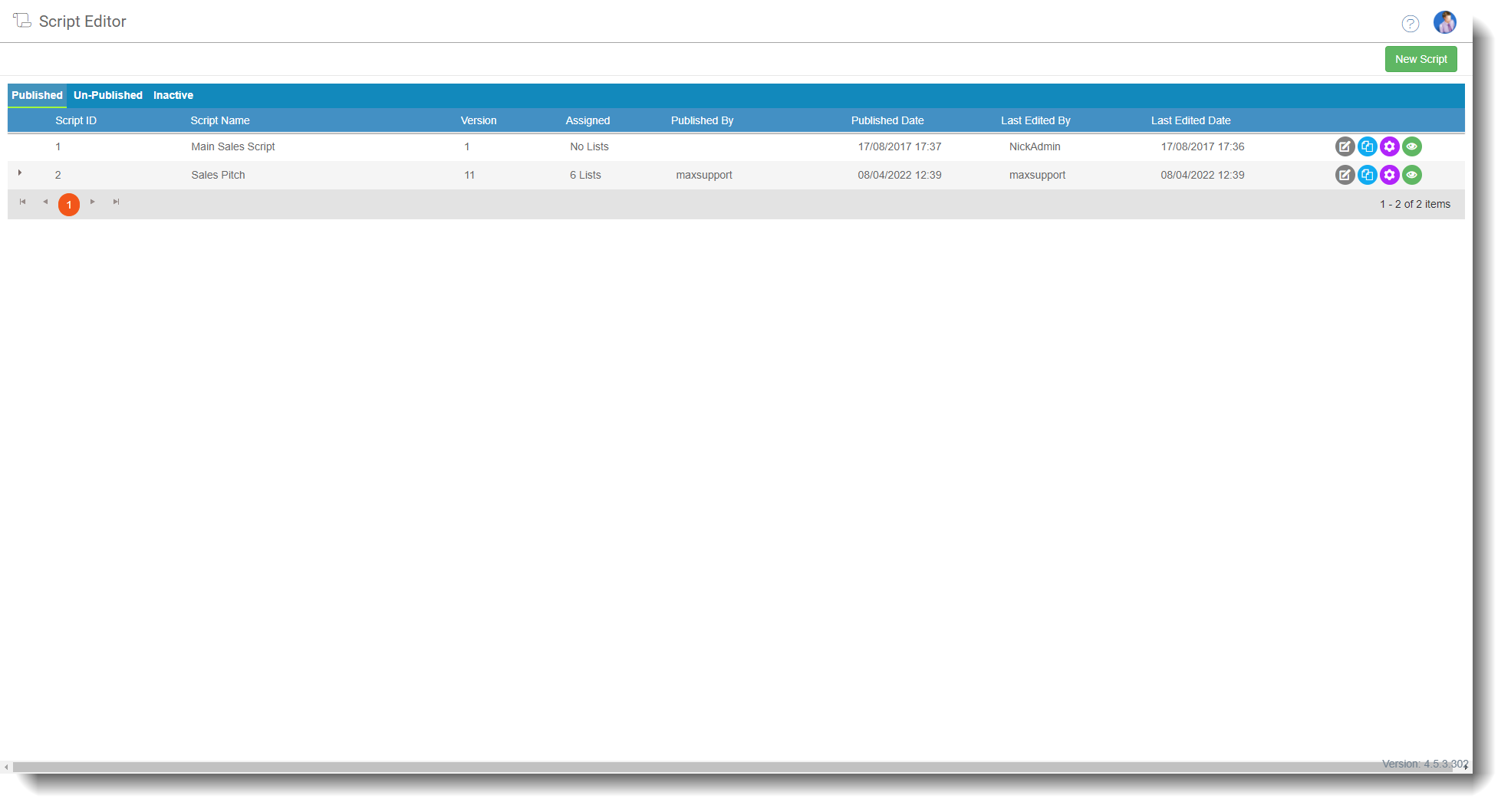
On the page you will see any previously created scripts on the system. By default there will be a demo 'main sales script' on the system. You may also see scripts created as part of your onboarding requests.
Create a script
If you are creating a script for the first time, follow these steps first otherwise, skip to 'Edit a script'.
In the Script Manager screen select the ‘New Script’ in the top right-hand corner of the page. A dialog box will appear prompting you to enter a name for the script;
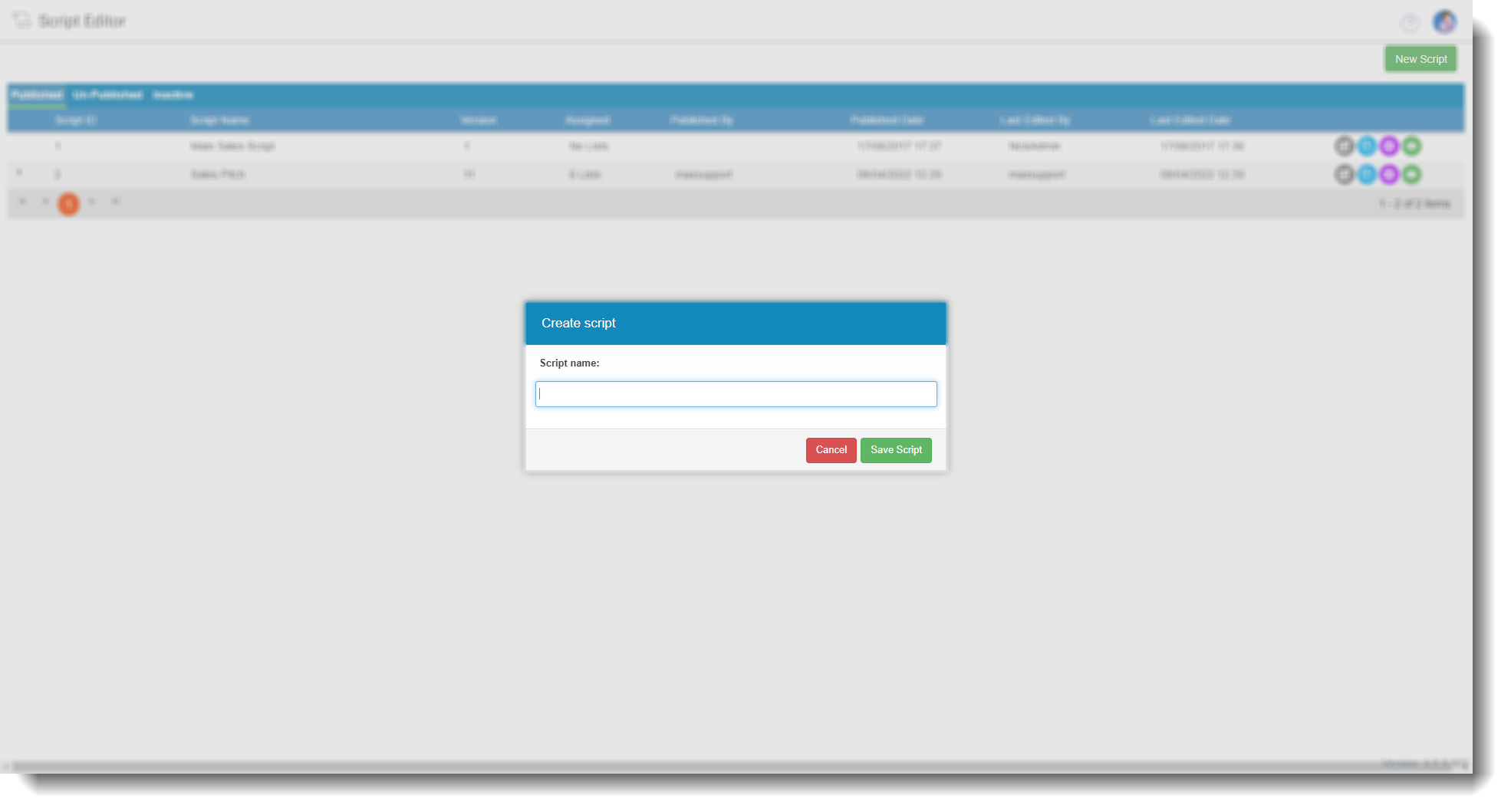
Once you add a name and select 'save script', you will be taken to your new, blank script to begin building.
For more detail on creating scripts and the settings available, see this guide
Edit a script
In the Script Manager screen select the grey edit icon next to the script you wish to edit.
Upon selection, you will be taken to the selected script. If the script has already been published, a message will appear at the top of the screen to inform you of this. You are able to look at the existing script but not edit it until you select the green 'edit script' button in the top right hand corner.
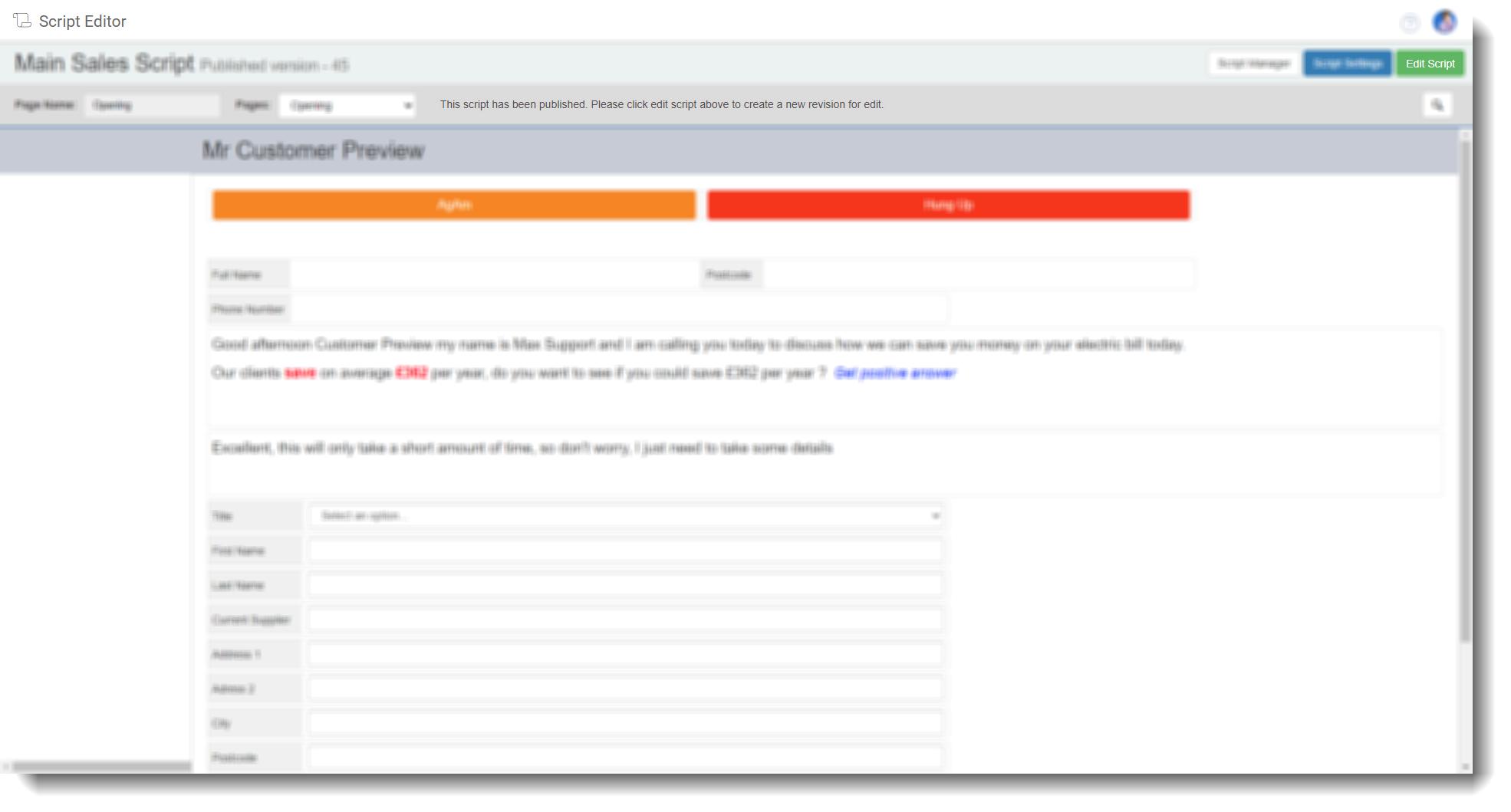
When you select edit script, a new version of the script is created which you can save. This will not be seen by users until you publish the script so you can edit it until you are ready to publish it.
Edit script screen options
When creating or editing a script, along the top of the screen, you will see the name of the script along with the version number and some basic options to select.
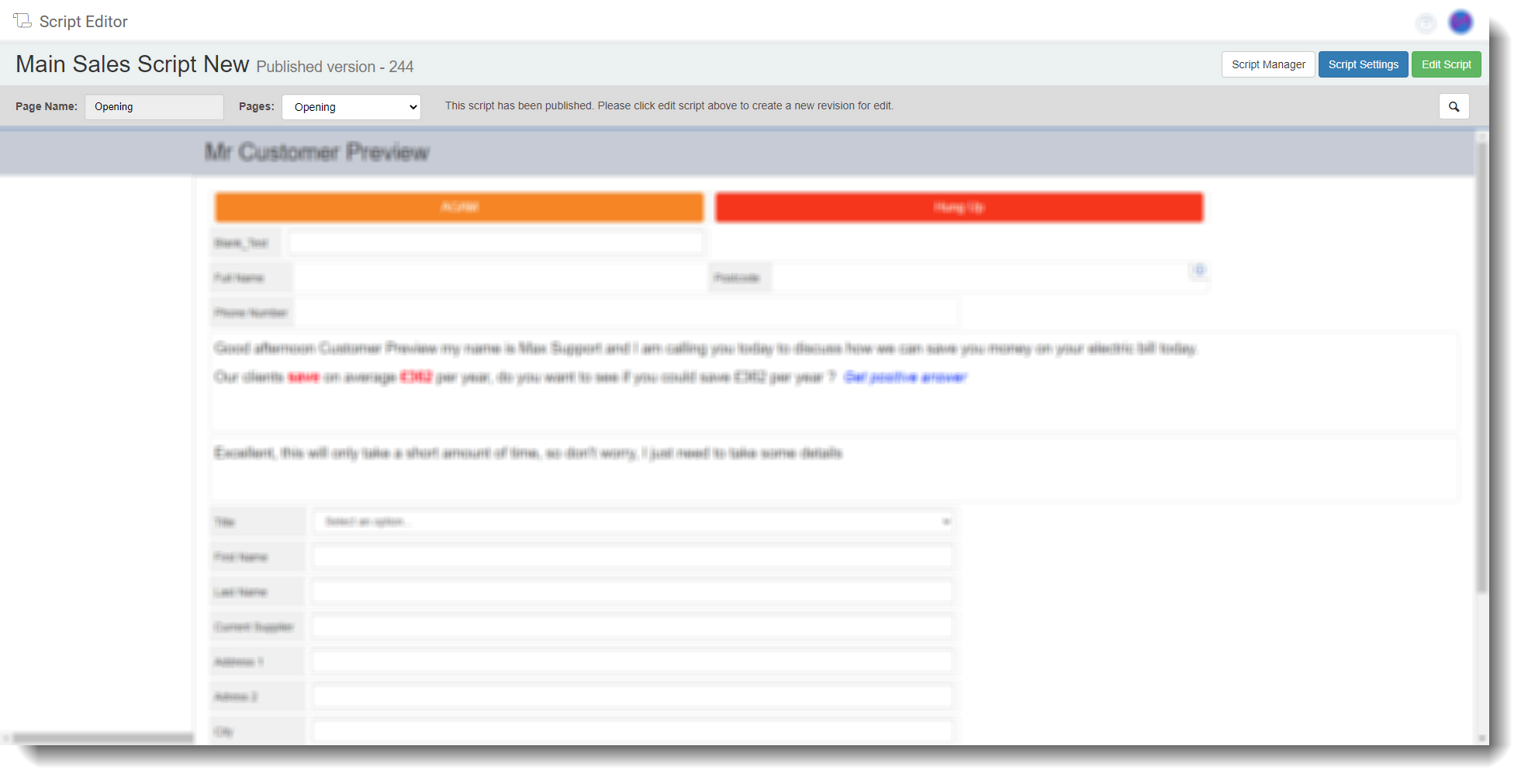
| Script manager | Clicking here will take you back to the ‘Script Manager’ screen. |
| Script settings | Clicking here will open a dialog box where users can edit the script name, specify the first page loaded for inbound and outbound calls respectively, and choose a default background colour for the script. Individual page backgrounds can be coloured as a visual indicator to agents where required, via the page settings options (see further down for a link to this advanced option). 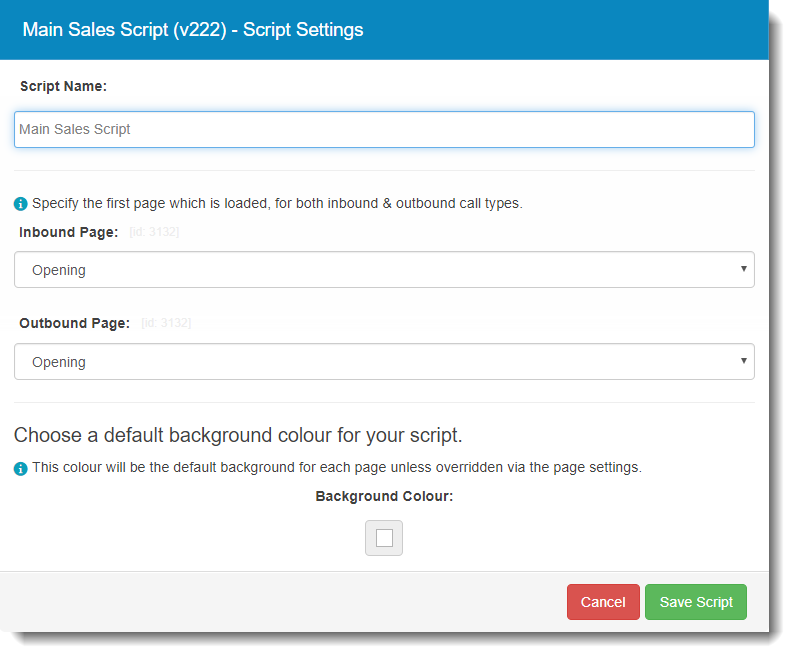 |
| Publish script | Clicking here will publish the script. As mentioned earlier, a variant of the script can be saved before publishing, allowing you to make final checks/changes before its published to your agents. (There will be no warning dialog box for publishing, so you should be sure it is correct before proceeding). |
| Page Name | This shows the current page name, that being the page currently displayed. |
| Pages | Displays the drop-down menu for you to choose which page to navigate to (Depending on how many, if any, pages there are). |
| Screen Size | This allows you to see how the script will look on different resolution screens and includes the sample Web Agent graphic so you can see how it will look to your agents.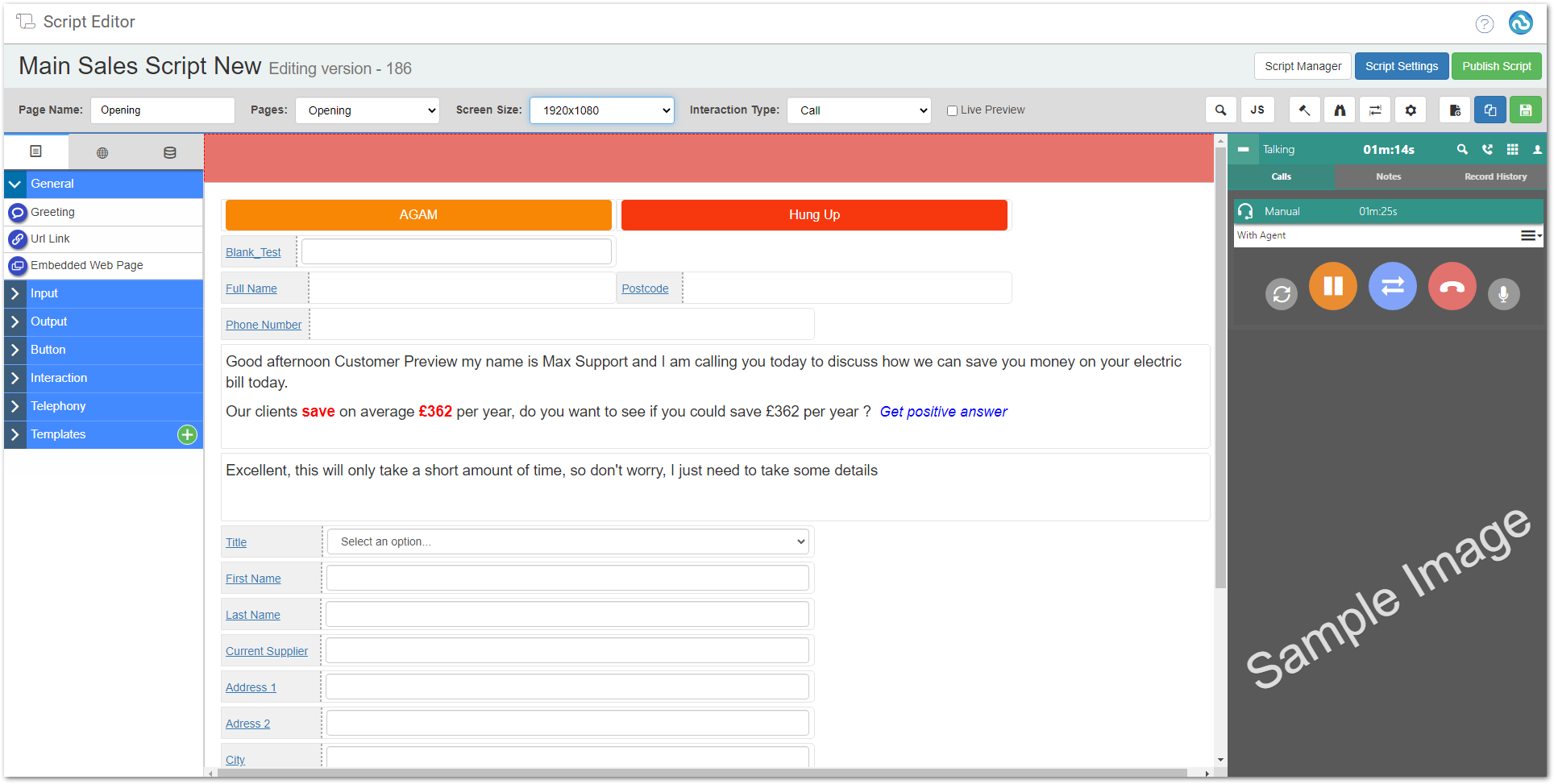 |
If you publish an edited script by mistake, you can always go into the script manager and select a previous version by selecting the arrow next to the name. You can then republish that version.
For more information on the more advanced option buttons (in white) see the guide on creating a script and main script options
Building a script, drag and drop options
To build a script in its most simple form, all you need to do is select the type of field you would like to see and drag it into position on your page. You can always move things around once you have the basics on there and removing fields is a simple click of the 'X'.
Drag and drop fields – Used to collect or display data in the script.
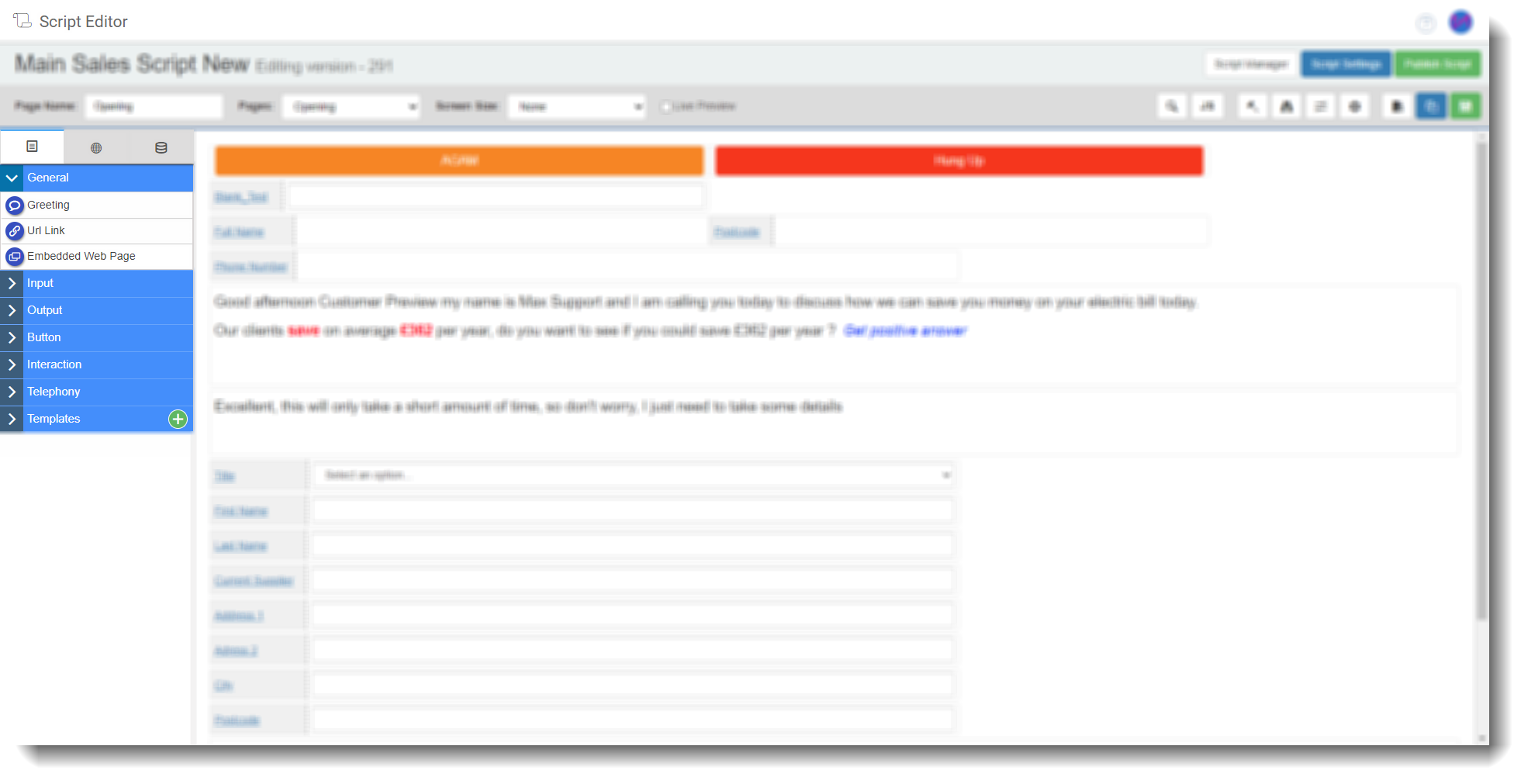
These basic options can be used to create a simple script but can also be used in conjunction with other settings and fields to create a more complicated setup. One of the main options used is to map customer data to these fields so that it displays on scripts.
For more on these drag and drop fields see the following explanations with links to guides;
General - Here you can select a greeting, add a URL link or an embedded web page. The greeting automatically adds the customers (and agents) name so your agent can read it without having to refer elsewhere for the information. URL links and embedded webpages allow them to look externally for information, whether it be a website or your own CRM.
Input- This is where all the fields an agent can type into/select an option from. These fields can also display information already stored in your data but will allow the agent to change it where required. The 'dropdowns', 'radio options' or 'checkboxes' can be used to gather information such as answers to questions you usually ask.
Output - Outputs are fields that an agent cant change, the free text box sits here and may form the majority of your script, displaying text for the agent to say to a customer. Theres also a calculator option that can be used in conjunction with input boxes to see if a customer meets a certain criteria/threshold for example.
Button - Here, you can add a navigate button which will allow your agents to move from one page of a script to the other. You also have the 'email' button which actually allows agents to send an email or an SMS to a customer (usually used as confirmation emails/texts).
Interaction - This option is for use on web chat, email and SMS scripts as part of our omnichannel features. It allows you to create numerous templated responses so your agents don't have to spend time typing out those responses. They simply click the button to reply instantly or paste the reply so they can edit then send.
Telephony - This section contains all the basic telephony options but allows you to add them to pages of your script. Hold, hang up, callbacks and transfers can all be used as well as disposition buttons. The dispositions could be spread over different pages of your script giving an agent fewer options but ensuring they are selecting only the most relevant ones.
Templates - Here you can create a template that consists of combinations of the above options so you can quickly and easily populate pages of scripts with specific layouts. For example, you may have a script with 15 pages and you want the same 5 dispositions at the top of each page. rather than having to drag all 5 buttons onto every page, create a template of the 5 and drag that onto each page to save time when building/editing.
Editing drag and drop fields
Each field you drag into your script has the following 4 options;
 | The info option shows basic details about the filed including if it has any advanced rules associated to it. |
 | The edit symbol allows you to edit the field, this incorporates many different options depending on the field you have selected. More on these options can be found in the above mentioned guides which are all available in the scripting section of the knowledge base. |
 | The copy symbol allows you to create an exact copy of that field rather than dragging on another. The settings will also be copied so you will need to change these where applicable. |
 | The delete will remove the field and its settings from the page. |
Naming fields
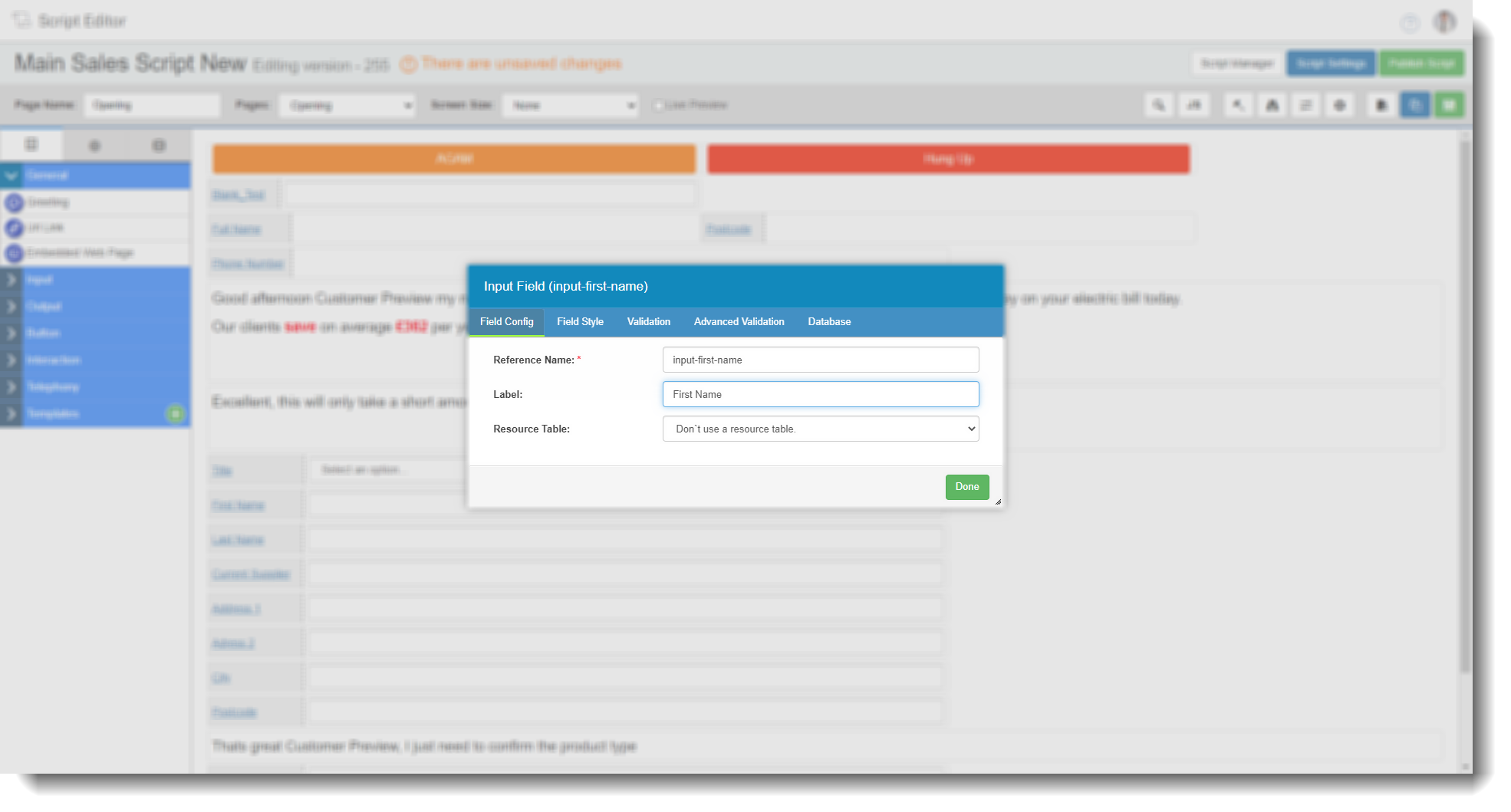
Whatever you name a field on the script as will be seen by users, so its crucial that they are easy to understand. If you are gathering information, you can even enter the question you want your user to ask.
- To edit the name of the fields, select the edit option (as above) on the field.
- On the subsequent dialog box, you can see a Label box to edit. This is where you can enter what you want that field to be called.
Pulling data into a script
If you want to pull data through automatically so users can see the information on their scripts, you need to configure the fields to do so.
- First, go into the edit option on the required field of your script.
- Select the database tab.
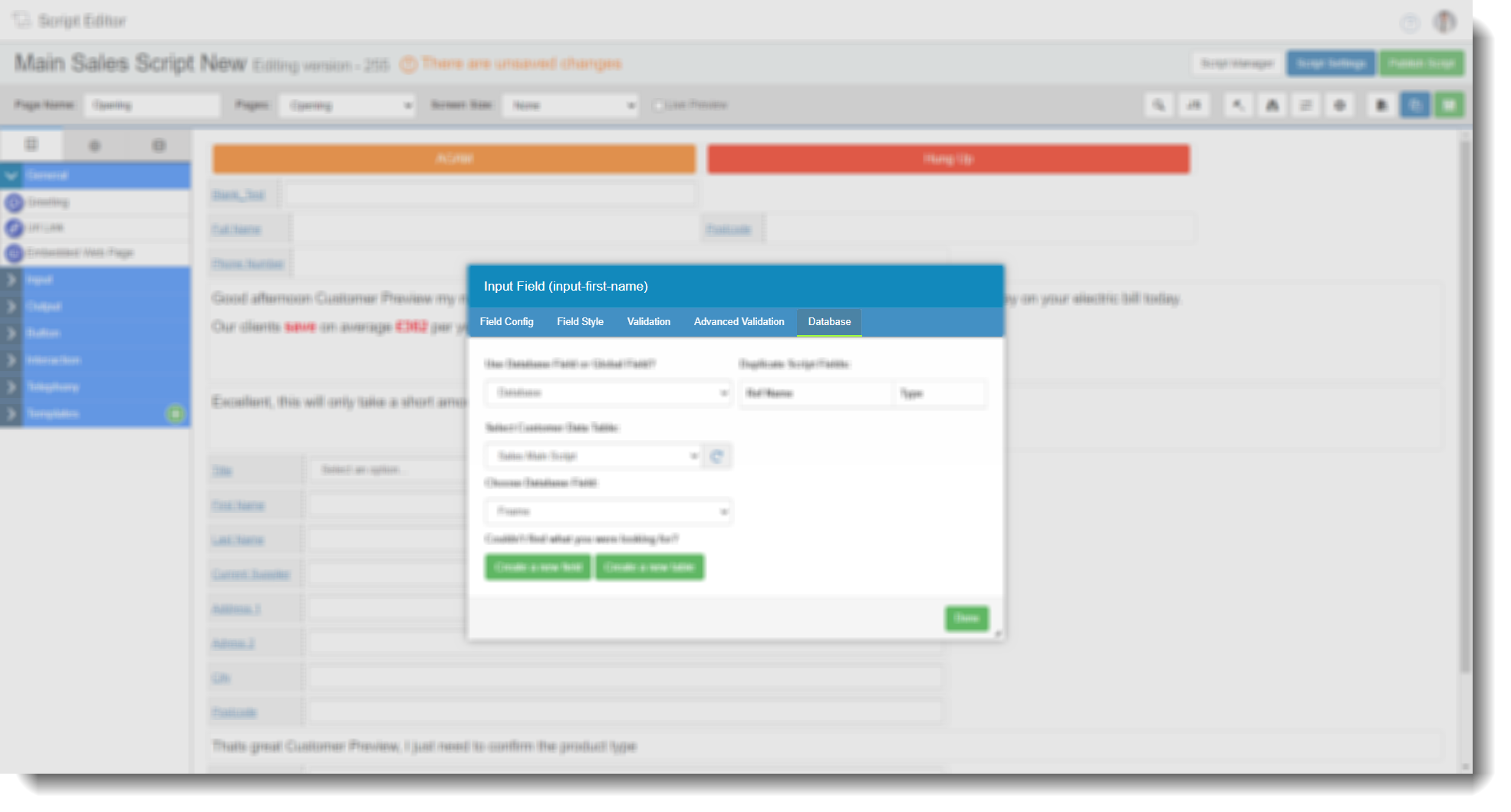
- Once on the database tab, you have 2 options you need to ensure are 'pointing at' the correct option - Select customer data table AND Choose database field.
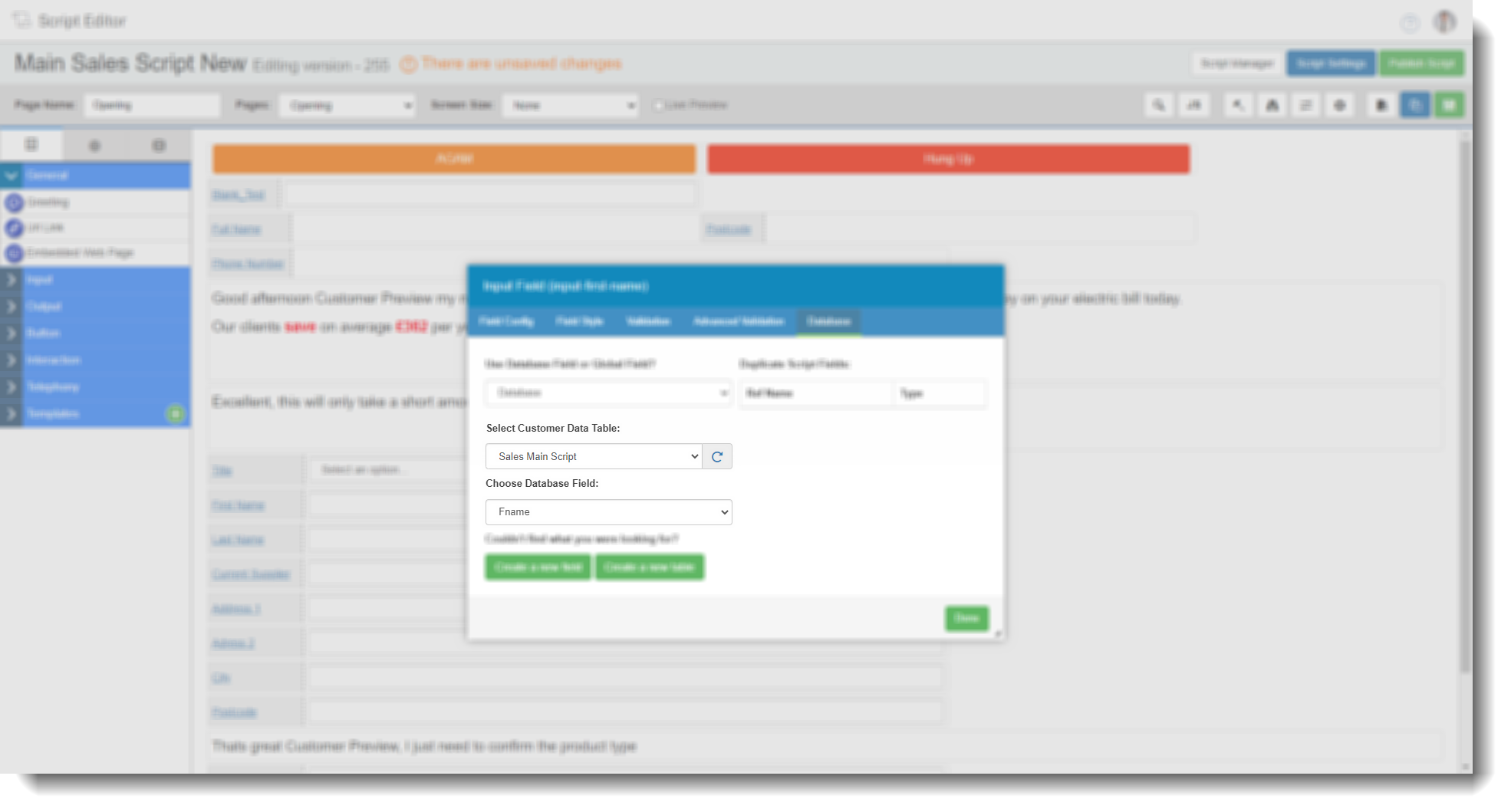 Select customer data tableHere you will see a drop-down with a list of data tables in the system. We will usually have one already setup for you to select, this may be your company name or product/service name.Choose database fieldHere you will then see a dropdown list of all your custom database fields, again we may have already created these for you. Simply select the relevant one and select done.
A data table is simply a list of all your fields from your own data, customer name, postcode, product/service, money owed, tariff etc. When you import data to the system, it is mapped to these fields for use in areas such as scripts. For more on this, see the guide on imports or data tables.
You can use the shortcut buttons to add a field or a table if you need to. Ensure they are named something appropriate.
If you are building a script and realise, on import, you didn't add a field for something you want your agents to fill in on a call/interaction. You can add a field and assign it to one of your drag and drop fields in your script.
Once you save and publish, when you script 'pops' on screen for your users on a call/interaction, if you have that information in the data table, users will see it on screen (the example above being first name).
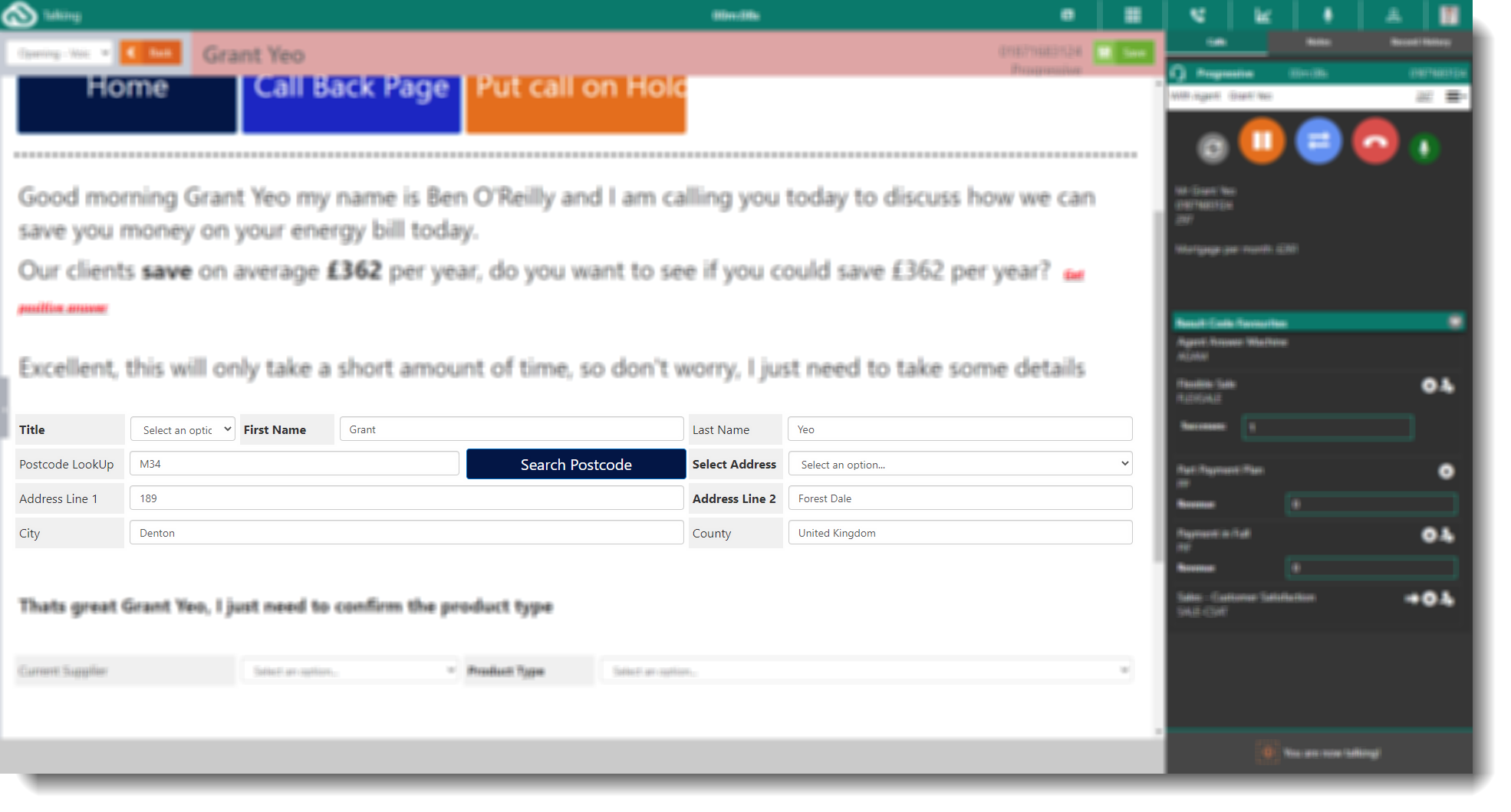
*Above data is simulated data.
Navigating to other pages
You may want your script to have multiple pages rather than one page for agents to scroll through. If this is the case, you will need to add navigation buttons to the script which will take your agent from the opening page to others.
- From the drag and drop options, select Button then drag in a Navigation Button to the script.
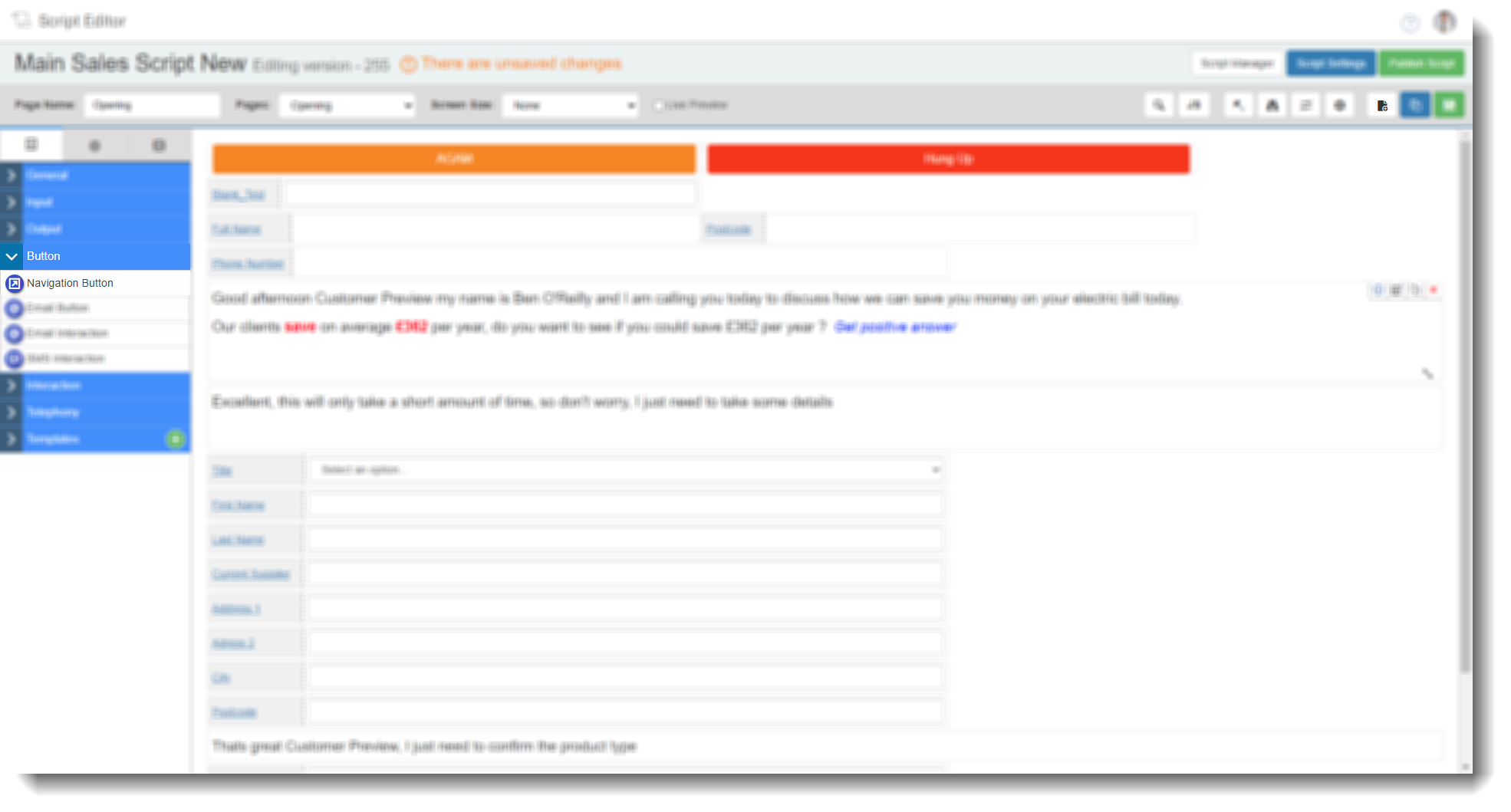
- Position this where required then open up the edit options
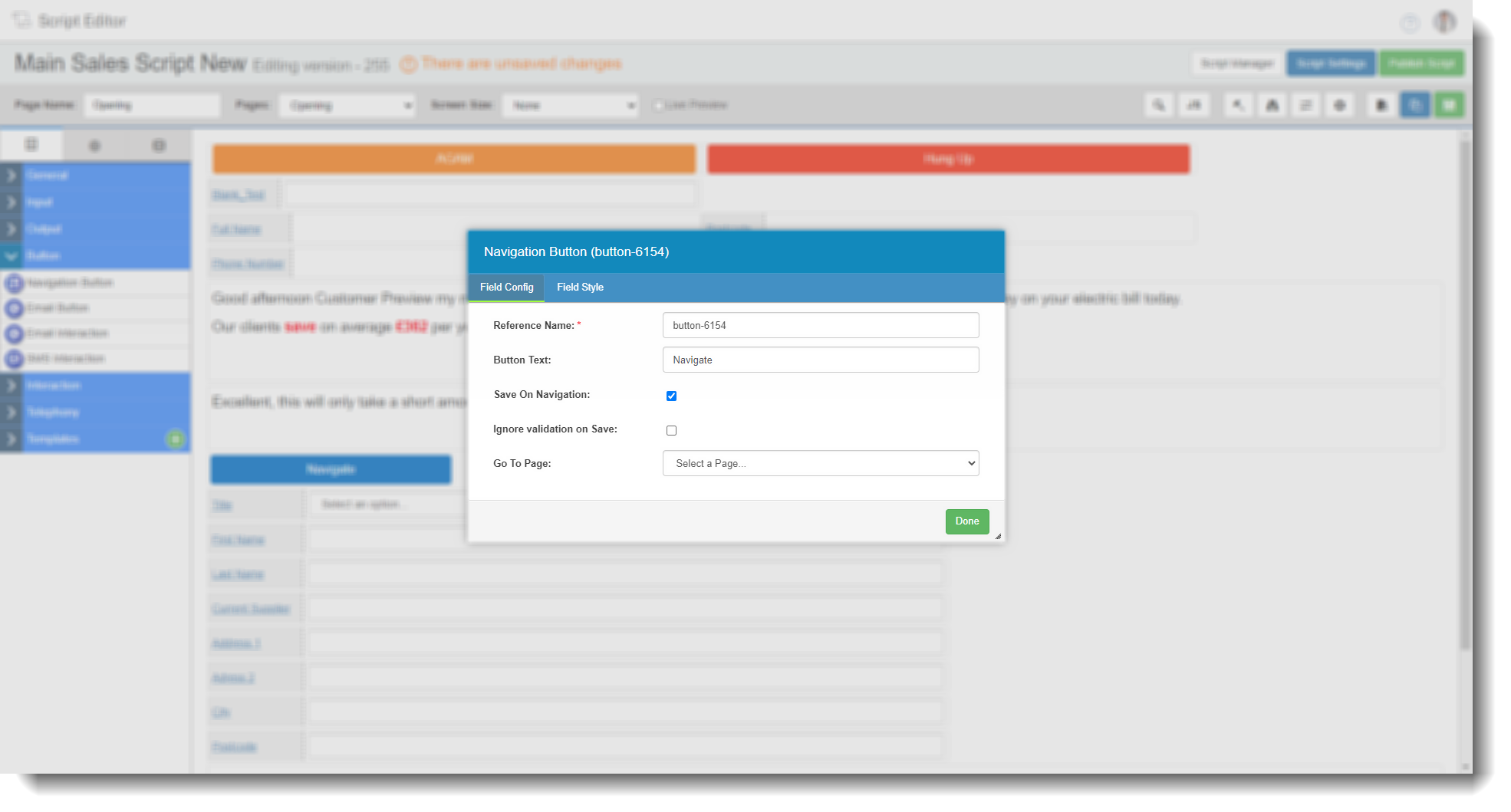
- In the dialog box that appears, change the text displayed on the button if required and select the page you want the button to send the agents to.
For guides on all scripting areas in more detail, including the advanced options, see this section of the knowledge base.