

Email Channel Configuration Options
The email channel configuration is split across three tabs. This article describes each tab and the settings within it.
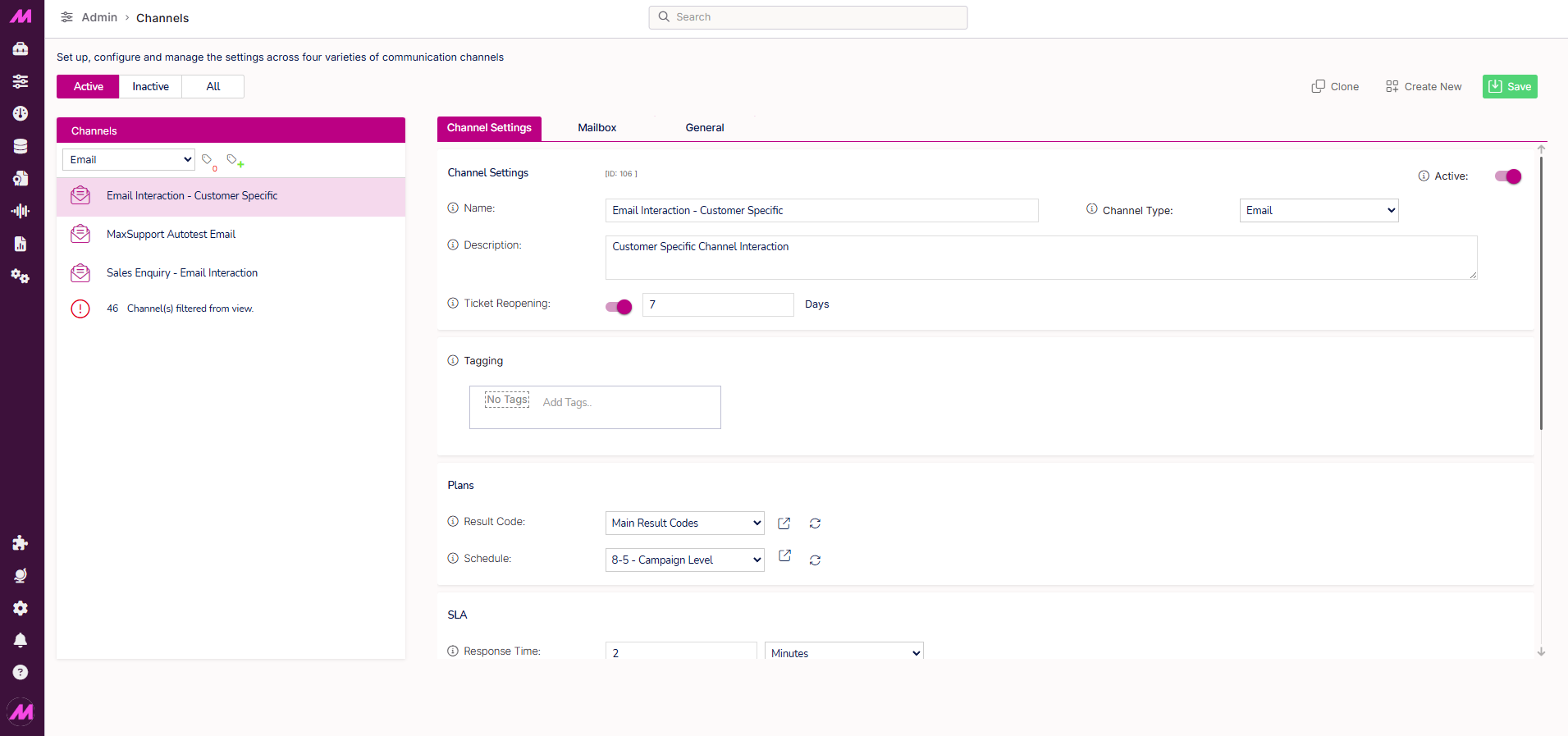
To access an email channel, go to Admin > Channels > Channels, filter by Email, and select the channel you want to configure.
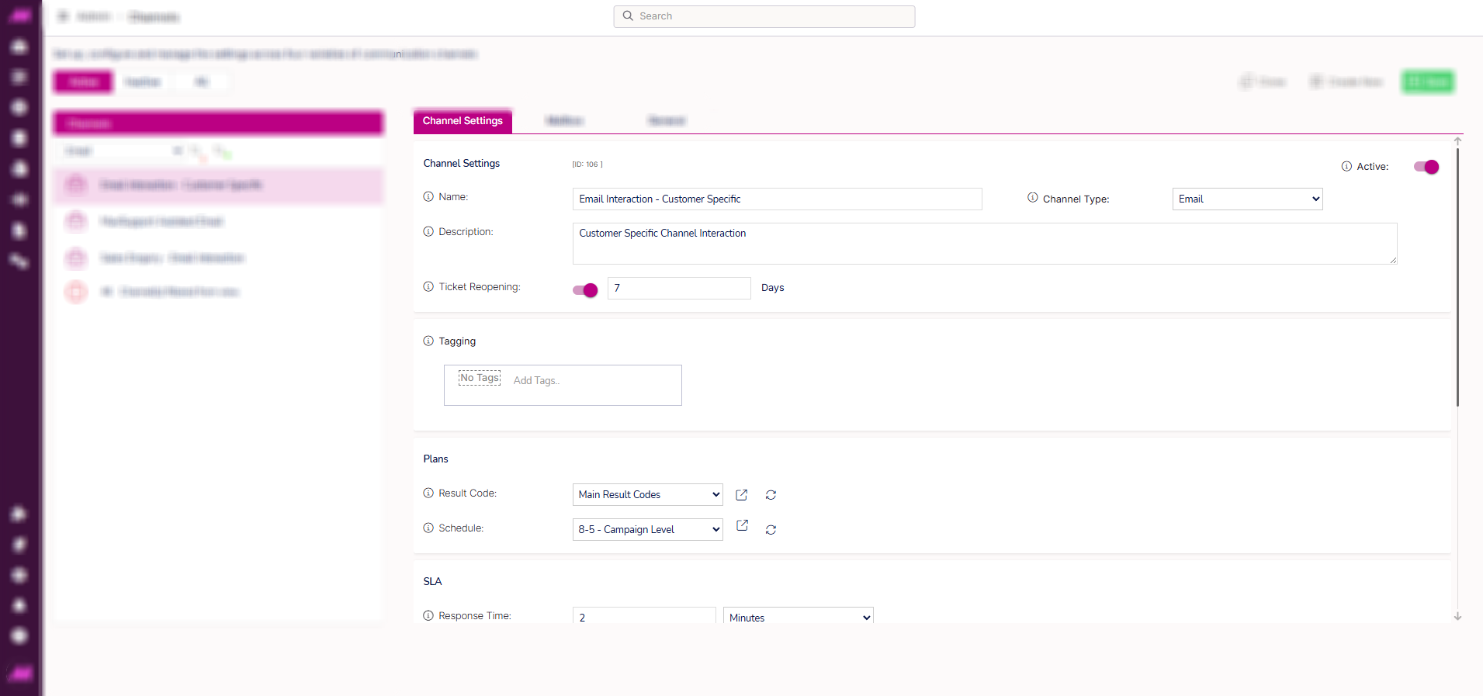
Channel Settings tab
Channel settings
| Setting | Description |
|---|---|
| Name | The channel name, visible to agents and used in reporting. Maximum 40 characters. |
| Channel type | The type of channel. Set to Email. |
| Active | Toggle to make the channel active or inactive. |
| Description | An internal description for the channel. Not visible to customers. Maximum 1,000 characters. |
| Ticket reopening | When enabled, a customer who replies within the specified number of days will reopen their previous ticket rather than creating a new one. If the period has expired, a new ticket is created automatically. |
Tagging
Visible only when the tagging feature is enabled. Select the tag field to assign or remove tags on this channel. For more information, see Tagging — Where and how it affects the system.
Plans
| Setting | Description |
|---|---|
| Result code | The result code plan used for interactions on this channel. Only result codes within the selected plan are available to agents when dispositioning. Result codes must also have the Email channel type assigned in their configuration to appear. See Result Codes for more detail. |
| Schedule | The schedule plan for this channel. When assigned, in-hours and out-of-hours automatic reply templates become available in the General tab. See Plans for more detail. |
SLA
| Setting | Description |
|---|---|
| Response time | The maximum time an agent should take to respond to an interaction. A countdown timer is displayed on the interaction tab in Contact Hub. |
| Response warning | The percentage of the response time at which agents are warned they are approaching the SLA. The interaction tab changes from green to amber at this point. Set to 100% to disable the warning. |
| Manual park | When enabled, agents on the queue associated with this channel can manually park an interaction to pause the SLA timer while they carry out work away from the screen. See Park Interactions for more detail. |
| Automatic park | When enabled, interactions are automatically parked when an agent on the queue receives an inbound call. Without this, the SLA timer continues to run during voice calls. Both manual and automatic park can be enabled simultaneously. |
User settings
| Setting | Description |
|---|---|
| Capacity | The maximum number of concurrent email interactions an agent can handle from this channel at any one time. Capacity is cumulative across all channels an agent is assigned to unless a specific user capacity plan is set. See Agent Capacity Plans for more detail. |
| Force ready | When disabled (default), agents go Not Ready when they receive an interaction and return to ready manually. When enabled, agents remain ready after receiving an interaction until their capacity is filled, and automatically return to ready once capacity drops. Agents can only leave the campaign or take a break after their current interactions are completed. |
Scripting
| Setting | Description |
|---|---|
| Enable | Toggle to enable or disable the use of a script on this channel. |
| Provider | Select Max to use a script built within MaxContact, or Other to use an external CRM or third-party system. |
| Max Script | The MaxContact script to display to agents for interactions on this channel. Only available when Provider is set to Max. |
| Script URL | The URL for the script. Populated automatically for Max scripts. Enter the URL manually when Provider is set to Other. |
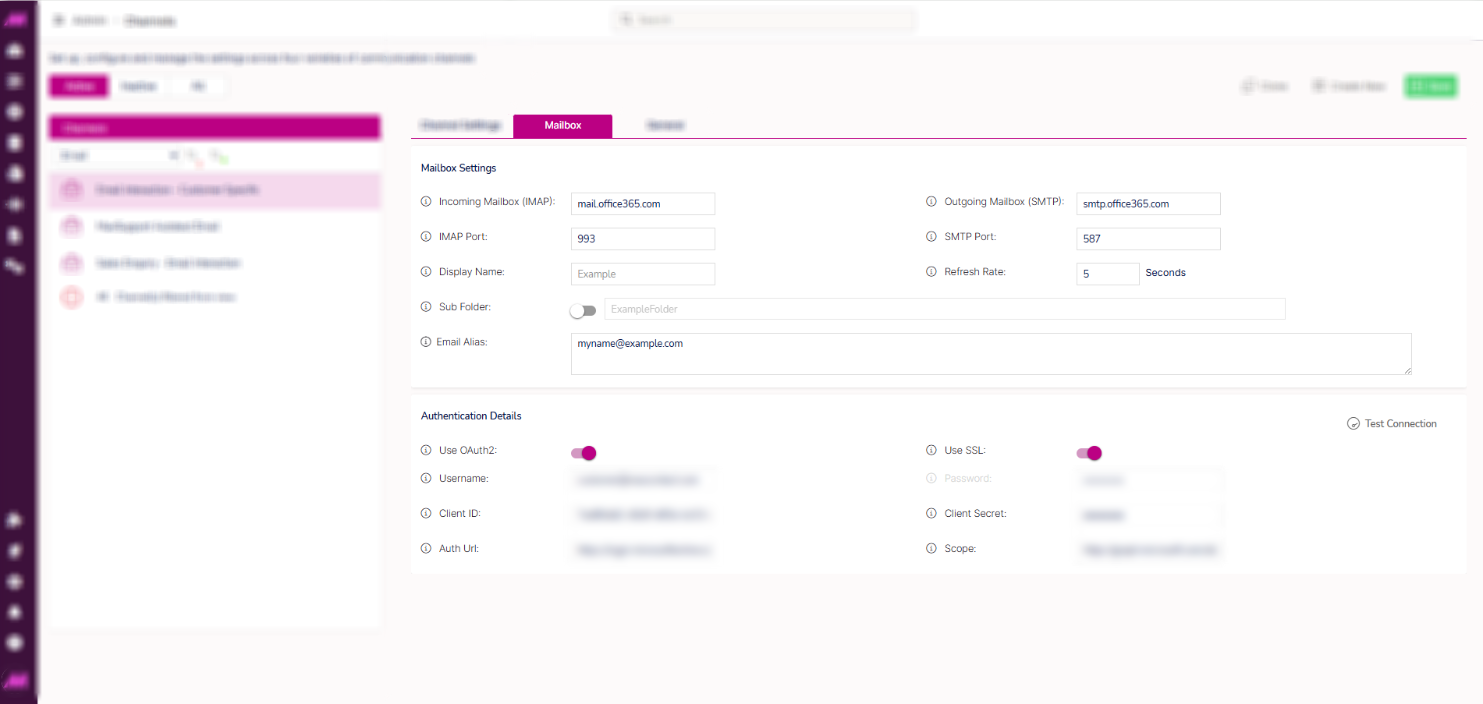
Mailbox tab
Mailbox settings
The mailbox settings connect MaxContact to your email account. These details are available from your email provider. For common providers such as Microsoft 365, the server settings can usually be found with a quick search online. For company-specific accounts, contact your IT team or email provider.
| Setting | Description |
|---|---|
| Incoming mailbox (IMAP) | The incoming mail server address as provided by your email provider. |
| Outgoing mailbox (SMTP) | The outgoing SMTP server address as provided by your email provider — for example, smtp.example.com. |
| IMAP port | The port used for inbound messages as provided by your email provider. |
| SMTP port | The port used for outgoing messages as provided by your email provider. |
| Display name | The sender name displayed on outgoing emails from this channel. |
| Refresh rate | How often MaxContact checks the inbox for new emails, in minutes. Must be greater than 1. |
| Sub folder | Toggle to pull emails from a specific folder rather than the top-level inbox. Enter the exact name of the folder (not case sensitive). A sub-folder sits within a top-level folder; a top-level folder sits at the same level as the inbox. |
| Email alias | Any additional email addresses (aliases) associated with the mailbox. Adding aliases here ensures emails sent to those addresses are also pulled into the channel. |
Authentication details
Choose between SSL (username and password) or OAuth 2 authentication. For OAuth 2 setup with Microsoft Azure, see Azure Mailbox OAuth2 Integration.
| Setting | Description |
|---|---|
| Use OAuth 2 | Toggle to authenticate via Microsoft Azure using OAuth 2.0. When enabled, the Client ID, Client secret, Auth URL, and Scope fields become available. |
| Use SSL | Toggle to use a secure SSL connection when sending and receiving emails. |
| Username | The username for the email account. 1–250 characters. |
| Password | The password for the email account. Once saved, this is encrypted and is no longer viewable. 1–250 characters. |
| Client ID | The public identifier for the application registered in Azure. OAuth 2 only. |
| Client secret | The secret known only to the application and the authorisation server. OAuth 2 only. |
| Auth URL | The endpoint used to generate the access token when requesting email access. OAuth 2 only. |
| Scope | Controls what level of access the application has to the user account. OAuth 2 only. |
Use the Test connection button to verify your authentication settings are correct before saving. A confirmation or error message will indicate whether the connection was successful.
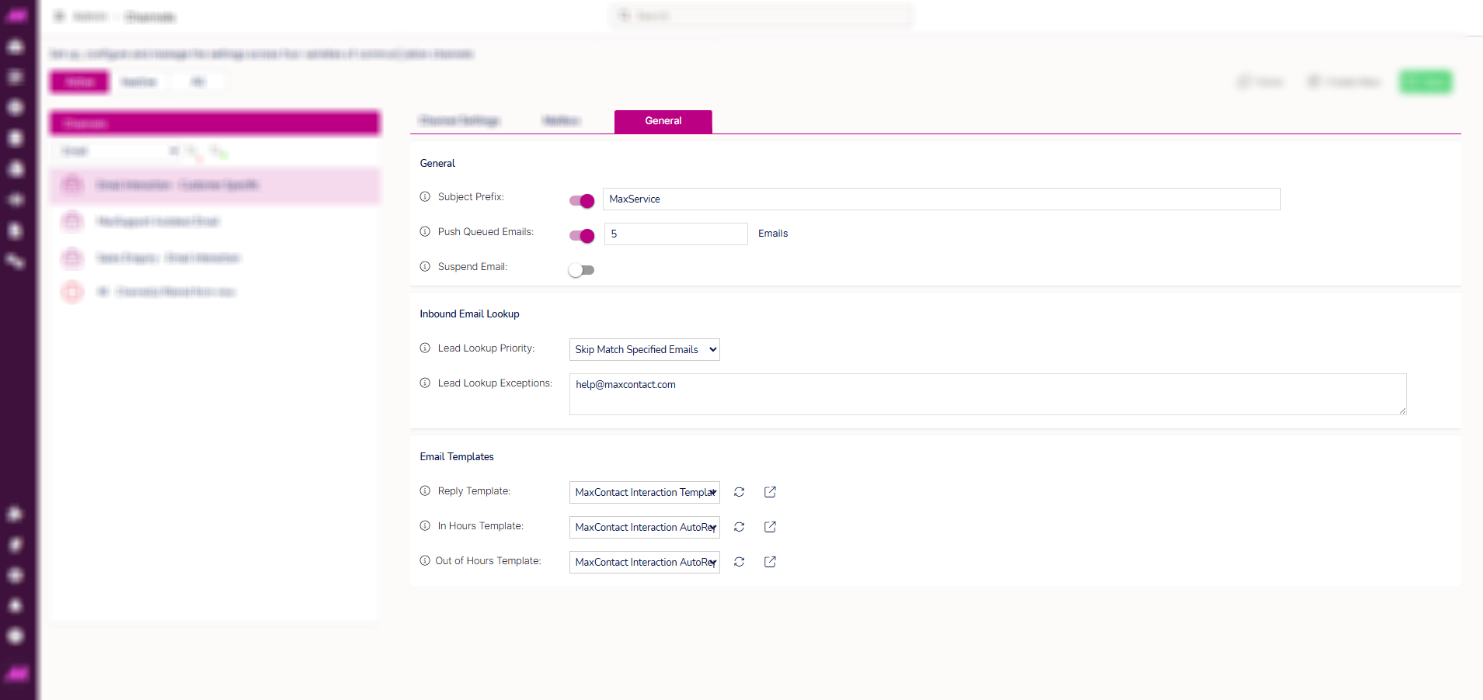
General tab
General
| Setting | Description |
|---|---|
| Subject prefix | Text added to the beginning of all email subjects sent from this channel. Helps agents and customers identify the purpose or origin of the email at a glance. |
| Push queued emails | When enabled, any additional emails from a sender who already has an open ticket in the same queue are pushed to the same agent handling that ticket. Set the maximum number of additional emails that can be pushed to the agent at one time. |
| Suspend email | Toggle to temporarily pause new emails being pulled from the mailbox. Existing emails and outbound sending are unaffected. A pause icon appears next to the channel in the left-hand list while suspended. Toggle again to resume. See Suspend Emails for more detail. |
Inbound email lookup
| Setting | Description |
|---|---|
| Lead lookup priority | Controls how incoming emails are matched to existing leads. Match all — automatically matches to an existing lead if one exists for the sender's address. Skip match (all) — all incoming emails are treated as new leads. Skip match (specified emails) — follows the Match all process unless the sender's address appears in the Lead lookup exceptions list, in which case it is treated as a new lead. |
| Lead lookup exceptions | Email addresses to exclude from lead matching when Skip match (specified emails) is selected. Enter one address per line. Commonly used for webform addresses where multiple customers share the same sender address. |
Email templates
| Setting | Description |
|---|---|
| Reply template | The template applied to all agent replies sent from this channel — for example, to apply standard branding or a footer. The template must include the {{messagecontent}} fill point, otherwise the agent's message body will not appear in the sent email. This template is not visible to agents while composing. Use the Go to button to open Message Templates. |
| In hours template | An automatic reply sent when an email is received during scheduled hours. Used to acknowledge receipt and set customer expectations. Only available when a schedule is assigned to the channel. |
| Out of hours template | An automatic reply sent when an email is received outside scheduled hours. Only available when a schedule is assigned to the channel. |