

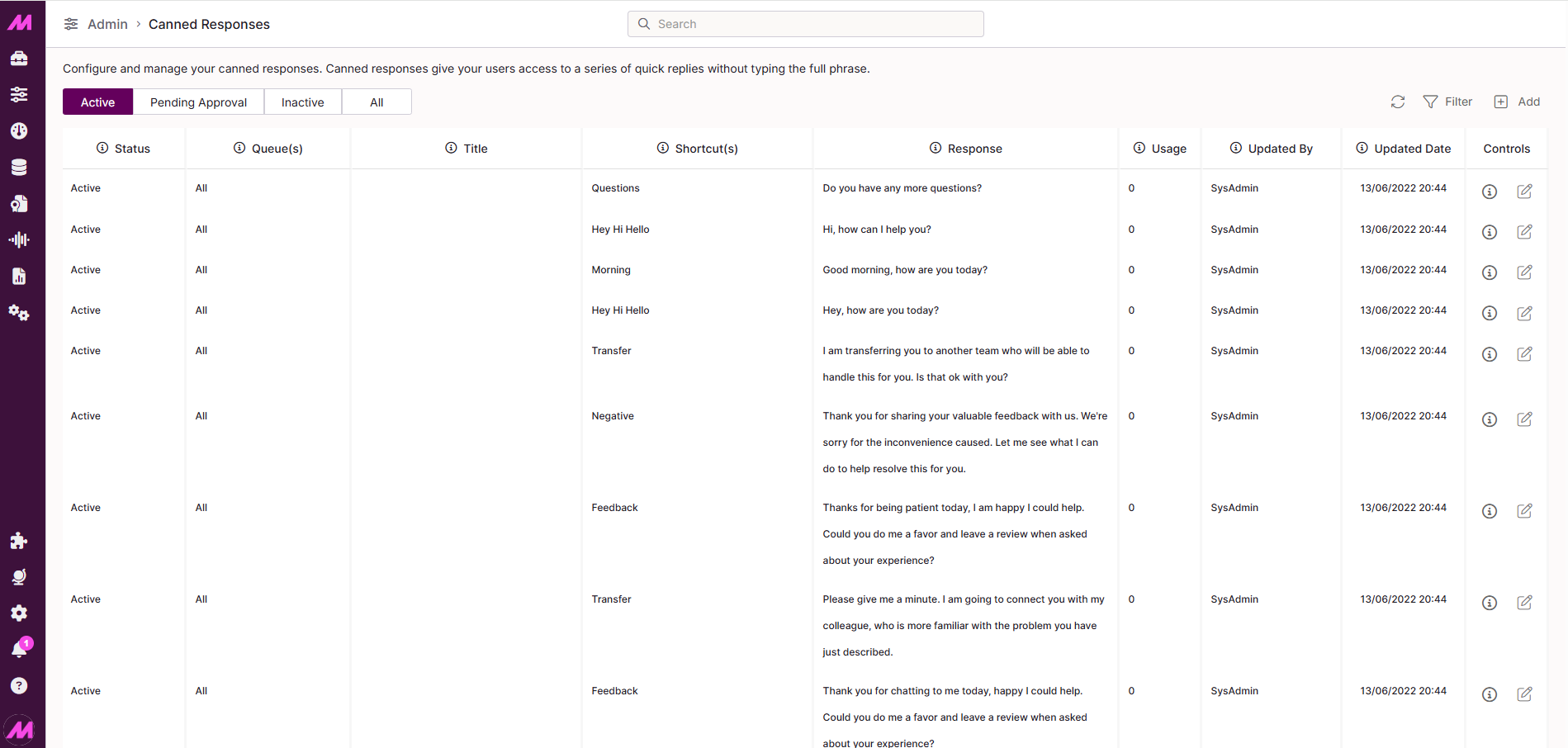
Overview
Canned responses are pre-written replies that agents can insert during interactions. They reduce handle time on repeat queries, improve spelling and consistency, and free agents to focus on the parts of a conversation that need a personal touch.
To access the page, go to Admin > Channels > Canned Responses.
Responses can be grouped using shortcuts — for example, setting a shortcut of complaints means agents can type /complaints in Contact Hub to instantly filter all responses related to complaints.
Note. There are 30 default canned responses included with your system. These can be used as-is, edited to suit your needs, or ignored. See the Default canned responses section at the bottom of this article for the full list.
Page controls
| Control | Description |
|---|---|
| Active | Filters the table to show only active canned responses. |
| Pending approval | Displays all canned responses awaiting approval. Review this regularly to ensure responses submitted by agents are actioned promptly. |
| Inactive | Shows all canned responses that are currently inactive. |
| All | Shows all canned responses regardless of status. |
| Refresh | Reloads the page to pick up any changes made by other users. |
| Filter | Adds a filter row beneath the column headers, letting you narrow results by response text, queue, shortcut, and more. |
| Add | Opens the dialogue box to create a new canned response. |
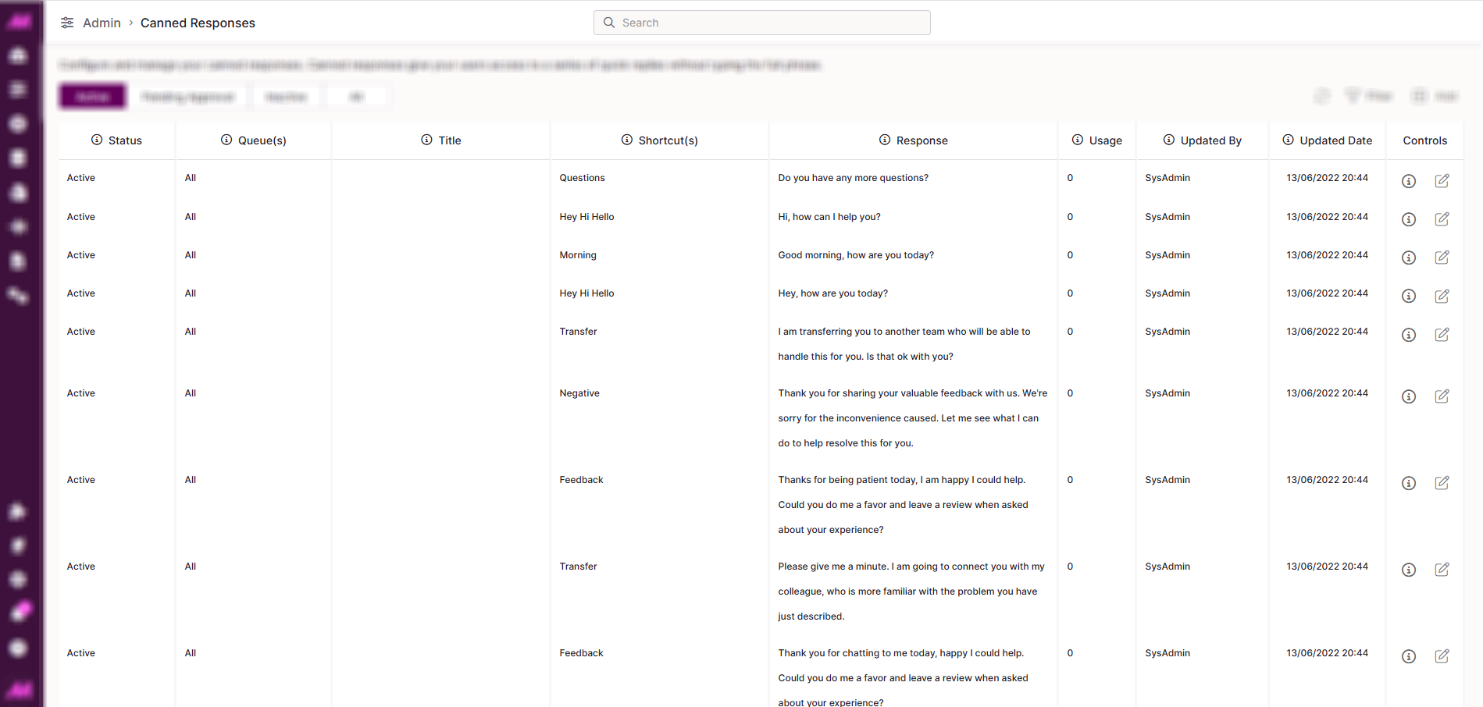
Canned responses table
The table lists all canned responses on the system. Columns can be sorted by clicking the column header — for example, sorting by Updated date to see the most recently changed responses first.
| Column | Description |
|---|---|
| Status | The current status of the response. Only responses with a status of Active are visible to agents in Contact Hub. |
| Queue(s) | The number of queues this response is assigned to. Click the edit icon in the Controls column to see which specific queues those are. |
| Title | The name of the canned response. Visible to agents in Contact Hub. |
| Shortcut(s) | The shortcuts linked to this response. Agents type / followed by a shortcut in Contact Hub to search for matching responses. Multiple shortcuts are separated by a space. |
| Response | The text that will be inserted into the agent's reply when they select this response. Responses should be helpful and personalised — avoid anything that sounds generic or robotic. |
| Usage | How many times this response has been selected by agents in the past 90 days. Usage is counted when an agent selects the response, not when it is sent — so an agent editing before sending still counts as one use. |
| Updated by | The user who last updated this response. |
| Updated date | The date and time the response was last updated. |
| Controls | Info — shows who created the response, when it was created, and who approved it. Edit — opens the dialogue box to edit the response, its status, assigned queues, and shortcuts. |
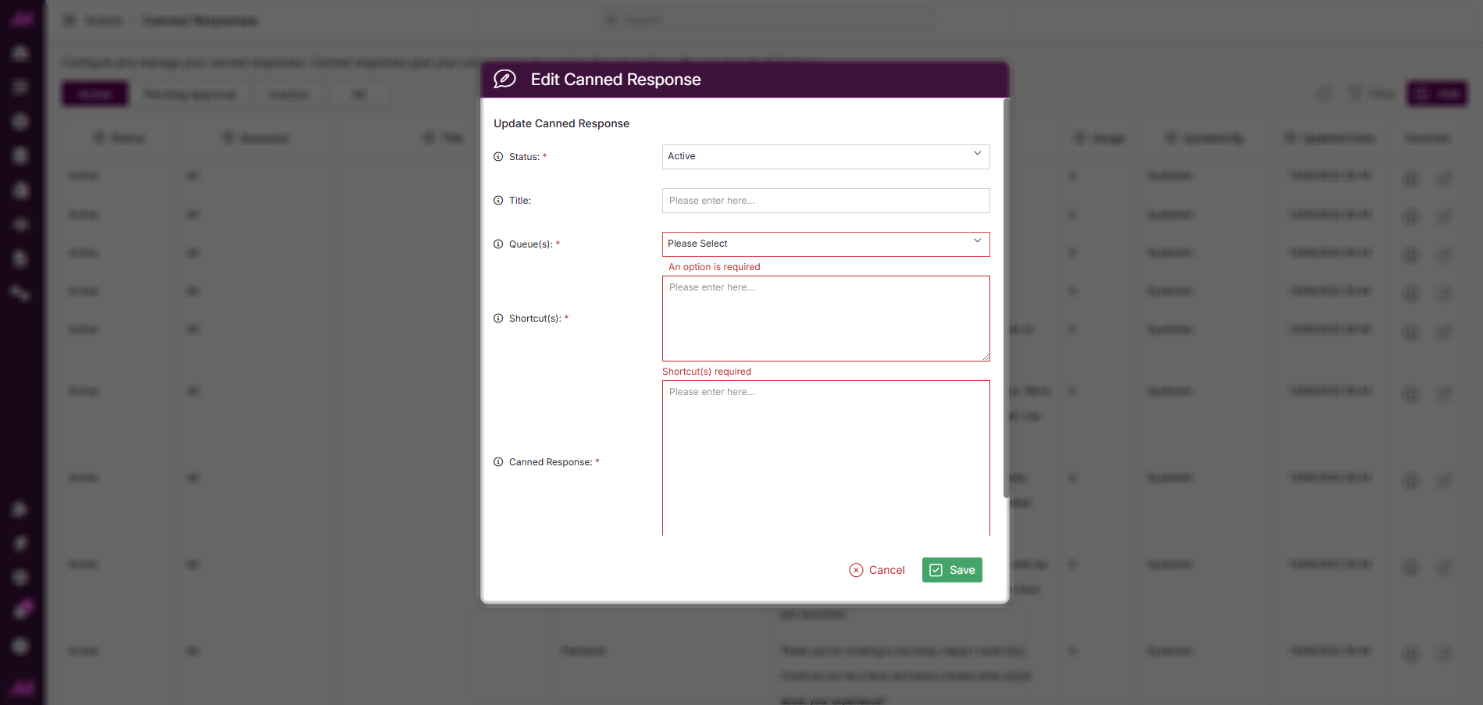
Creating a canned response
- Click the Add button at the top of the page. The create dialogue box will appear.
- Complete the fields:
| Column | Description |
|---|---|
| Status* | Set the status for the response. Responses created on this page can be set directly to Active — the approval process is bypassed for admin users. Required. |
| Title | The name of the canned response. Visible to agents in Contact Hub. |
| Queue(s)* | Select one or more queues to make this response available on. Click a queue name to select it; click again to deselect. Required. |
| Shortcut(s) | Enter one or more shortcuts for this response. Agents use / followed by the shortcut to find the response in Contact Hub. Separate multiple shortcuts with a space. Keep shortcuts relevant to the response text. |
| Canned Response* | The text that will be inserted into the agent's reply. Required. |
* Required field
- Click Save. The response will appear at the top of the table and is immediately available to agents on the assigned queues.
Note. Canned responses created on this page do not require approval — they are set to active immediately on saving.
Editing a canned response
Click the Edit icon in the Controls column for the response you want to update. The same dialogue box used for creation will open, allowing you to change the status, queues, shortcuts, or response text. Click Save when done.
Default canned responses
Your system includes 30 default canned responses. These are available to use immediately, or can be edited or deactivated to suit your needs.
| Shortcut | Response |
|---|---|
| Questions | Do you have any more questions? |
| Afternoon | Good afternoon, how are you today? |
| Afternoon Help | Good afternoon, is there anything I can help you with? |
| Morning | Good morning, how are you today? |
| Morning Help | Good morning, how can I help you today? |
| Hey Hi Hello | Hello, how can I assist you today? |
| Hey Hi Hello | Hey, how are you today? |
| Hey Hi Hello | Hi, how can I help you? |
| Welcome Help | Hi, thank you for getting in contact. How can I help you today? |
| Review Feedback | I am going to take a look into that for you, please give me a few moments to come back to you. |
| Sorry | I am really sorry to hear that. Let me check what I can do. |
| Delay Sorry | I am really sorry you have been waiting to chat to us, let me try and get this sorted quickly for you. |
| Resolve | I am resolving this conversation for now. Please do reach out to us if you have more queries. We're always happy to help you. |
| Transfer | I am transferring you to another team who will be able to handle this for you. Is that ok with you? |
| Payment | I can confirm that a payment has been received, you don't need to take any further action at this time. Is there anything else I can help you with? |
| Concern | I understand your concern. Please allow us to fix this issue for you. |
| Help Anything | Is there anything else I can help you with? |
| Help | Is there anything I can help you with? |
| Transfer | Please give me a minute. I am going to connect you with my colleague, who is more familiar with the problem you have just described. |
| Inconvenience | Sorry for the inconvenience caused. |
| Feedback | Thank you for chatting to me today, happy I could help. Could you do me a favour and leave a review when asked about your experience? |
| Contacting | Thank you for getting in contact with us, how can I help you today? |
| Negative | Thank you for sharing your valuable feedback with us. We're sorry for the inconvenience caused. Let me see what I can do to help resolve this for you. |
| Negative | Thank you for sharing your valuable feedback with us. We're sorry for the inconvenience caused. We're known for creating an exceptional customer service experience, and we regret to have missed the mark. We'll never let this happen again. |
| Bye Goodbye | Thank you, have a nice day. Goodbye |
| Feedback | Thanks for being patient today, I am happy I could help. Could you do me a favour and leave a review when asked about your experience? |
| Nice | You are welcome, have a nice day! |
| Appointment | Your appointment will have been confirmed via a text message, is that ok or do you want to make some changes to that date/time? |
| Order | Your order details will have been included in the email. Hopefully you received that email as that should have all the information you need. |
| Sale | Your order has been successfully placed, you should receive an email shortly with all the information and the tracking information. |