

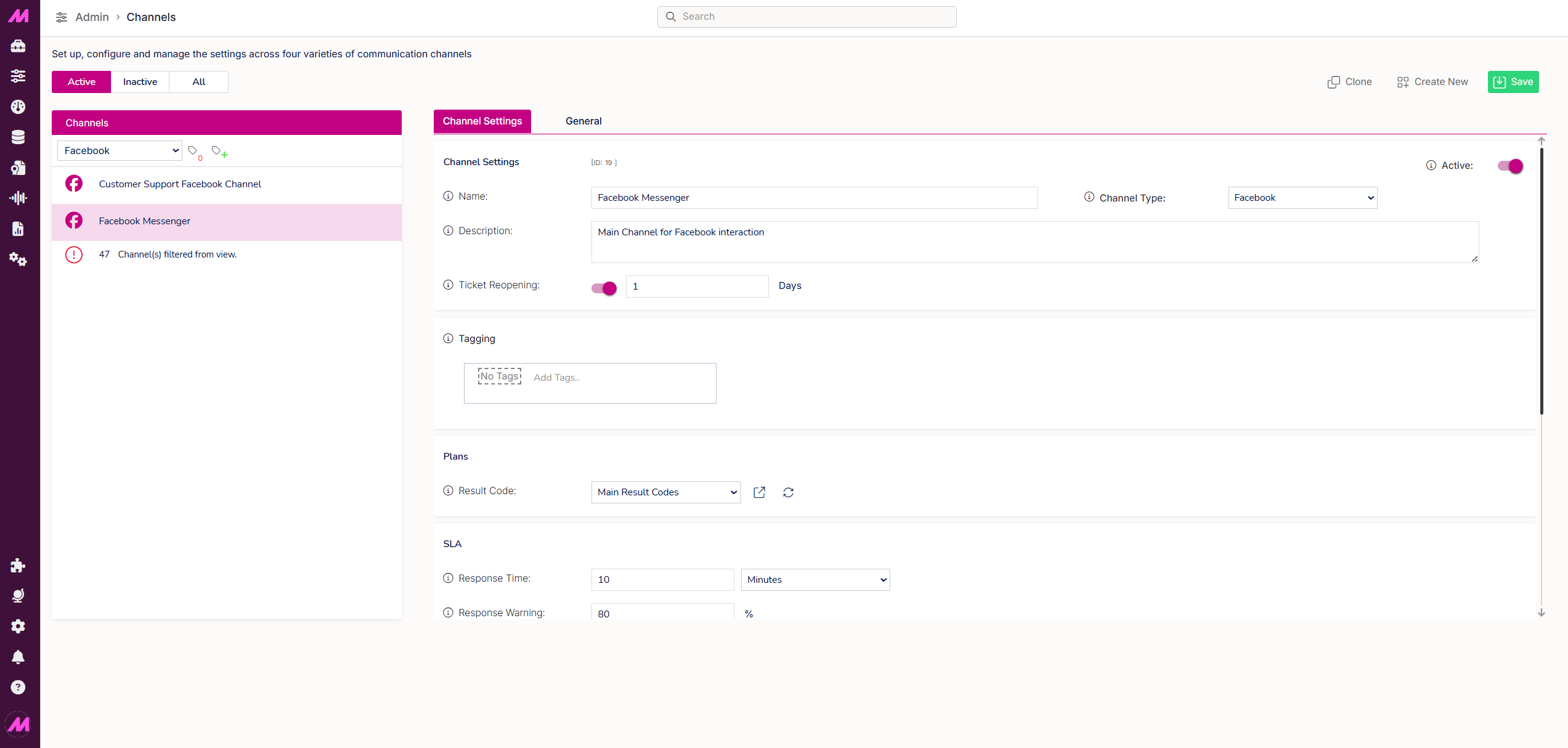
Facebook Channel Configuration Options
The Facebook channel configuration is split across two tabs. The Channel Settings tab is configured by your admin team. The General tab is configured by MaxContact during implementation and cannot be edited from within the portal, with the exception of enabling or disabling Facebook interactions on the channel.
To access a Facebook channel, go to Admin > Channels > Channels, filter by Facebook, and select the channel you want to configure.
Facebook considerations
There are a few platform-level limitations with Facebook Messenger that are worth being aware of before configuring the channel.
- All Facebook conversations must be initiated by the customer. It is not possible to send an outbound message to start a conversation from within Contact Hub.
- Facebook does not provide delivery or read receipts for messages sent via third-party platforms. These cannot be displayed in Contact Hub.
- Agents can send images (.jpeg and .png) and GIFs to customers. Customers can send any file type supported by Facebook Messenger.
- When a conversation is initiated by a customer, the system automatically captures their name. Agents can add the customer as a new lead or update an existing lead in the usual way.
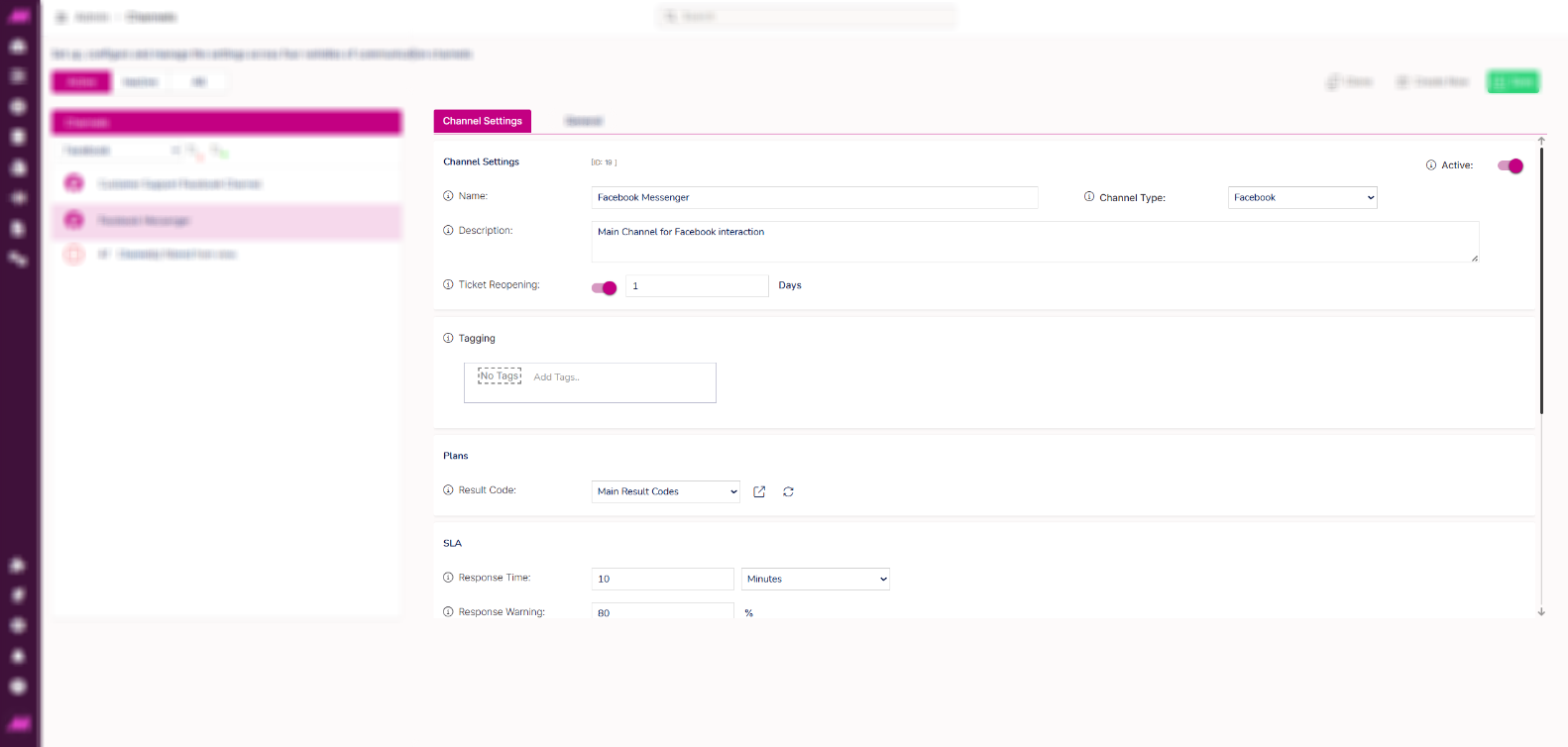
Channel Settings tab
Channel settings
| Setting | Description |
|---|---|
| Name | The channel name, visible to agents and used in reporting. Maximum 40 characters. |
| Channel type | The type of channel. Set to Facebook. |
| Active | Toggle to make the channel active or inactive. |
| Description | An internal description for the channel. Not visible to customers. Maximum 1,000 characters. |
| Ticket reopening | When enabled, a customer who messages within the specified number of days will reopen their previous ticket rather than creating a new one. If the period has expired, a new ticket is created automatically. |
Tagging
Visible only when the tagging feature is enabled. Select the tag field to assign or remove tags on this channel. For more information, see Tagging — Where and how it affects the system.
Plans
| Setting | Description |
|---|---|
| Result code | The result code plan used for interactions on this channel. Only result codes within the selected plan are available to agents when dispositioning. Result codes must also have the Facebook channel type assigned in their configuration to appear. See Result Codes for more detail. |
SLA
| Setting | Description |
|---|---|
| Response time | The maximum time an agent should take to respond to an interaction. A countdown timer is displayed on the interaction tab in Contact Hub. |
| Response warning | The percentage of the response time at which agents are warned they are approaching the SLA. The interaction tab changes from green to amber at this point. Set to 100% to disable the warning. |
| Manual park | When enabled, agents on the queue associated with this channel can manually park an interaction to pause the SLA timer while they carry out work away from the screen. See Park Interactions for more detail. |
| Automatic park | When enabled, interactions are automatically parked when an agent on the queue receives an inbound call. Without this, the SLA timer continues to run during voice calls. Both manual and automatic park can be enabled simultaneously. |
User settings
| Setting | Description |
|---|---|
| Capacity | The maximum number of concurrent Facebook interactions an agent can handle from this channel at any one time. Capacity is cumulative across all channels an agent is assigned to unless a specific user capacity plan is set. See Agent Capacity Plans for more detail. |
| Force ready | When disabled (default), agents go Not Ready when they receive an interaction and return to ready manually. When enabled, agents remain ready after receiving an interaction until their capacity is filled, and automatically return to ready once capacity drops. Agents can only leave the campaign or take a break after their current interactions are completed. |
Scripting
| Setting | Description |
|---|---|
| Enable | Toggle to enable or disable the use of a script on this channel. |
| Provider | Select Max to use a script built within MaxContact, or Other to use an external CRM or third-party system. |
| Max Script | The MaxContact script to display to agents for interactions on this channel. Only available when Provider is set to Max. |
| Script URL | The URL for the script. Populated automatically for Max scripts. Enter the URL manually when Provider is set to Other. |
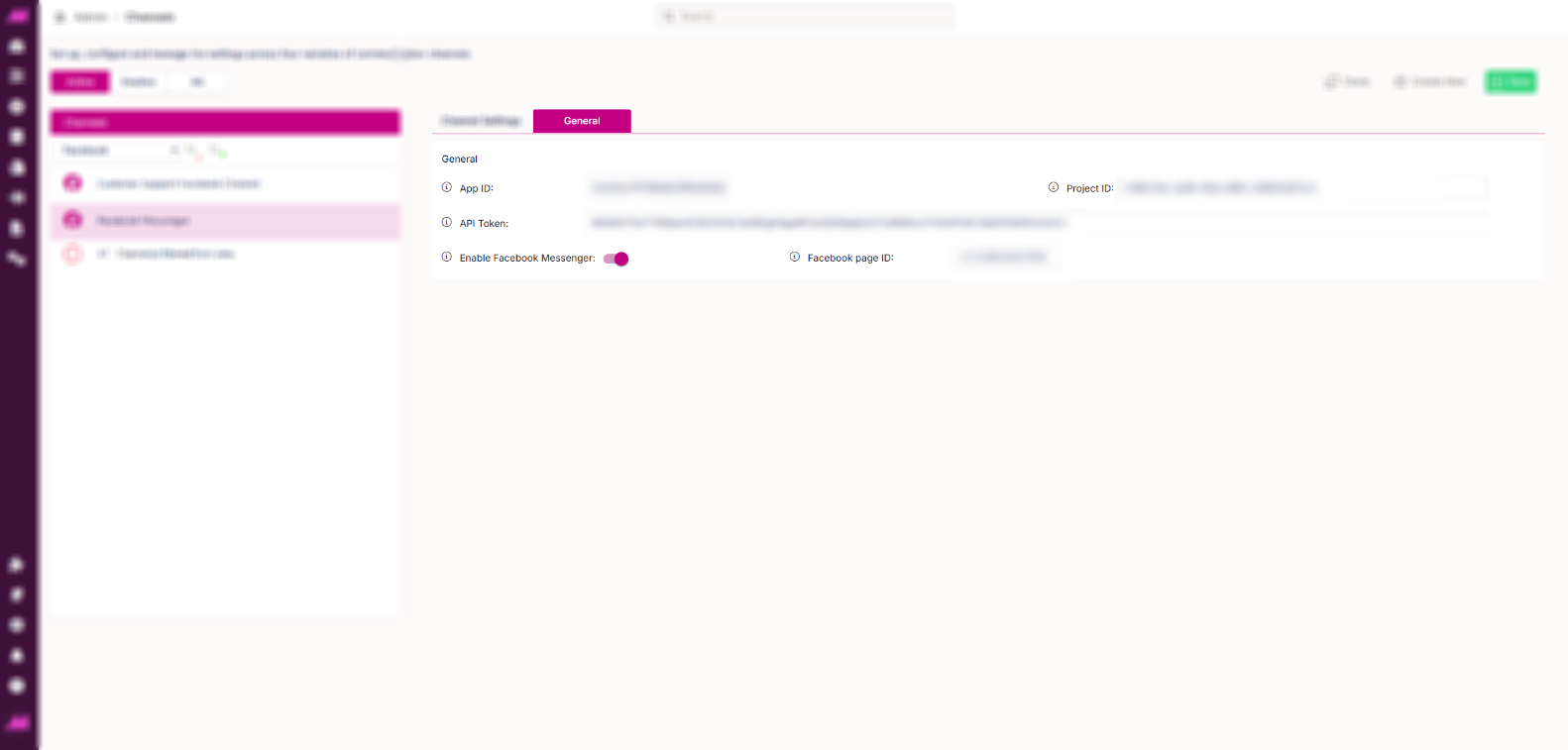
General tab
The General tab is configured by MaxContact during implementation. Settings cannot be edited from within the portal — contact the support team if you need changes made. The exception is the Enable Facebook toggle, which can be changed at any time.
| Setting | Description |
|---|---|
| App ID | The application identifier for the Facebook integration. Configured by MaxContact — contact the support team for any issues or changes. |
| Project ID | The project identifier for the Facebook integration. Configured by MaxContact — contact the support team for any issues or changes. |
| Facebook page ID | The ID of the Facebook Business page used to send and receive Messenger messages on this channel. Configured by MaxContact — contact the support team for any issues or changes. |
| Enable Facebook | Toggle to enable or disable Facebook interactions on this channel. This is the only field on this tab that can be edited from within the portal. |