
This feature allows clients to configure and send SMS messages directly from within the IVR. Whether that's sending an update on a customer-specific item, such as delivery status, or offering an alternative to customers waiting in a call queue, the process has been significantly simplified.
Why has this feature been developed and what are the benefits?
We have always been able to send SMS from IVRs but previously, the functionality had some drawbacks. This improved method has the following benefits
Historical information. You can see records of all SMS's that's been sent to customers via the Record History page.
Visibility for agents. Previously, anytime a customer contacted via SMS, agents wouldn't have visibility of the SMS the customer had received which resulted in bad user and customer experiences.
Reporting. You are now able to report on SMS message's in both standard and custom reports as well as via the replicated Database.
Dashboards and Wallboard statistics. Details of the number of SMS messages sent out can now be displayed in your dashboards and wallboards.
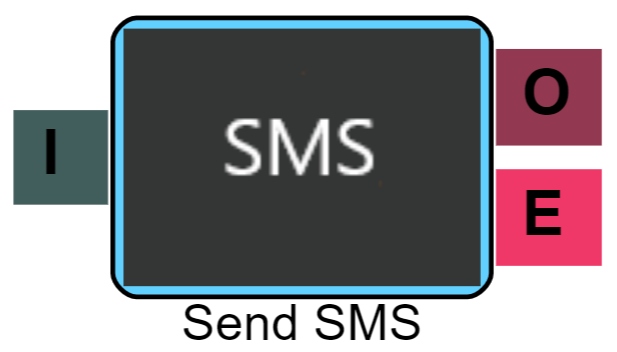
Basic Options
The basic version of this feature allows you to send out SMS messages that contains data held within the Lead table or Secondary tables of the MaxContact portal. Providing the IVR matches the lead, these messages can be personalised where required.
Hint - Fields like 'Agent name' will not populate as the caller won't have been connected to an agent.
Use case examples
- A customer calls into an IVR and is told that their call cannot be dealt with. A message can be played offering the customer an SMS with a link to webchat where they can continue their query.
- A customer calls in to make a payment, due to long queue times, they are offered an SMS which will contain a link to an online payment portal.
- A customer has booked an appointment with an agent but has forgotten/lost the details. When they call in, they here the message, "If you have made an appointment and need to retrieve the details, please press 5". This then sends an SMS with the relevant information about their appointment.
Step 1
Create a template for your SMS.
Step 2
Add SMS element to your IVR and point the Element to your SMS channel to receive replies.
Advanced Options
It's possible to create more complex IVRs that make use of API features. Should you have a third party system you wish to collate information from and apply it to the SMS, there are options to include this in your IVR.
Use Case Examples
- A debt collector has a call from a debtor, the system matches their lead and it is determined that the debt is now with an enforcement team. The IVR can send a request to the Debt collectors CRM system to feed back the enforcement teams information. This can then be sent to the Debtor via SMS. Completing this function in this way avoids the debtor having to wait to speak to an agent for them to then find out they need to speak to someone else.
- A customer calls to find out their delivery details and progress. They call in and have been given an option to receive a text with their information rather than waiting to speak to an advisor
To build the second example above, the following steps need to be followed.
1 - Make sure your IVR checks you have a mobile number for the caller (For more on this, get in touch with support).
2 - Setup an option for the customer t press 'option X' which is 'when's my delivery going to come?'
3 - The IVR needs to get the information from the 3rd party delivery company which sits outside of MaxContact.
We pull that information via an API element. This element will be called 'getdelivery' for this example

4 - The API returns the date and time of delivery into the system.
5 - A 'set property' element will store the information in the background to use later in the IVR. This element will be called 'getdelivery' for this example.
6 - In the Set Property element settings, we need to input the correct details.
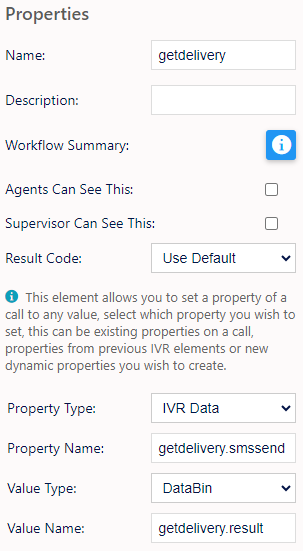
Property Type needs to be set to IVR Data.
Property Name set is 'getdelivery.smssend'
Value type (where the Data is coming from) equals DataBin (data that exists within the IVR).
Value name is the API element name so 'getdelivery.result'.
7 - Within the SMS template, created a fillpoint that pulls from the IVR custom data by selecting the {{ IVR fillpoints }} button.
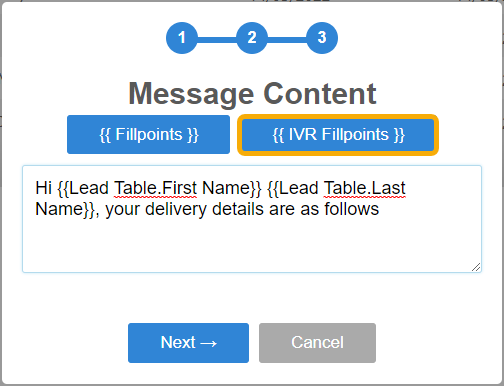
Paste in the 1st part of the property name, in this case 'getdelivery' then hit select.
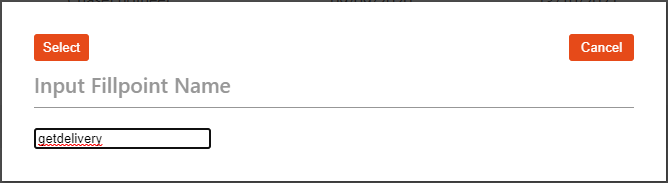
The fillpoint {{IvrCustomData.getdelivery}} is created.
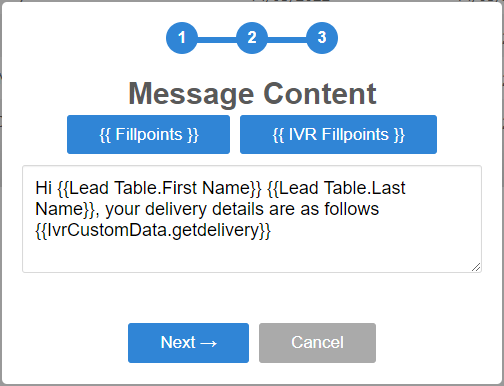
8 - Selecting the SMS template on your SMS element in the IVR will mean the customer will get the correct information.
If you require similar processes or have questions around whether a process you require can be achieved through SMS via IVR, please contact MaxSupport. We can help you build as complicated or as simple processes as you want!
Key points of awareness
- All SMS messages sent are stored in the Database so it can be reported on via the Replicated database and the stats are included in standard reports and dashboard widgets.
- As the SMS data is stored in the database, if a customer replies, the agent will see what was originally sent in the ticket history.
- This feature works with your existing SMS channels or you could setup a new one specifically for this, allowing customers to send replies in to users.
- SMS messages are visible within the Ticket history views in both Web Agent and Record History.