
Overview
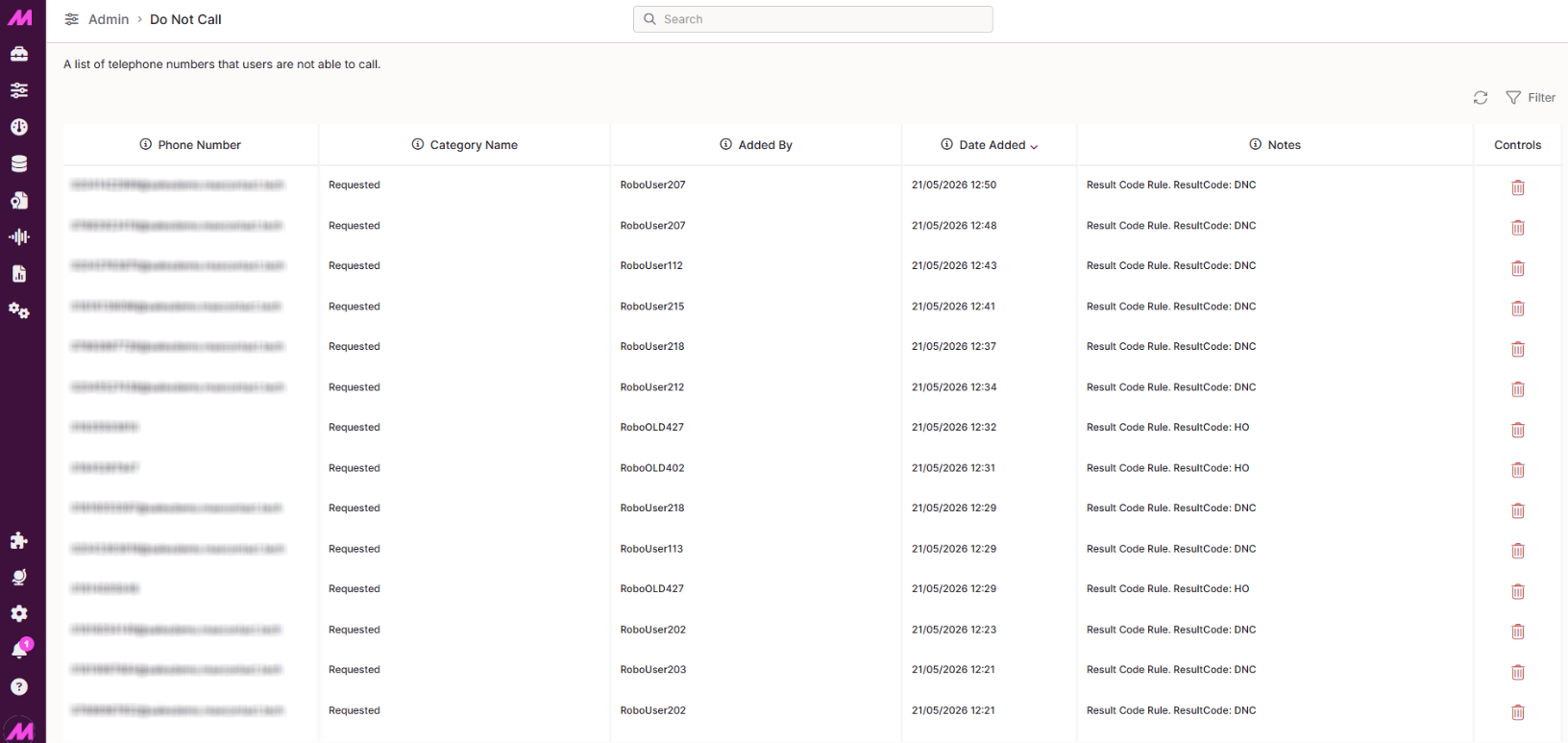
The DNC (Do Not Call) page lets you view and manage your suppression list — the numbers that are blocked from being dialled.
To access it, go to Admin > DNC.
For each entry on the list you can see:
| Column | Description |
|---|---|
| Telephone number | The number added to the DNC list. |
| Added by | The user who added the number to the list. |
| Date added | The date the number was added. |
| Notes | Any notes recorded at the time the number was added. |
| Category | The DNC category the number was added to. |
Searching the DNC list
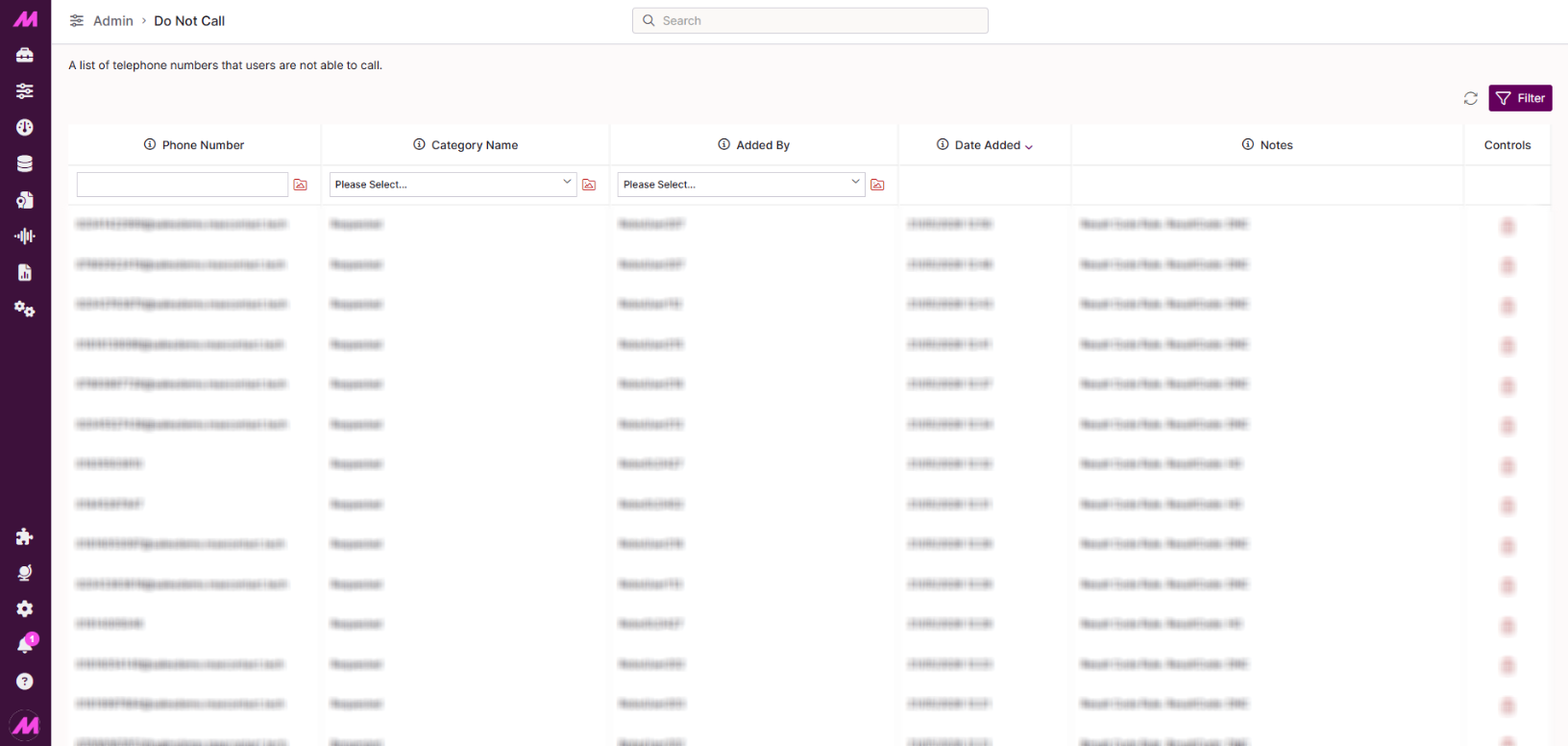
Use the filter at the top of the page to refine the results shown. Enter values across any combination of Phone Number, DNC Category, and Added By to narrow the list down.
Removing a number from the DNC list
Once you've located the number you want to remove, click the Delete button next to it. A confirmation dialog will appear before the number is removed.
Once deleted, the number is removed from the DNC list and becomes eligible to be dialled again.
Need to remove numbers in bulk? See the DNC Removal article for guidance on bulk removal.
Adding numbers to the DNC list
Numbers can be added to the DNC list in several ways:
- By an agent during a call — agents can apply a DNC result code when dispositioning a call
- By a supervisor or admin — numbers can be added manually via the Import DNC page or Lead Search & Edit
- Via bulk import — numbers can be imported in bulk using the Import DNC function